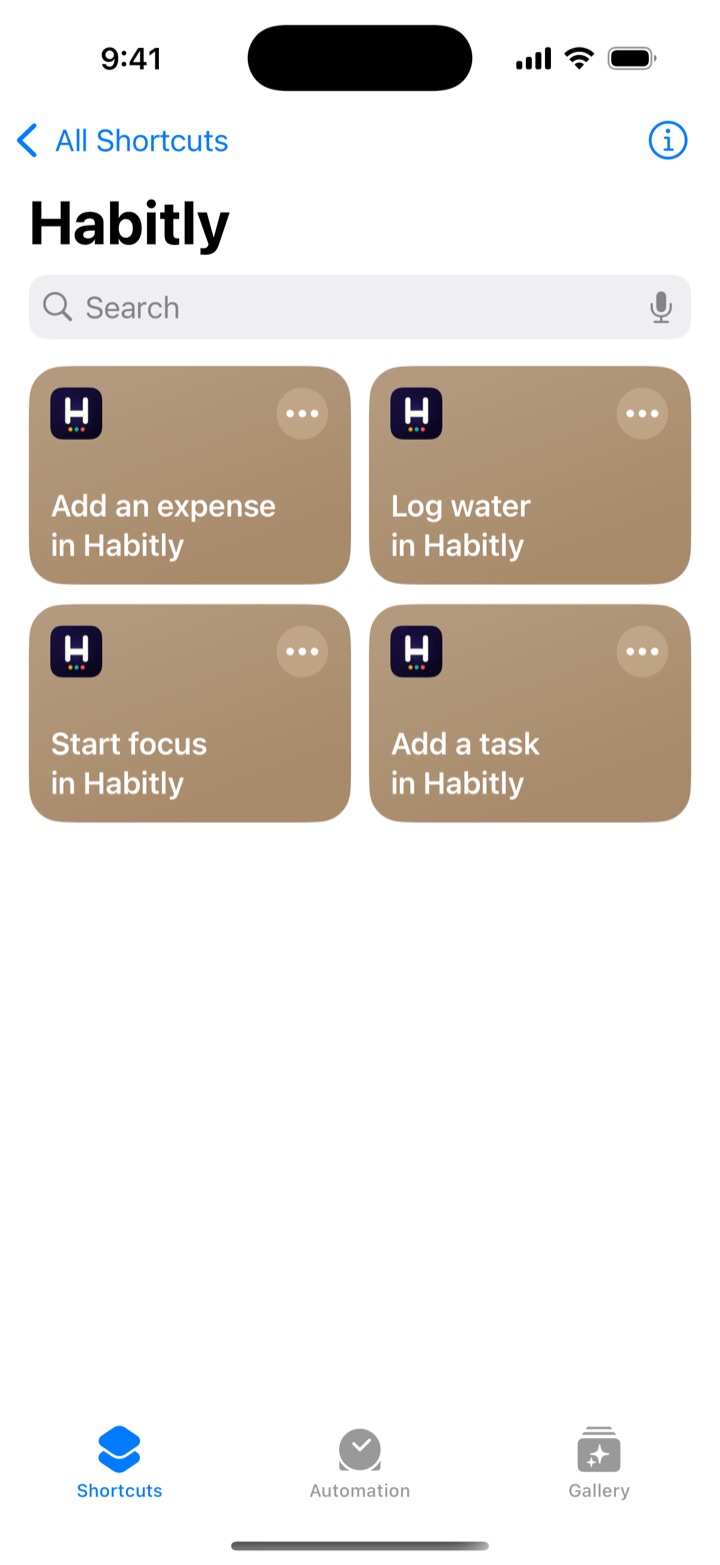
Habitly Feature Guide
Habitly.
  • Habits · Mood · Money
  • பழக்கங்கள் · மனநிலை · செலவு
  • आदतें · मूड · पैसे
  • అలవాట్లు · మూడ్ · డబ్బు

Habits, mood, money and health, in one app that stays on your phone.

Habitly is a free app for Android and iPhone, made in India. It reminds you about your morning walk, the tablet after breakfast and the EMI due on the 5th, and you tick each one off right from the notification. It works without internet, needs no account, and keeps everything on your phone.

  • Free
  • No account
  • Works offline
  • English, Tamil, Hindi, Telugu
  • Your data stays on your phone

Screens in this guide were captured on iPhone. The Android app has the same screens.

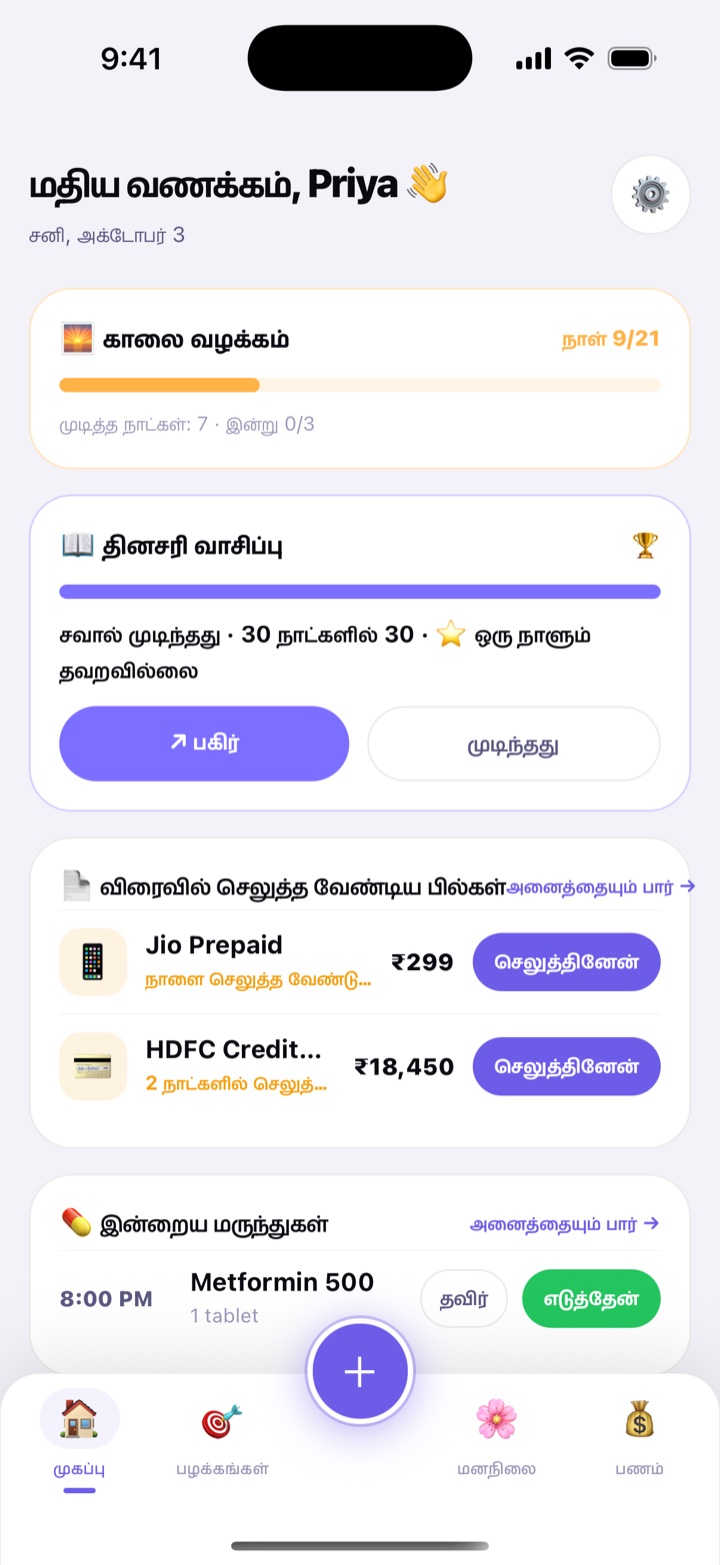
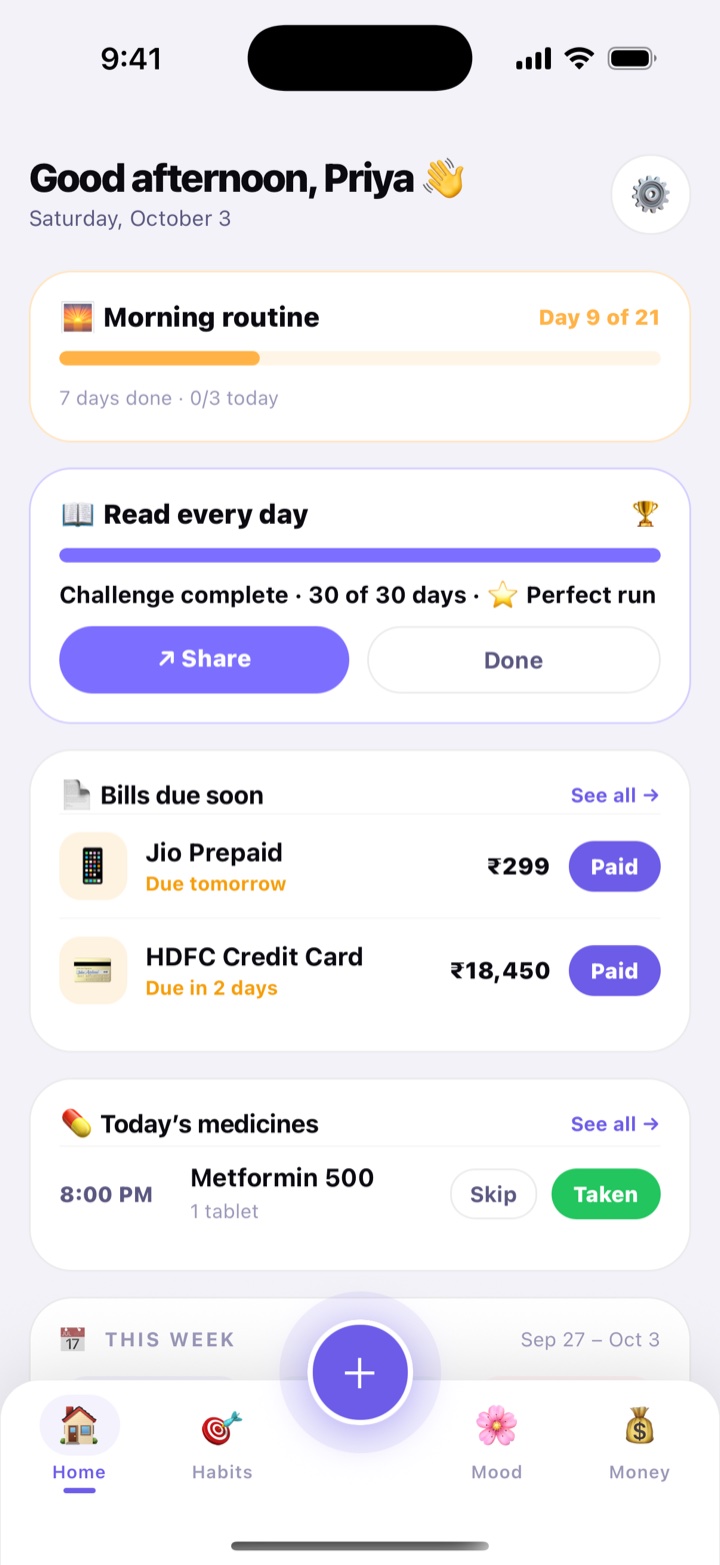
Habitly Home screen: a greeting, the Morning routine challenge on day 9 of 21, a finished Read every day challenge with a Share button, bills due soon with Paid buttons, and Metformin 500 under today's medicines.

Habitlynow

💊 Metformin 500

Time for 1 tablet

Taken

Who it helps

  • Students

    An Exam prep challenge, study streaks and a 9 PM revision reminder. A focus timer, and a study planner that spreads the syllabus over the days left.

  • Working professionals

    Expenses in seconds, salary and budgets, card and EMI reminders, gym days. Tasks with reminders, split-the-bill groups, a document vault and a monthly PDF report.

  • Homemakers

    The house budget, electricity and recharge dates, and an eye on water and sleep. Milk and maid calendars, the gas cylinder and AC service dates.

  • Parents

    School fees, rent and insurance paid on time, and a clear view of spending each month. Fees, classes, exams and pocket money for each child.

  • Senior citizens

    BP, sugar and weight in one place, and medicine reminders with a one-tap Taken button.

  • Women

    Period predictions and a week-by-week pregnancy tracker, private and offline.

  • Gym-goers

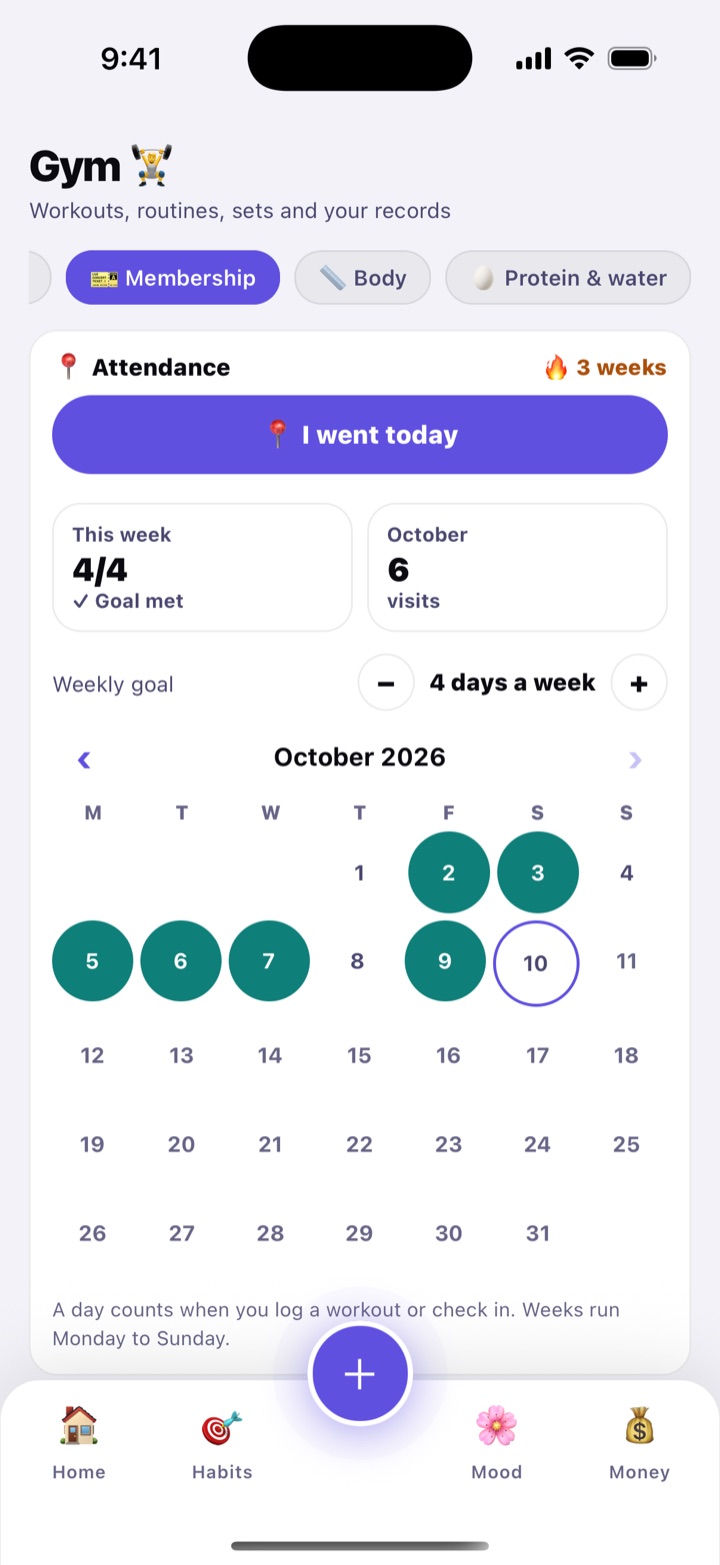
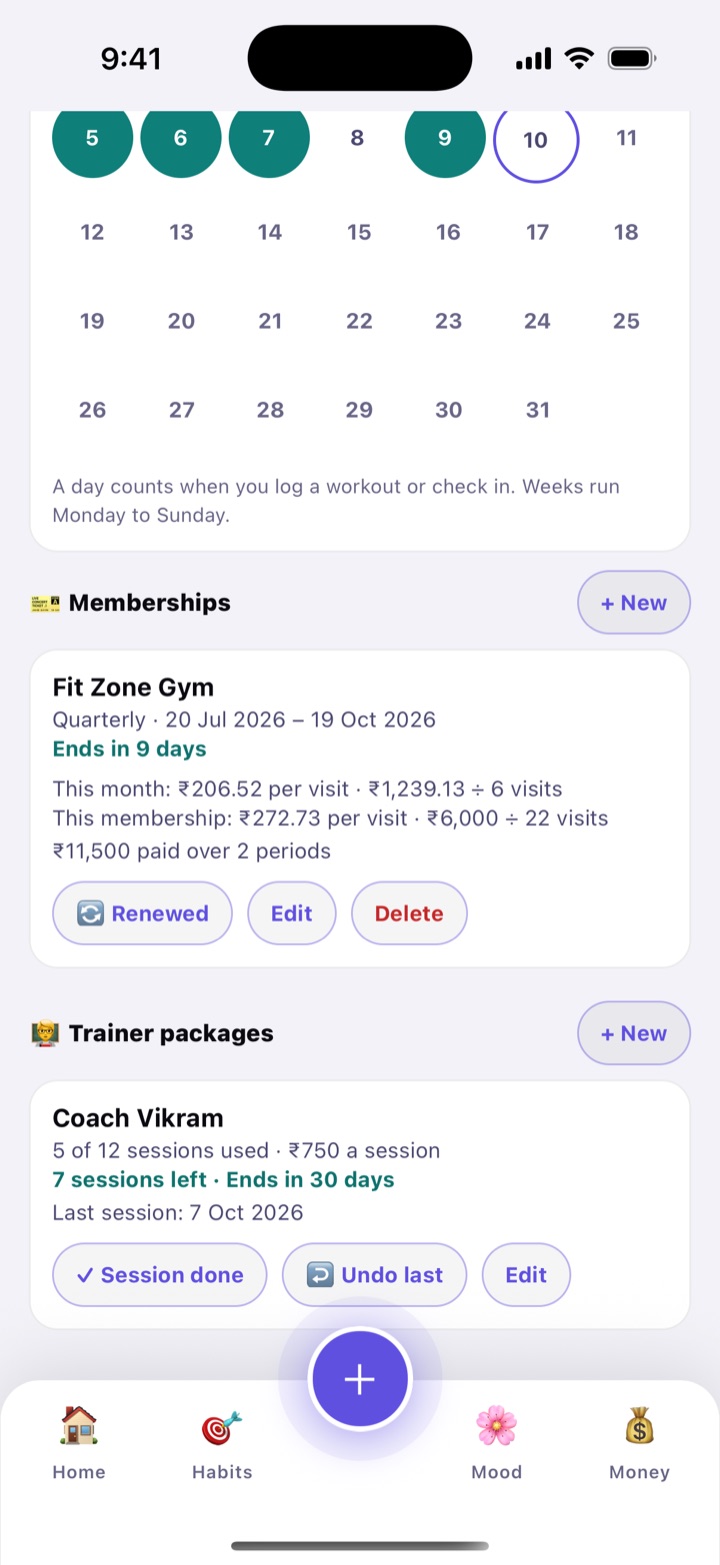
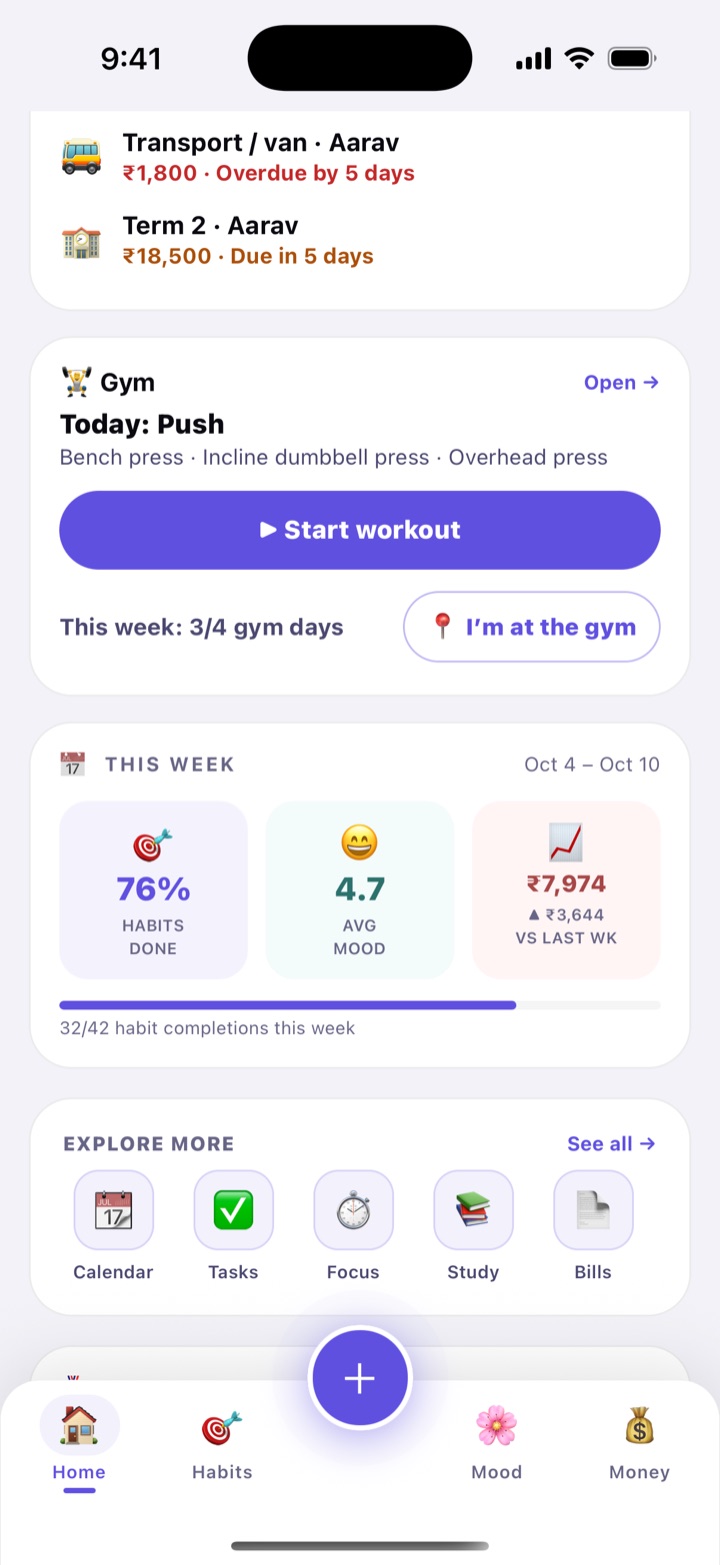
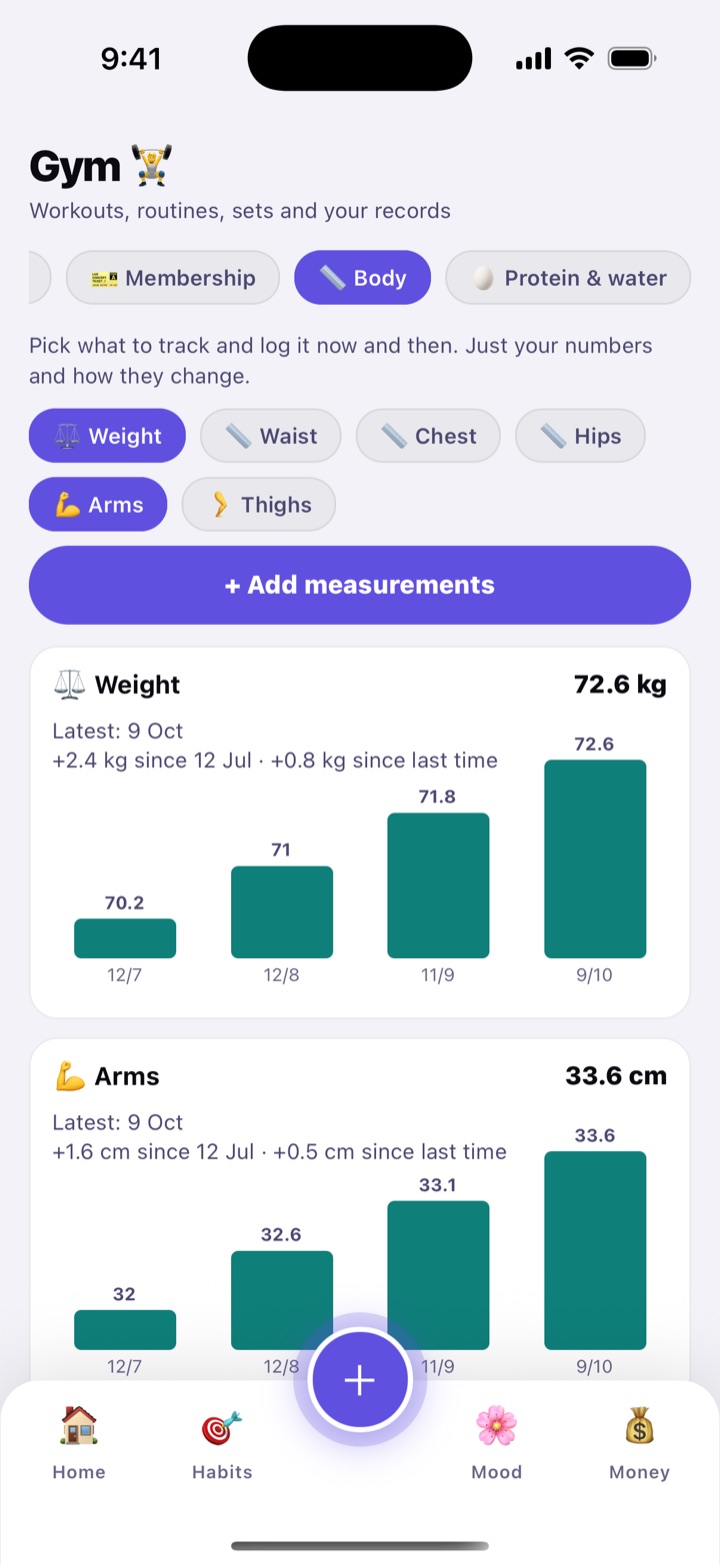
    Sets and reps, personal records, a rest timer, and what each gym visit really costs.

  • Pet and vehicle owners

    Vet dates, food running low, mileage, and insurance and PUC renewals.

Morning to night

A day with Habitly

Most of Habitly works from your notifications. You tap Done, Taken or Paid, and the app updates itself without you opening it. Here is how an ordinary weekday can look. The times are examples; you set your own.

  1. AM

    Habitlynow

    🌅 Morning routine

    Time for today’s challenge habits

    Challenge reminder

    Day 9 of the 21-day Morning routine. Wake up, drink a glass of water, stretch for 10 minutes, and tick all three. A challenge day counts only when every one of its habits is done.

  2. AM

    Habitlynow

    🧘 Yoga

    Time for your habit. Tap Done once it's finished.

    Done

    Habit reminder

    Tap Done in the notification. Yoga is ticked for today and the streak grows by one day. No need to open the app.

  3. AM

    Habitlynow

    💊 Metformin 500

    Time for 1 tablet

    Taken

    Medicine

    After breakfast, tap Taken. Habitly records the dose and counts one tablet down. When about 5 days of tablets are left, it reminds you to refill.

  4. AM

    Habitlynow

    🏦 Home loan EMI · ₹18,500

    Due in 2 days, on 5 Oct

    Paid

    Bill due

    Pay in your bank or UPI app as usual, then tap Paid. ₹18,500 goes into your expenses and the reminder moves to next month. If you forget, you get another reminder on the due date and one the morning after.

  5. AM

    Habitlynow

    Habitly — Drink Water 💧

    💧 Time to hydrate! Drink a glass of water.

    Water, every 2 hours

    It comes every 2 hours between 8 AM and 10 PM, or the hours you pick. In Water, one tap on Glass adds 250 ml toward the day’s 2-litre goal.

  6. PM

    Money › + Add Expense

    ₹120

    🍔 Food · Canteen thali

    Add Expense

    Lunch expense

    Lunch was ₹120. Open Money, tap + Add Expense, type 120, pick Food and save. It takes a few seconds, and at month end you can see exactly where the money went.

  7. PM

    Fitness › Start Workout › Walk

    • 32 minDuration
    • 3.1 kmDistance
    • 4,068Steps
    • 163Calories

    Evening walk

    Tap Start Workout and choose Walk. Habitly measures the distance with GPS and estimates your steps and calories. This walk covers half of the 8,000-step daily goal.

  8. PM

    Mood › How are you?

    • Awful
    • Bad
    • Okay
    • Good
    • Great

    Save check-in

    Mood and diary

    Pick how the day felt, add a line if you like, and tap Save check-in. For anything longer, open Diary and tap Write. Over a few weeks, the mood calendar shows which days feel best.

  9. SundayPM

    Home › Monthly Overview

    My month in review

    72%

    of habits done · Longest streak 29 · Average mood Good

    ↗ Share

    Weekly look

    Take two minutes on Home. This Week shows which habits slipped. Monthly Overview compares habits, mood and spending month by month, and ↗ Share turns the month into a picture for WhatsApp.

Habits & streaks

Small daily actions, ticked off and counted. Streak freezes and challenges keep you going on the days life gets in the way.

In this part: Habits · Streak freezes · Challenges · Share cards · Week & year cards

Habits

Add anything you want to do daily or a few times a week: a morning walk, prayer, 20 pages of reading, an hour of study. Tick it each day and Habitly counts your streak, draws a calendar of your progress, and shows how much of the week and month you’ve done.

Give a habit a reminder and you can tick it straight from the notification. Pin the important ones as Priorities so they stay at the top, and add a short note after you tick one.

How to use

  1. Open Habits from the bottom bar and tap +.
  2. Type a name, then pick an Icon, Color, Group (Morning, Evening, Health, Learning and more) and Weekly Goal: Daily, or 1× to 6× a week.
  3. Switch on Daily reminder, choose a time and tap Add Habit.
  4. Every day, tap the circle on the habit, or Done in the reminder.

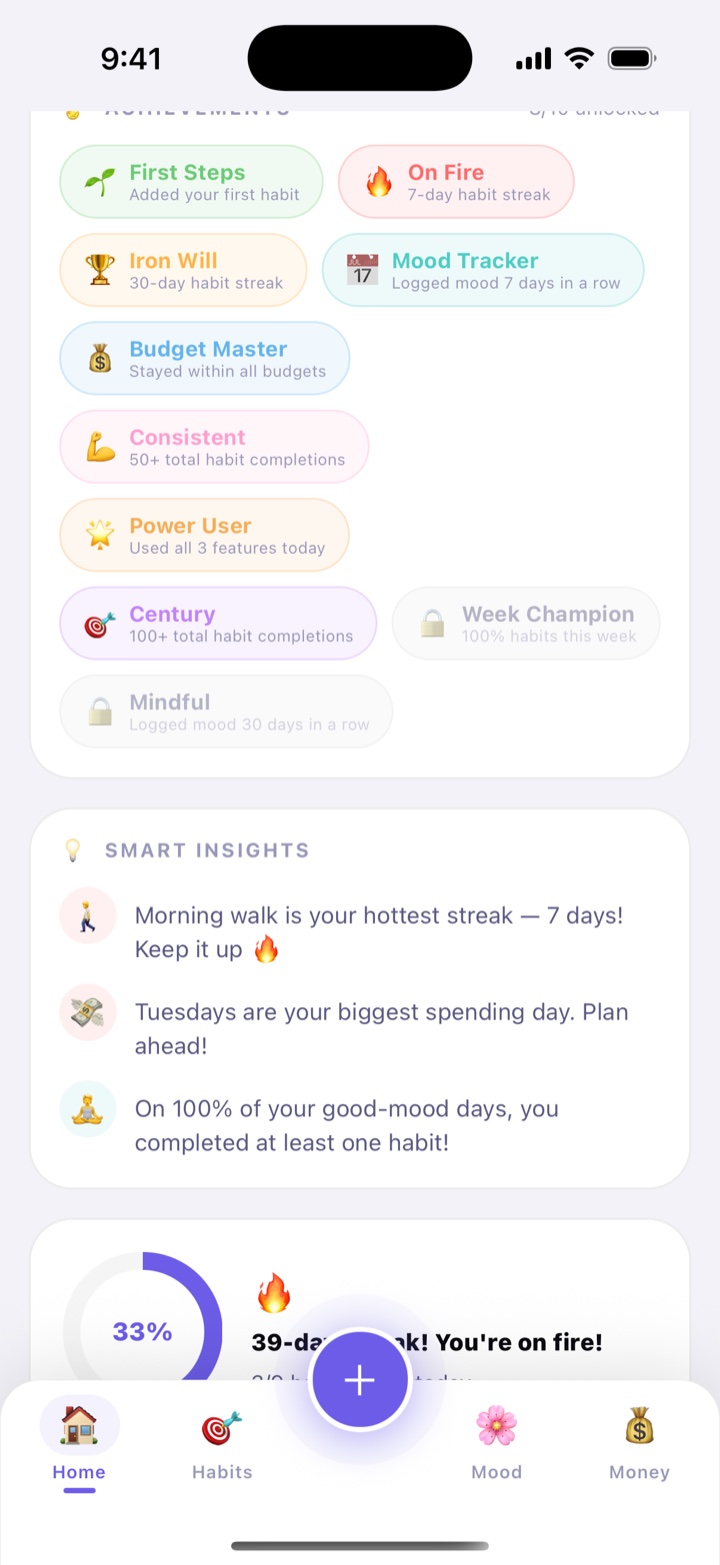
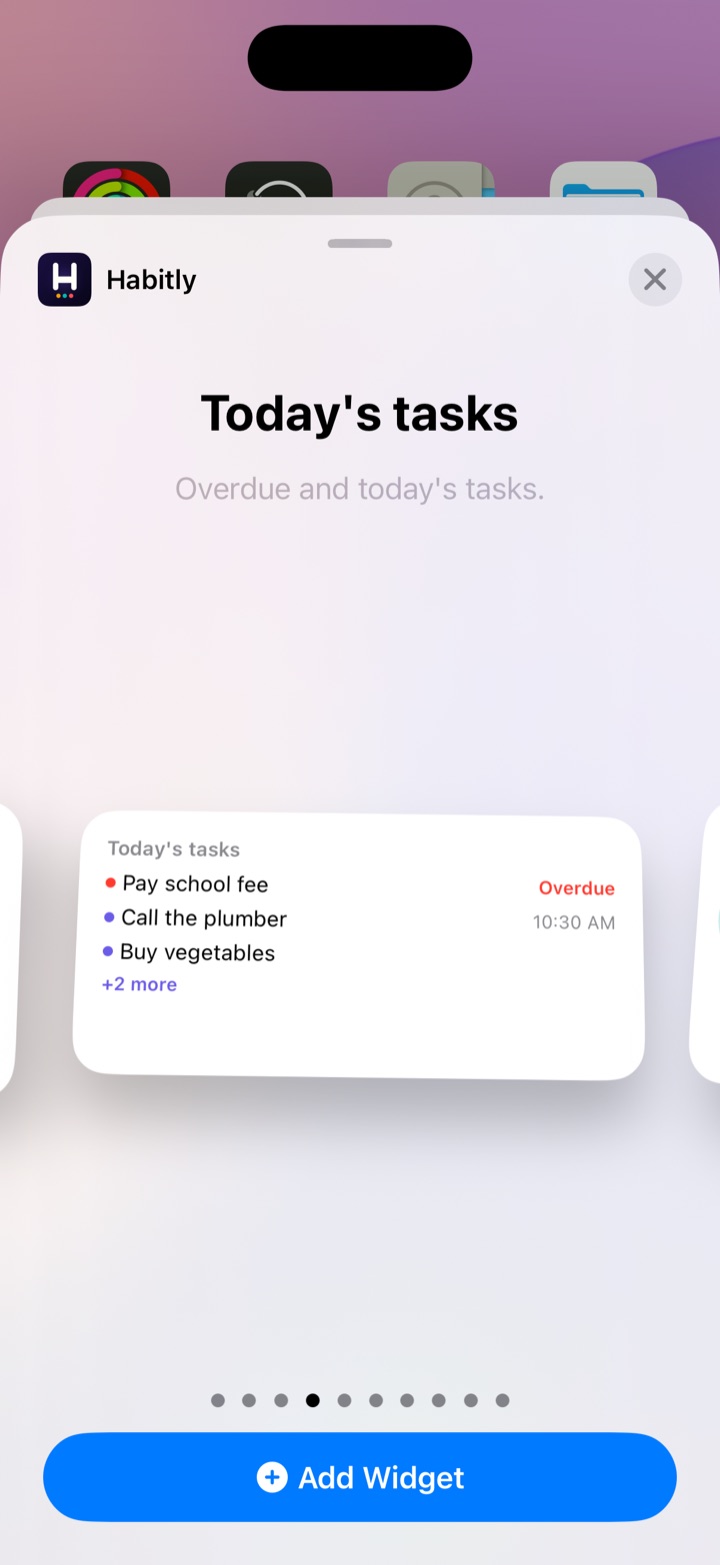
Home also shows achievements such as On Fire (a 7-day streak) and Century (100 habits done), and smart insights like “You tend to spend more on low-mood days”. A home-screen widget shows today’s habits, water and spending at a glance (see Home-screen widgets).

In daily life

A Class 12 student adds “Revise one chapter” with a 9 PM reminder. Every night she taps Done from the notification, and her streak keeps growing through the board exam season.
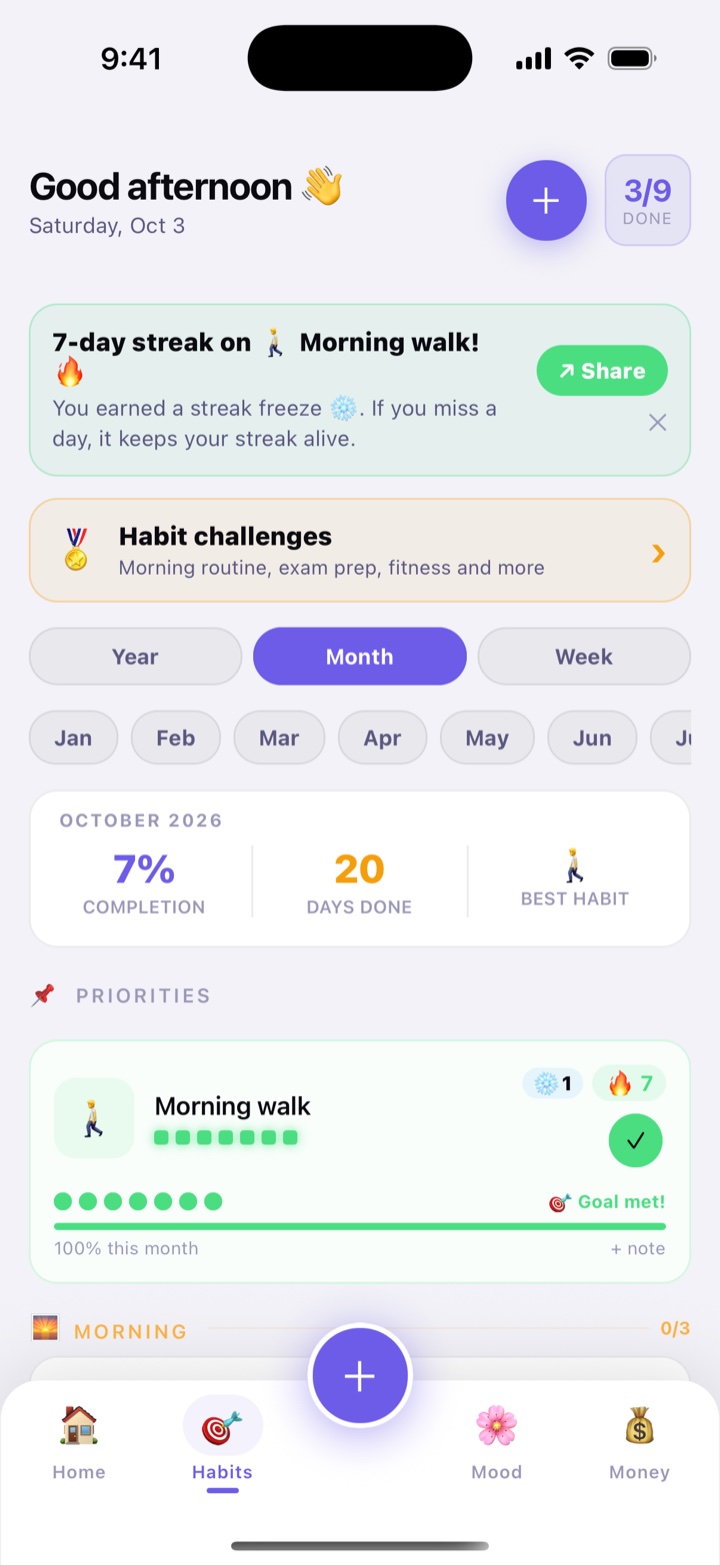
Habits screen: habits with their streaks, a snowflake chip showing saved streak freezes, the Habit challenges entry and a 7-day streak banner.
Habits, streaks and a 7-day milestone
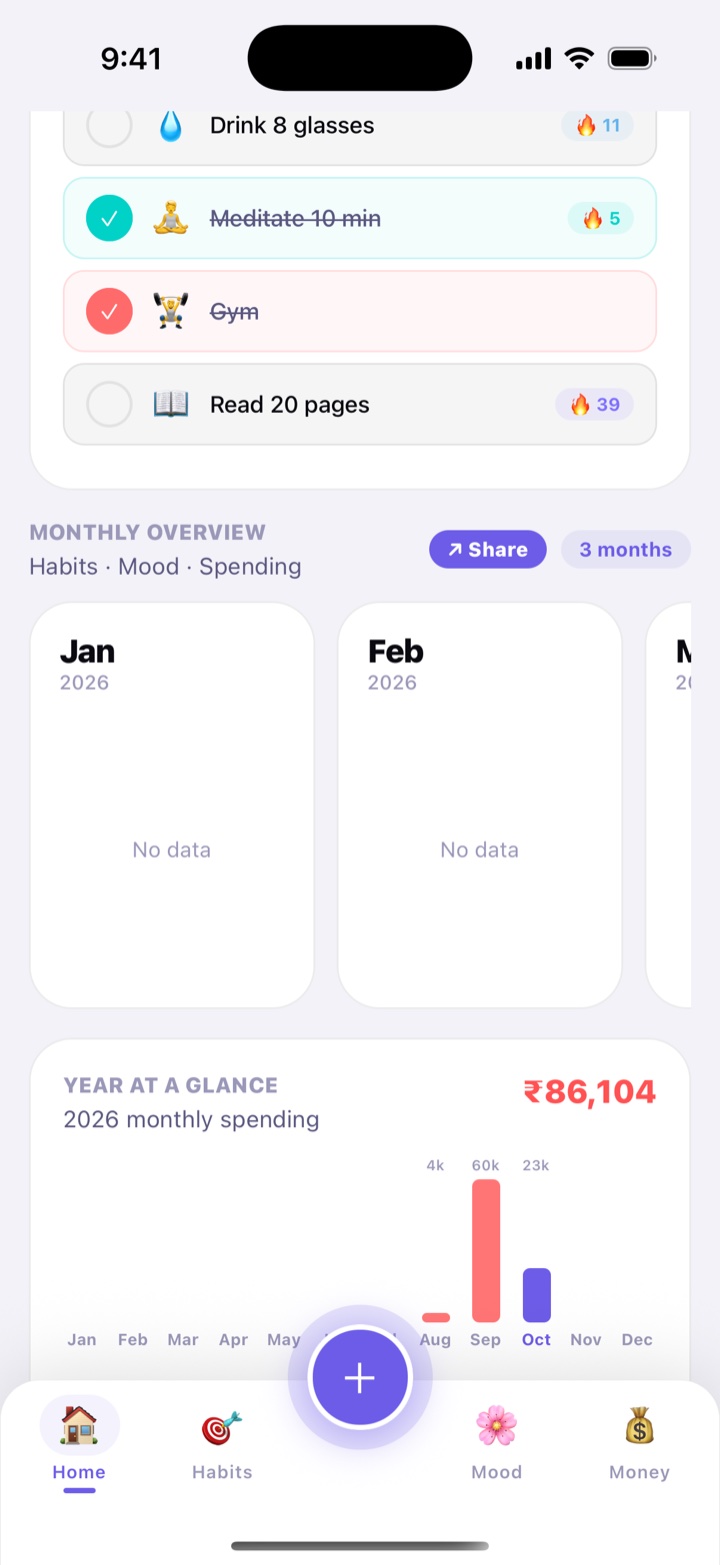
Lower part of Home: today's habits with tick circles and streak counts, the monthly overview with its Share button, and the year's spending chart.
Home: today’s habits and the monthly overview

Streak freezes

A wedding in the family, a fever or a long train journey can break a streak you worked hard for. Every 7 days in a row on a daily habit earns a streak freeze ❄️. If you miss a day, Habitly uses one for you and the streak lives on.
Good to know

  • You earn one at 7, 14, 21… days in a row, and each habit can save up to 2. The ❄️ number on the habit shows how many it has.
  • Freezes are for daily habits. Habits with a weekly goal of 1× to 6× already have rest days built in.
  • A frozen day keeps the streak alive but doesn’t add to it. On the habit’s calendar it shows in light blue.
  • A freeze is used only when you have enough to cover every missed day. Miss 3 days with 2 freezes and the streak ends, but the freezes stay saved for later.
Ravi’s Morning walk. He earns freezes on day 7 and day 14, misses day 21, and a freeze covers it. On day 22 he ticks the habit and the streak reads 21.

How to use

  1. Keep the habit’s Weekly Goal on Daily.
  2. Tick it 7 days in a row. A banner tells you “You earned a streak freeze ❄️”.
  3. Missed a day? Open Habitly the next day and you’ll see “Streak saved on Morning walk ❄️”. Tick the habit to keep going.

In daily life

Ravi has walked 20 days in a row. On day 21 he is at a cousin’s wedding and misses his walk. The next morning Habitly tells him his 20-day streak lives on, so he walks, ticks it, and keeps going.

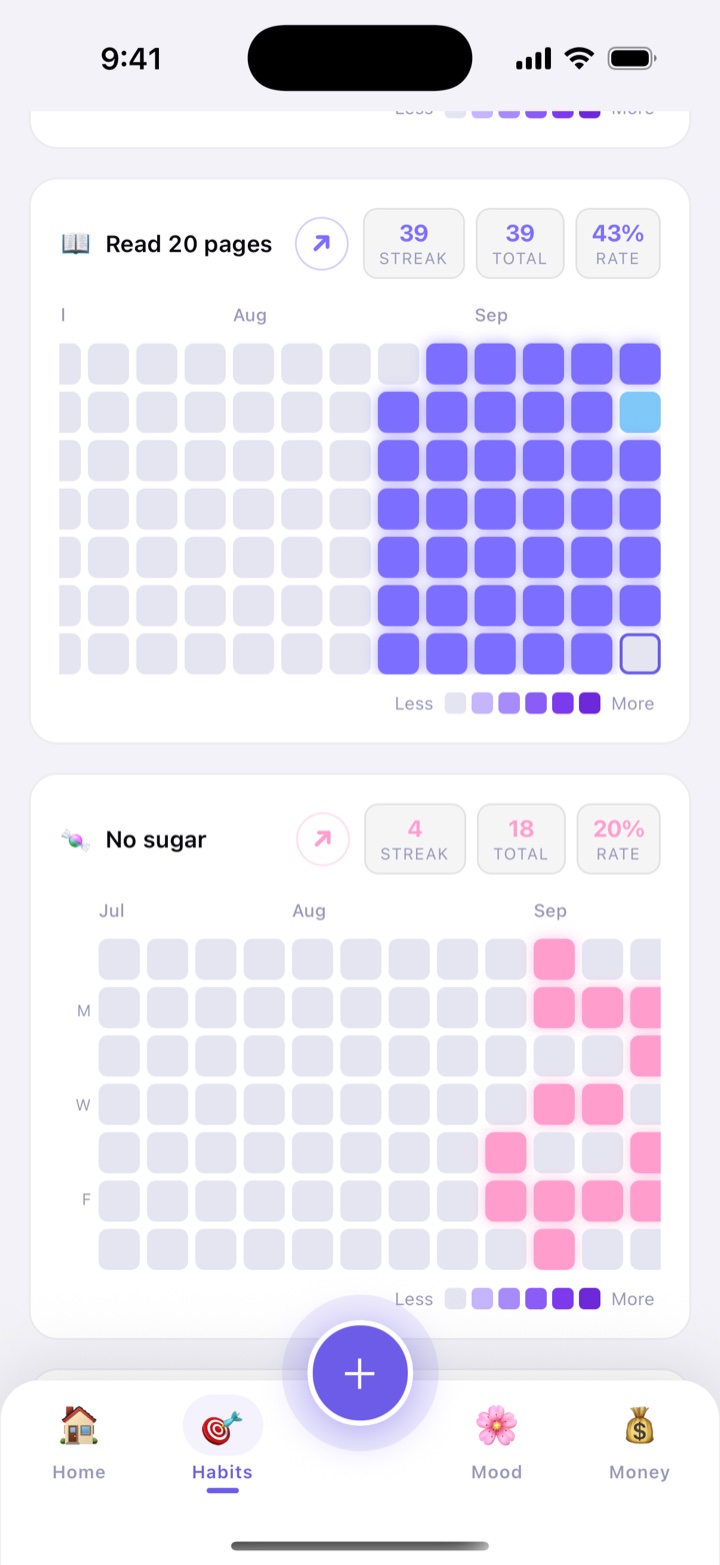
A habit's calendar heatmap. Done days are violet, one light-blue day was covered by a streak freeze, and a share button sits beside the habit's name.
The light-blue day was saved by a freeze

Challenges

Ready-made 21 and 30-day plans, each with one to three daily habits. Starting one adds its habits to your list and sets a daily reminder. A day counts only when you tick every habit in the challenge, and Home shows how far you’ve come.

The seven challenges

  • Morning routine

    21 days · 6:30 AM

    Wake up by 6:30 AM · Drink a glass of water · Stretch for 10 minutes

  • Exam prep

    30 days · 5:00 PM

    Study for 2 hours · Revise today’s notes · Sleep by 11 PM

  • Fitness kickstart

    21 days · 7:00 AM

    Work out for 20 minutes · Walk 8,000 steps · No sugary drinks

  • Calm mind

    21 days · 9:00 PM

    Meditate for 10 minutes · Write 3 things you’re grateful for · No phone after 10 PM

  • Eat better

    21 days · 12:30 PM

    Eat fruit or salad · No junk food · Cook one meal at home

  • Money saver

    30 days · 8:30 PM

    Write down every expense · No impulse buys

  • Read every day

    30 days · 9:30 PM

    Read 20 pages

The time is the suggested daily reminder. You can change it before you start.

How to use

  1. In Habits, tap Habit challenges, or open More › Challenges.
  2. Pick a plan, check its habits and the Daily reminder time, and tap Start challenge.
  3. Tick its habits every day. Home shows “Day 9 of 21” and today’s progress.
  4. At the end you see your result, like “28 of 30 days” or “Perfect run”. Tap ↗ Share or Done. To stop early, tap Leave; the habits stay in your list.

In daily life

Two months before her board exams, Divya starts Exam prep: two hours of study, revising the day’s notes and sleeping by 11 PM, every day for 30 days, with a reminder at 5 PM.

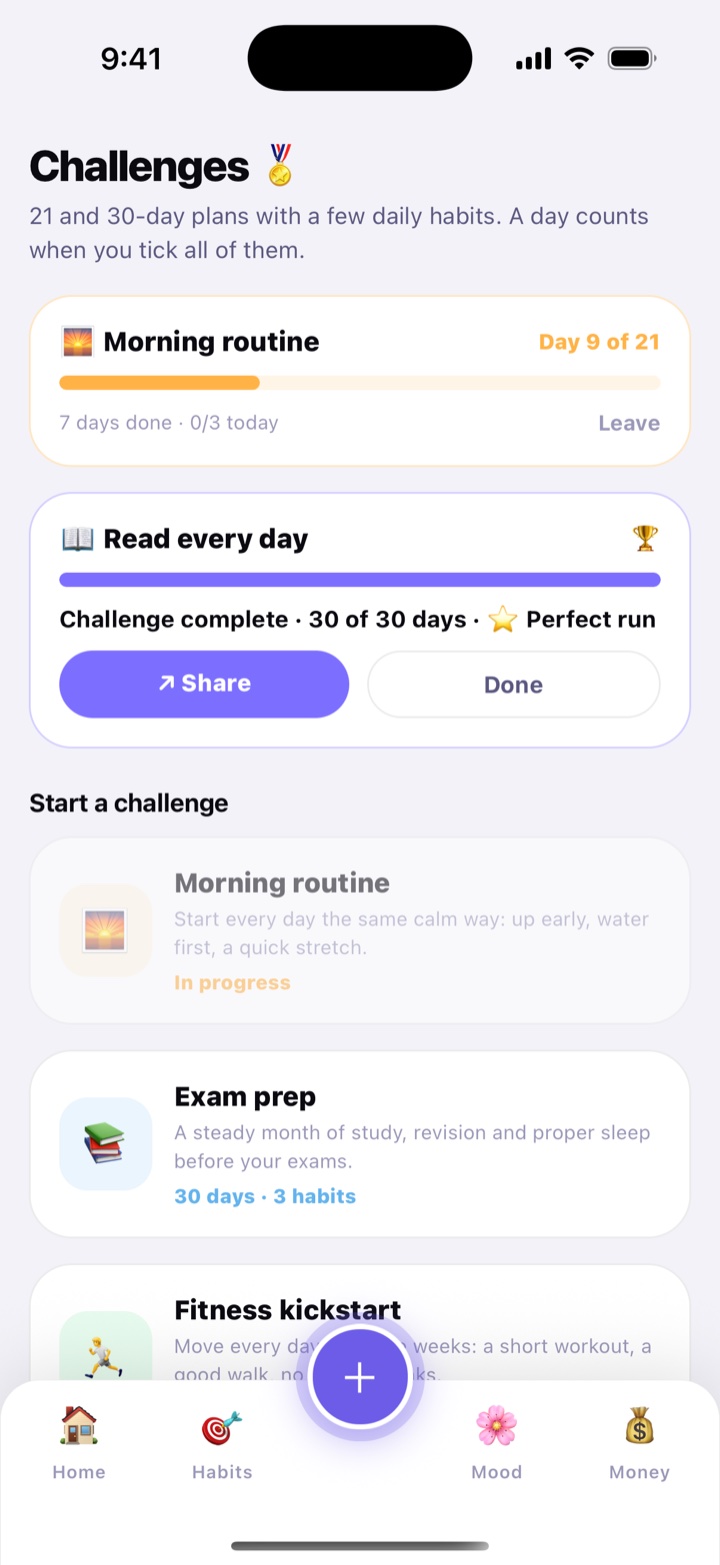
Challenges screen: a running challenge with its day count and progress, and the seven challenge plans to start.
One running, seven to choose from
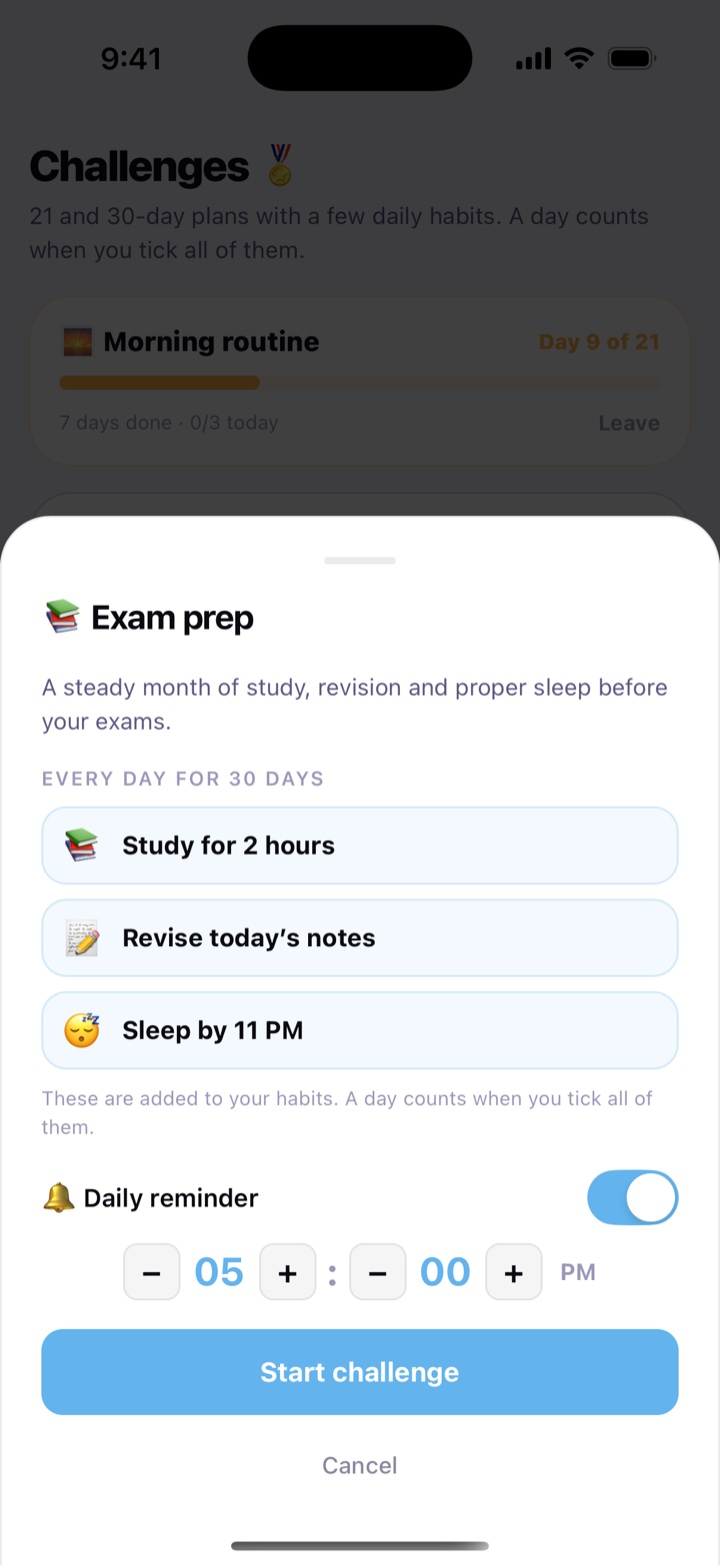
Start challenge sheet listing the challenge's daily habits and the time of its daily reminder.
Starting a challenge: habits and reminder time

Share cards

Turn your progress into a picture for WhatsApp status, Instagram or the family group: a habit streak, your month in review or a finished challenge. Each card is a sharp 1080 × 1350 image, and the message carries the Google Play link so friends can try Habitly too.

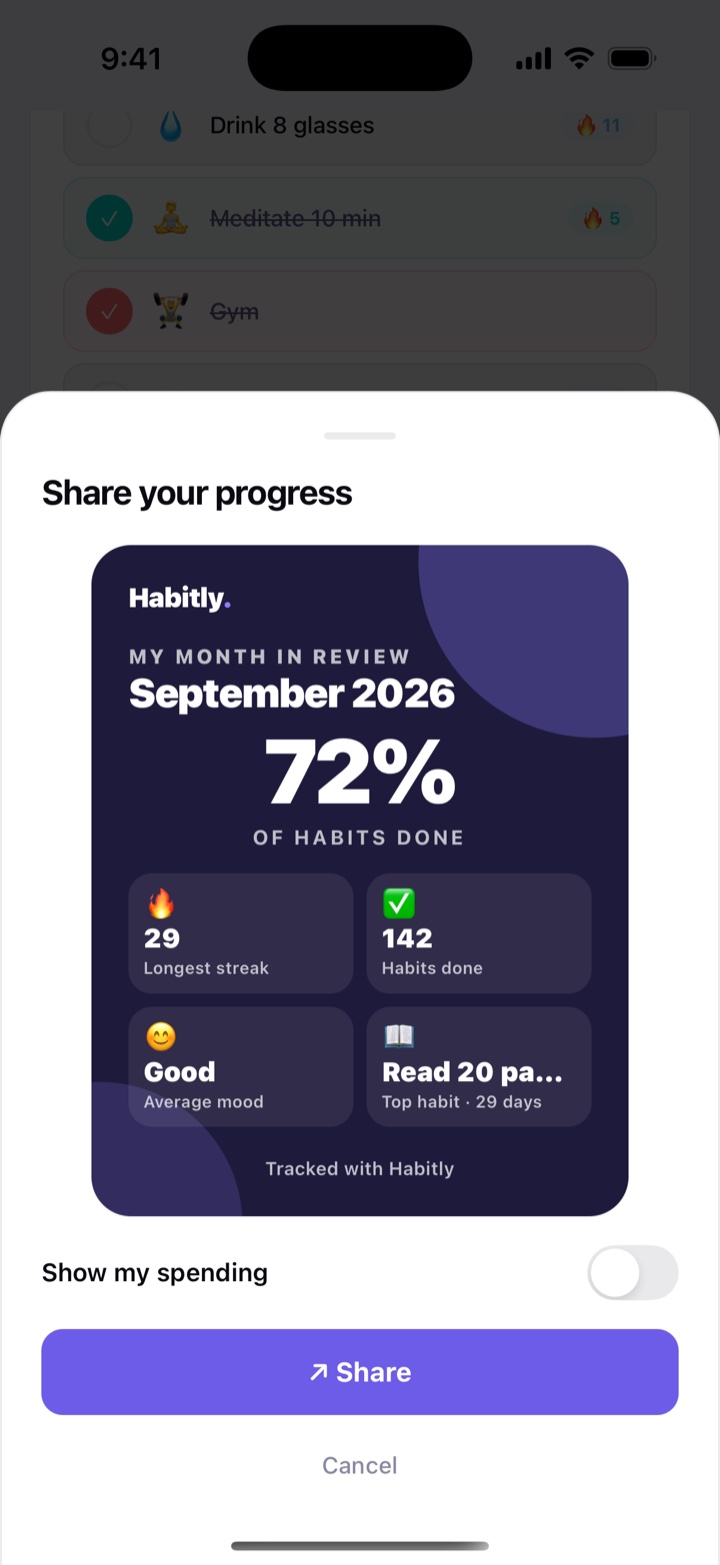
Money stays private. The month card shows how much of your habits you did, your longest streak, your average mood and your top habit. It shows spending only if you switch on Show my spending.

How to use

  1. Streak: tap ↗ Share on a streak banner, or in Habits scroll down to Streaks and tap ↗ on a habit’s calendar.
  2. Month: on Home, tap ↗ Share on Monthly Overview. In the first 3 days of a month it shows the month that just ended.
  3. Challenge: when a challenge ends, tap ↗ Share on its result.
  4. Check the preview, tap ↗ Share, and pick WhatsApp, Instagram or any other app.

In daily life

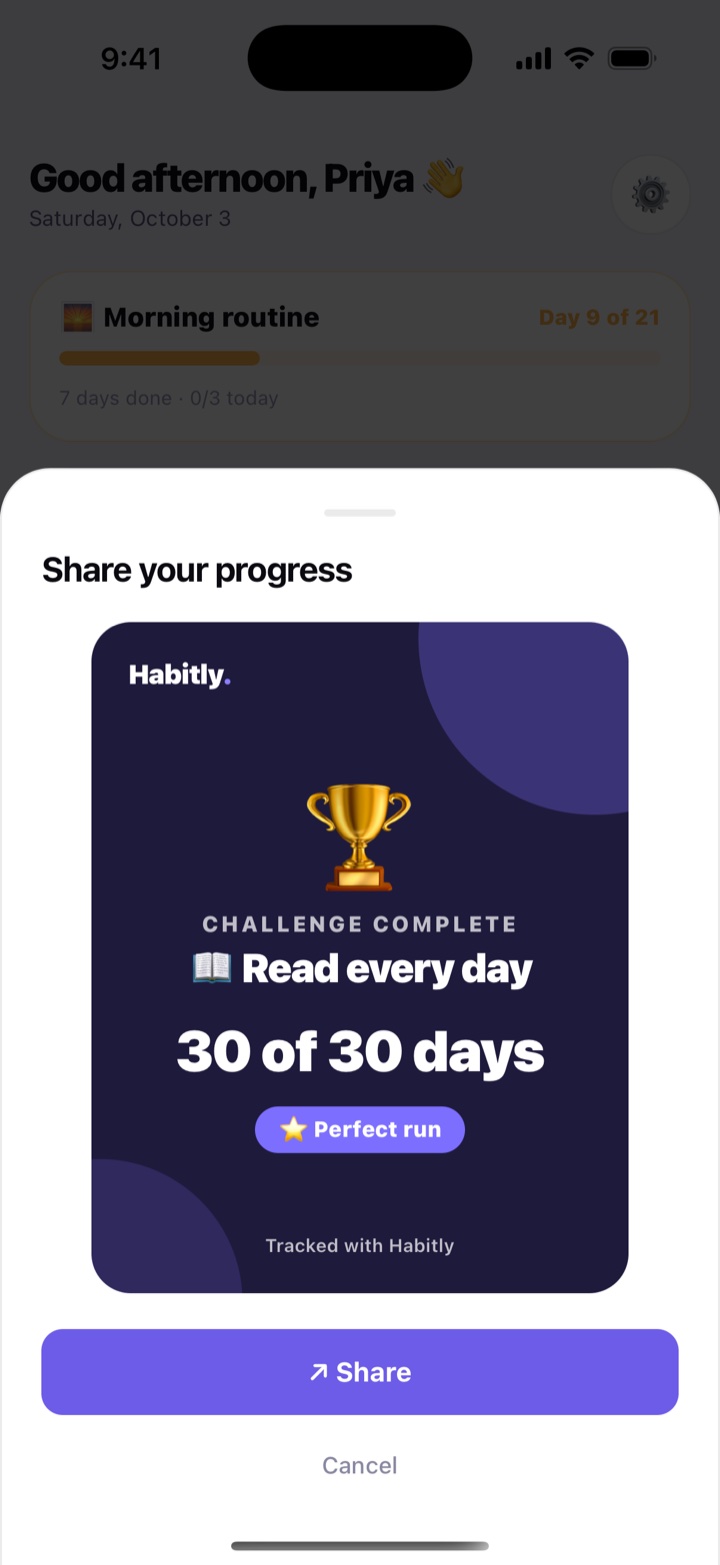
Ananya finishes Read every day with 30 of 30 days. She posts the Perfect run card on her WhatsApp status, and two friends start the same challenge that week.

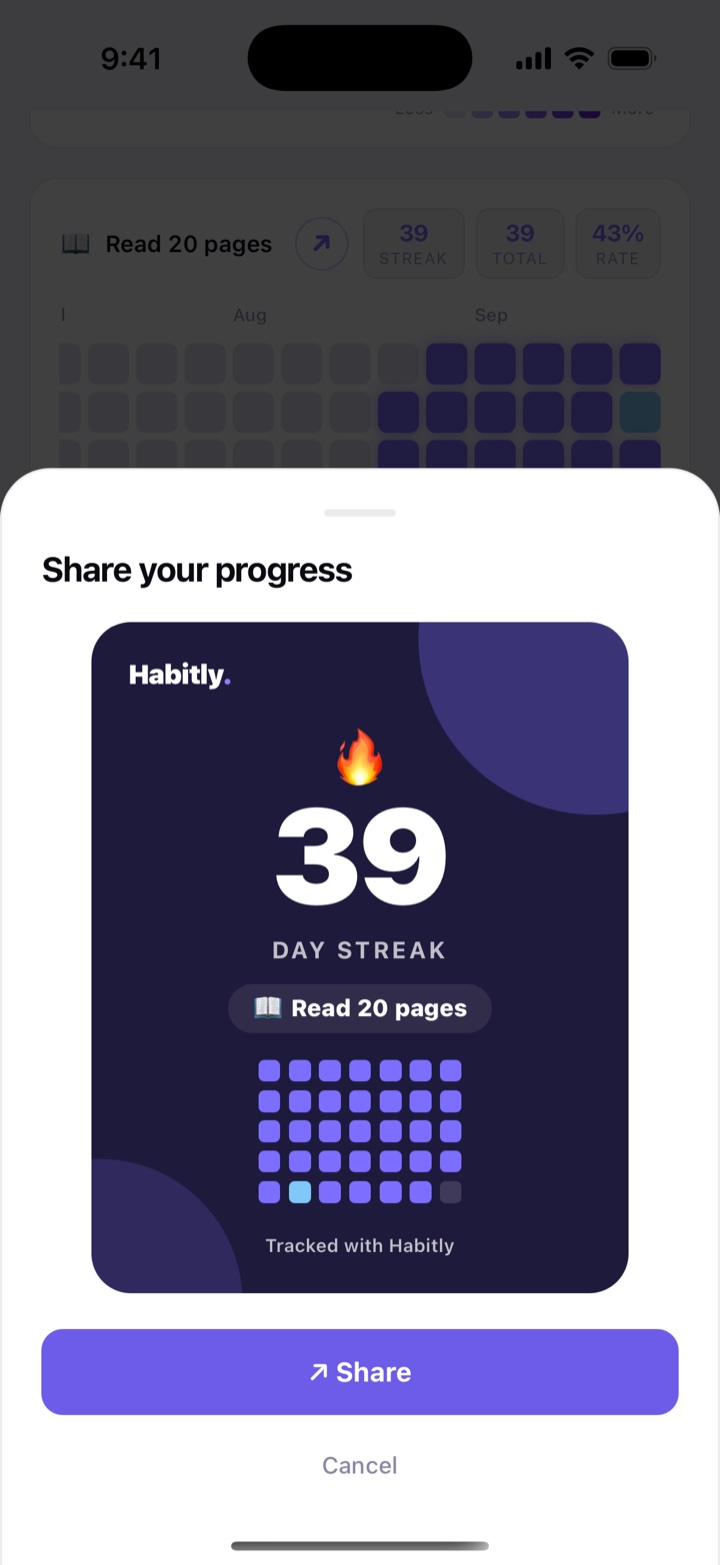
Share preview of a streak card showing a habit's number of days in a row.
Streak card: the habit and its days in a row
Share sheet with the month in review card for September 2026: 72% of habits done, a 29-day longest streak, 142 habits done, a Good average mood and the top habit, with Show my spending switched off.
Month in review: habits done, longest streak, mood and top habit
Share sheet with a challenge complete card: Read every day, 30 of 30 days, Perfect run.
Challenge complete: the result, like 30 of 30 days

Week and year in review cards

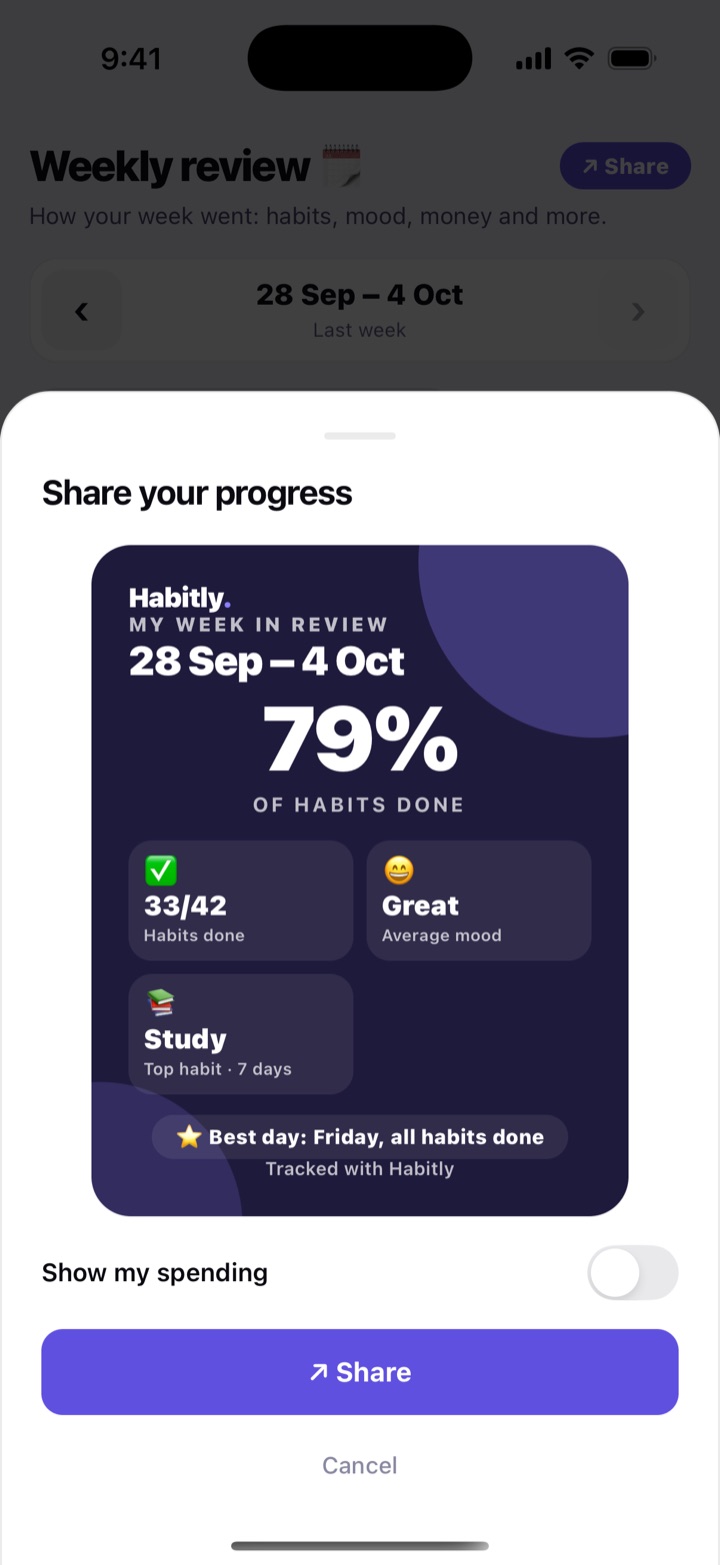
Two more pictures to share, like the month card: My week in review, and My year in review at the end of the year. Each is a card with the share of habits you did, your top habit and your average mood, and a message with the Google Play link. The year card has the same look as the week card, with the numbers for your whole year.

Money stays private. Spending is left off the image unless you switch on Show my spending in the preview.

How to use

  1. Week: open More › Review, use ‹ and › to pick a week, and tap ↗ Share at the top.
  2. Year: all of December, and the first 7 days of January, Home shows Your 2026 in review. Tap ↗ Share on it.
  3. Check the preview, decide on Show my spending, and share to WhatsApp, Instagram or any other app.

In daily life

On New Year’s Eve, Nisha shares her year card to the family group: 68% of her habits done and 214 days of mood logged. Her cousins ask which app it is.

Share your progress sheet with the My week in review card for 28 Sep to 4 Oct: 79% of habits done, tiles for habits done, average mood and top habit, a Best day line, the Show my spending switch off, and Share and Cancel buttons.
My week in review

Plan your day

Habits are for the things you repeat. For everything else, there are one-off tasks, a focus timer, the birthdays you must not forget and a look back at your week every Sunday.

In this part: Tasks · Focus timer · Birthdays & special days · Weekly review

Tasks

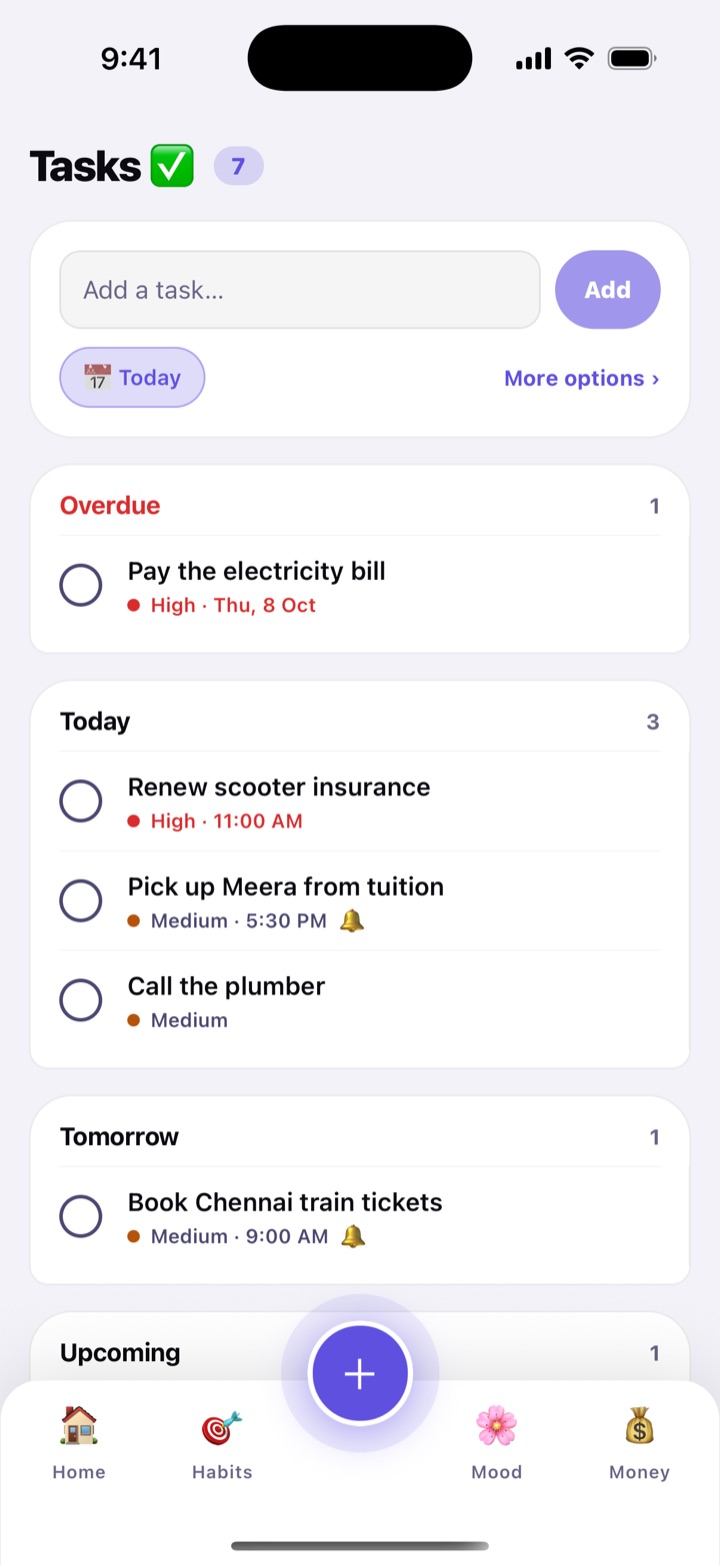
A simple to-do list for things you do once: pay the school fees, collect the parcel, book the train ticket. Type a task, tap Add, and it is on your list. Tasks are sorted into Overdue, Today, Tomorrow, Upcoming and No date, and each has a High, Medium or Low priority.

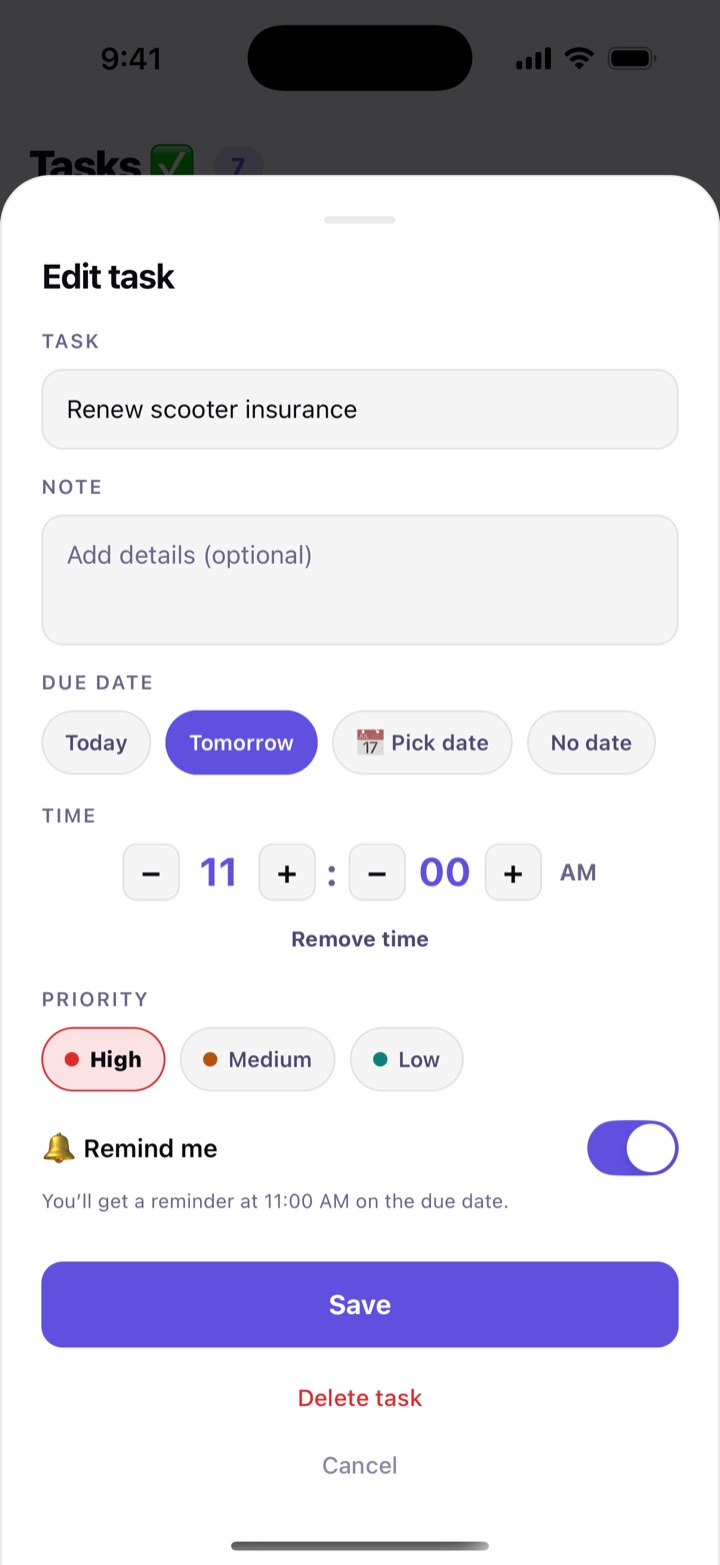
Give a task a due date and, if you like, a time, and switch on Remind me. The reminder comes at that time on the due date, or at 9 AM when you did not pick a time. It has a Done button, so you can tick the task off without opening the app. Today’s tasks also show on Home.

How to use

  1. Tap More in the bottom bar, then Tasks (or the Tasks shortcut on Home).
  2. Type in Add a task… and tap Add. Tap the date chip to switch between today and no date.
  3. For more detail, tap the task. Pick the Due date, add a Time, choose the Priority and switch on Remind me. Tap Save.
  4. Tap the circle beside a task when it is done. Tapped by mistake? Tap Undo. Tap Done to show or hide finished tasks, and Clear completed to tidy up.

Finished tasks stay on the list for 30 days. A task reminder is hidden on the lock screen, so the title is not shown to people nearby.

In daily life

Lakshmi adds “Renew the scooter insurance” for Friday at 11 AM with a reminder. It buzzes at 11, she pays on her phone and taps Done in the notification.

Tasks screen: a quick-add box at the top and tasks grouped under Overdue, Today and Tomorrow, each with a priority colour and a bell on those with a reminder.
Your tasks, grouped by day
Edit task sheet with a title, due date, time, High Medium Low priority and the Remind me switch turned on.
Date, time, priority and a reminder

Focus timer

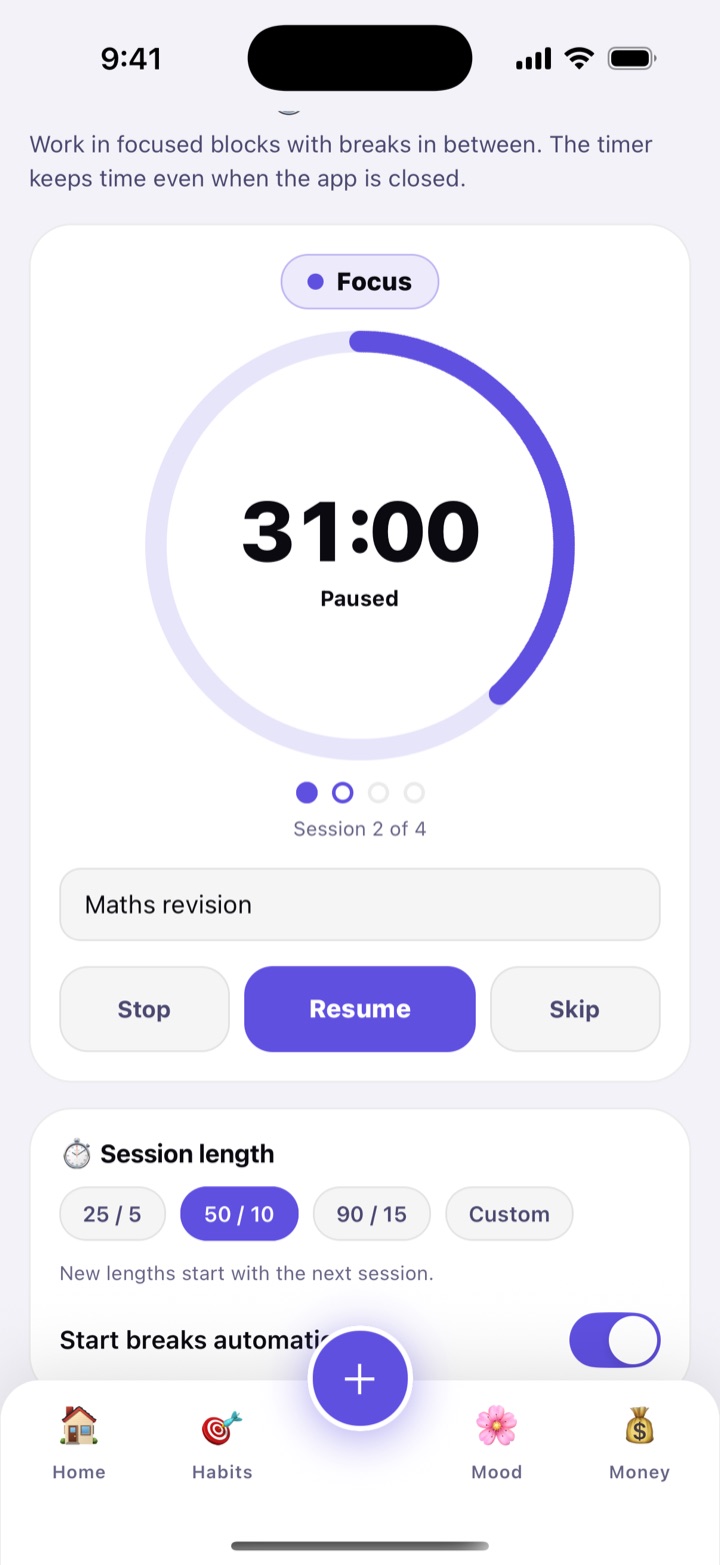
Work in focused blocks with short breaks in between. Choose 25 / 5, 50 / 10 or 90 / 15 (minutes of focus and break), or set your own lengths with Custom. After a few sessions you get a longer break. The timer keeps the exact time even when the app is closed or the phone is locked, and a notification tells you when to stop and when the break is over.

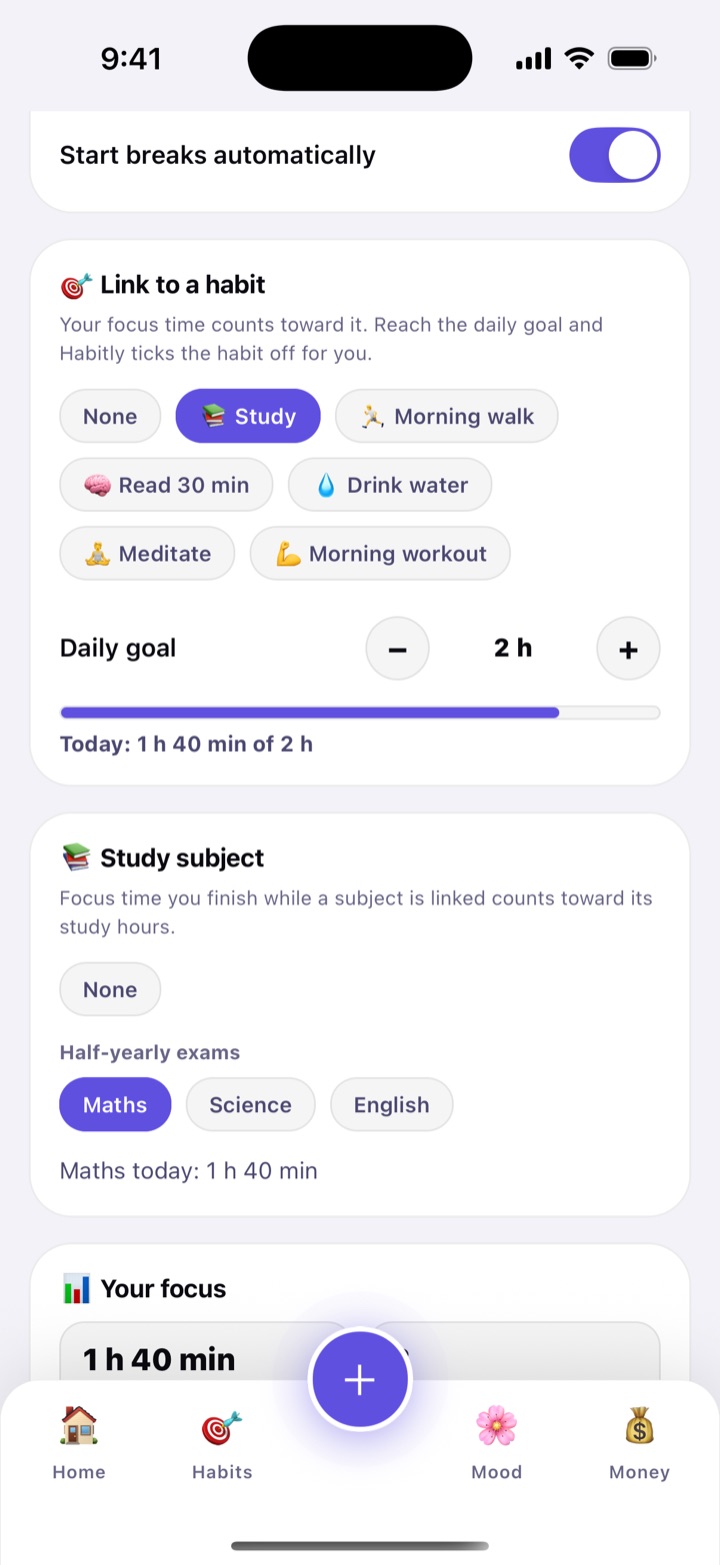
Link the timer to a habit, such as “Study” or “Practice guitar”, and give it a daily goal. Every minute you focus counts toward it, and once you reach the goal Habitly ticks the habit off for you.

How to use

  1. Tap More, then Focus.
  2. Under Session length pick a block, then type what you are working on if you wish.
  3. Tap Start. Use Pause, Skip or Stop if plans change. A session you stop early still saves the time you focused.
  4. To tick a habit automatically, scroll to Link to a habit, choose the habit and set the Daily goal.

Breaks can start by themselves; switch Start breaks automatically off if you prefer to start them yourself. The Your focus card below shows today’s sessions, your total focus time, your focus streak and the last 7 days.

In daily life

Arjun is preparing for a bank exam. He links his “Study” habit with a 2-hour goal. Four 50-minute sessions later, the habit ticks itself and his streak grows.

Focus timer paused with 31 minutes left: a large ring, the label Revision for the bank exam, session 2 of 4, Stop, Resume and Skip buttons, and the session lengths 25 / 5, 50 / 10, 90 / 15 and Custom below.
A focus session, with Resume, Stop and Skip
Lower half of the Focus screen: the habit chips with Study chosen and a 2-hour daily goal, today's progress of 1 h 40 min, a Study subject card, and the Your focus tiles for today, total focus, sessions and focus streak.
Link a habit and watch the goal fill

Birthdays & special days

Save the birthdays and anniversaries of the people you love, or any day that matters to you, like a graduation. Habitly reminds you the day before and on the day, at the time you choose, every year. Add the year of birth or marriage and it tells you what they are turning, such as “turns 60”.

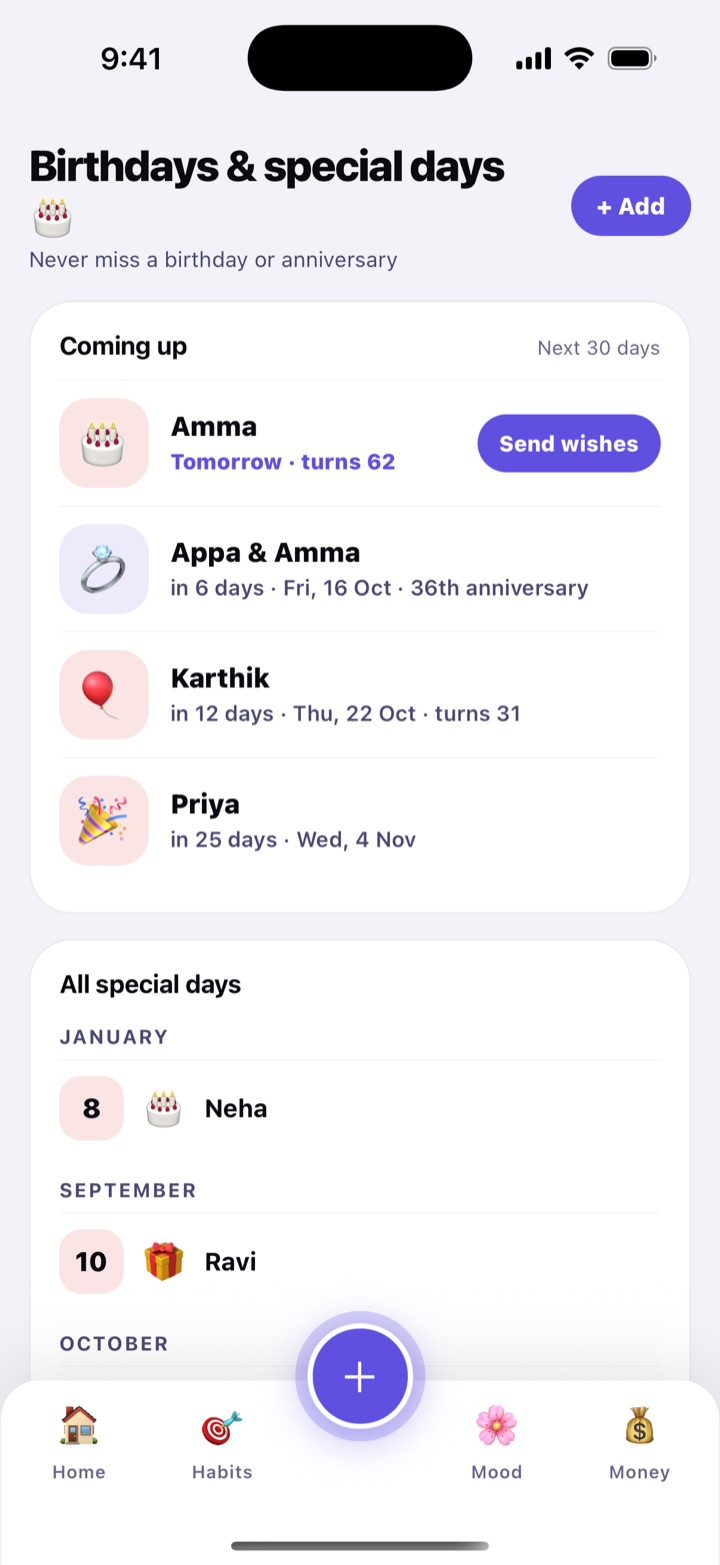
On the day, or the day before, a Send wishes button appears. It opens your phone’s share sheet with a ready message, like “Happy birthday, Amma! 🎂 Wishing you a wonderful year ahead.” Pick WhatsApp, or any other app, and send. Special days coming this week also show on Home.

How to use

  1. Tap More, then Birthdays, then + Add.
  2. Choose the Type (Birthday, Anniversary or Other), an emoji and the Name. Set the month and day, and the year if you know it.
  3. Under Remind me keep The day before and On the day on, pick the Reminder time and tap Save.
  4. When the day is near, tap Send wishes next to the name.

The year is optional; leave it empty if you do not know it. A note field is there for gift ideas, like “Loves kaju katli”.

In daily life

Priya saves her parents’ anniversary and her brother’s birthday. The evening before, she gets a nudge to order a gift. On the day, one tap sends the wish on WhatsApp before breakfast.

Birthdays and special days screen: a Coming up list for the next 30 days with a Send wishes button on tomorrow's birthday, and all saved days grouped by month.
Coming up, with a wish ready to send

Weekly review

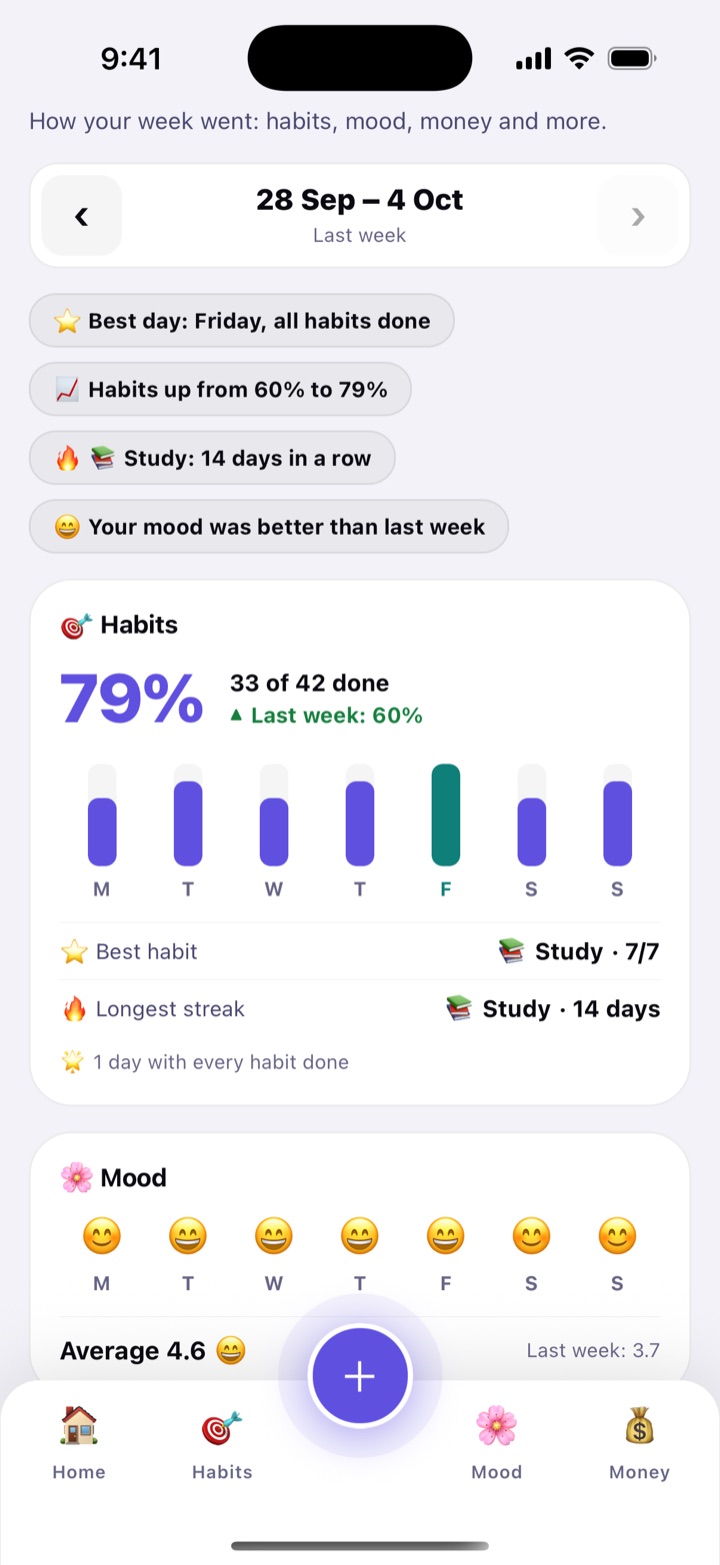
Every Sunday evening, Habitly puts your week together from what you already track: how many habits you completed compared with last week, your best day and longest streak, your mood, what you spent, and the sleep, water, workouts and tasks that went well. Nothing extra to enter.

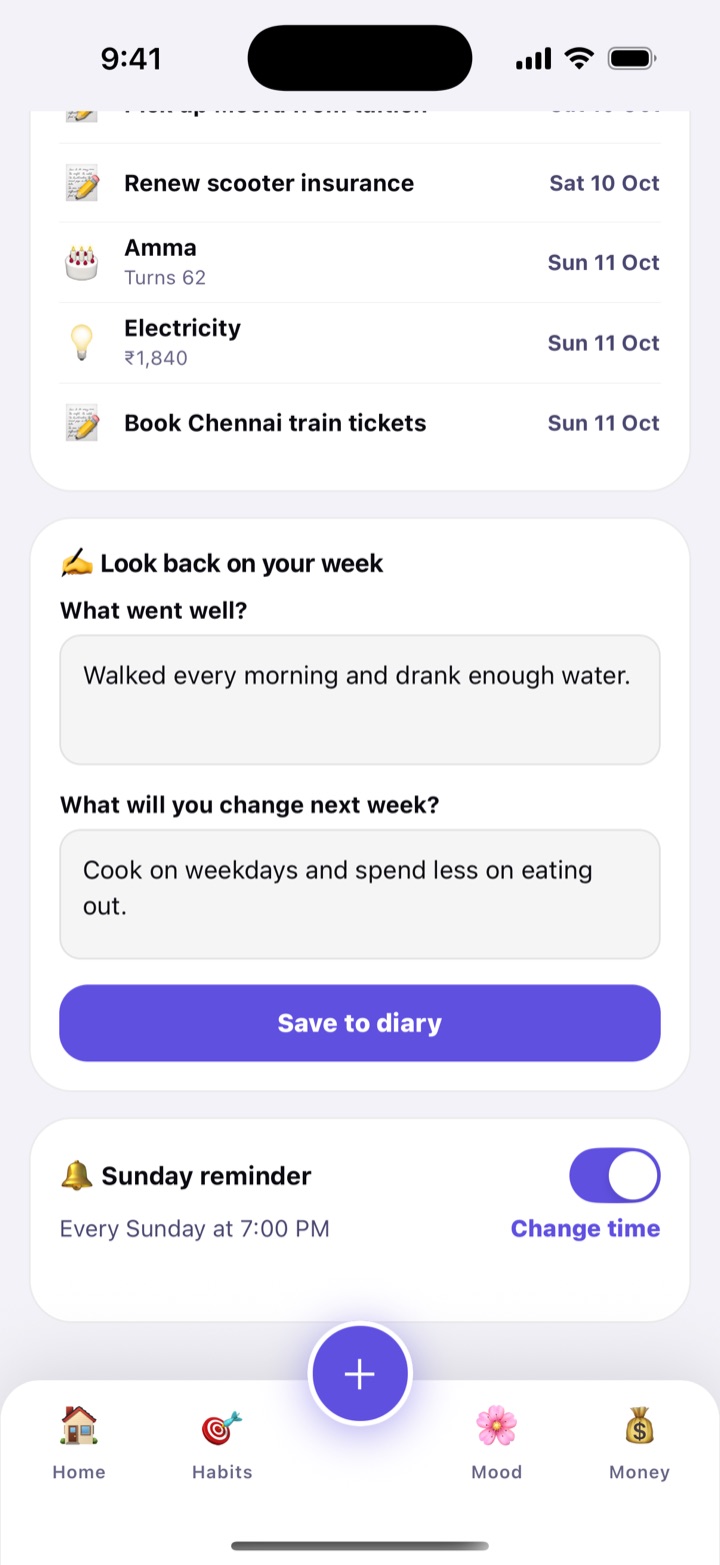
Below the numbers are two gentle questions: What went well? and What will you change next week? Write a line or two and tap Save to diary. It becomes a diary entry for that week. The review also lists the bills, tasks and special days coming up next week. After a few weeks of mood check-ins it shows what tends to lift your mood, and its ↗ Share button turns the week into a picture (see Week and year in review cards).

How to use

  1. On Sunday from 6 PM, and all day Monday, tap the Your week in review card on Home. You can open it any time from More › Review.
  2. Use the arrows at the top to look at earlier weeks.
  3. Scroll to Look back on your week, write your answers and tap Save to diary.
  4. A reminder comes on Sunday at 7 PM. To change the day or time, or switch it off, use the reminder row at the bottom of the screen.

In daily life

Rohan sees he finished 78% of his habits, up from 64%, but spent more on eating out. He writes “walked every morning” under what went well, and “cook on weekdays” under what to change.

Weekly review screen: highlights for the week, habits done against last week, the best habit and longest streak, the week's mood and spending.
Your week at a glance
Bottom of the weekly review: Coming up next week, two writing boxes for what went well and what to change, and the Save to diary button.
Two questions, then Save to diary

Mind

A quick daily check-in and a private place to write. Over time you start to see what lifts your mood and what pulls it down.

In this part: Mood check-in · Diary · Diary prompts · What lifts your mood

Mood check-in

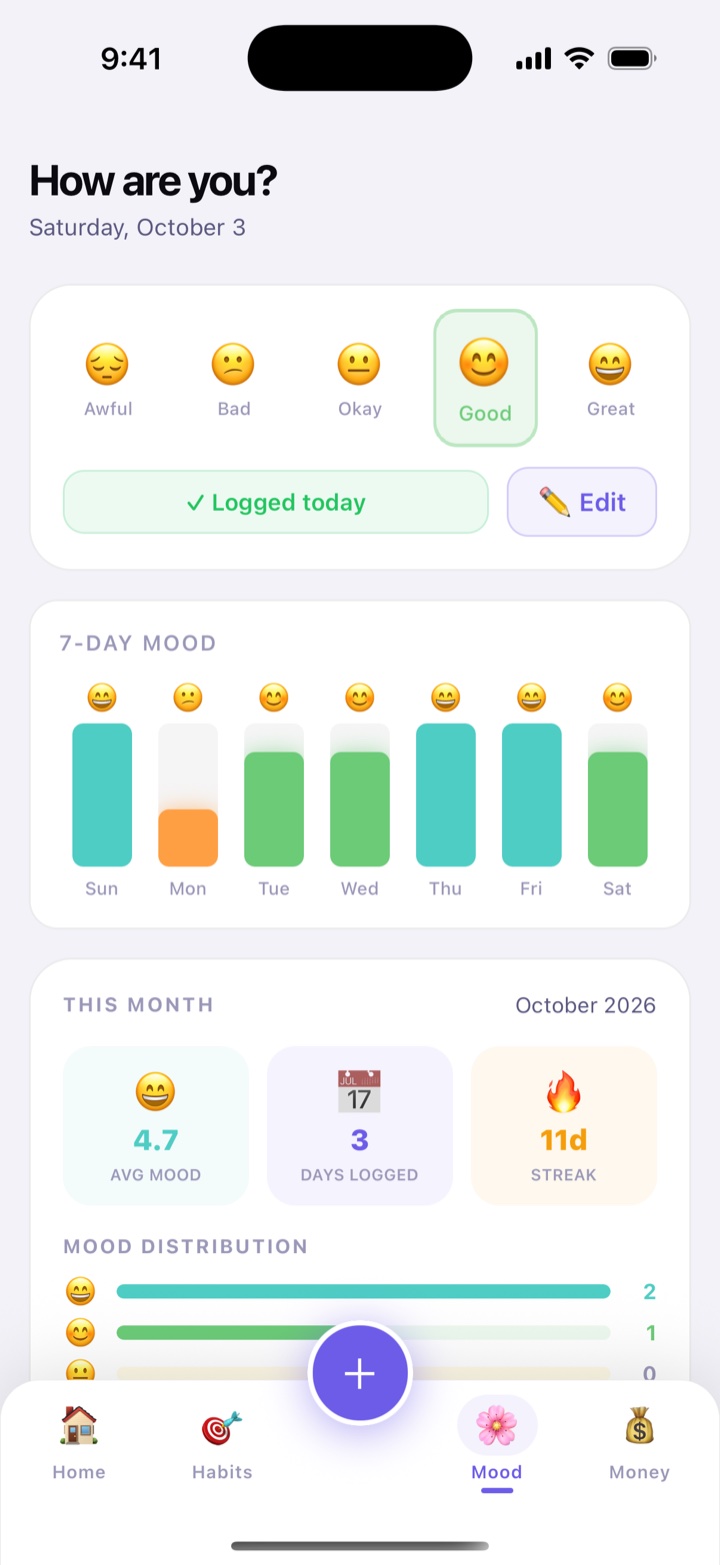
Once a day, choose how you feel: Awful, Bad, Okay, Good or Great, and add a note if you like. Habitly draws your mood over the last 7 days, colours a calendar for the month and, after a week of check-ins, shows which days of the week tend to feel best.

Home connects your mood with the rest of your day, with insights like “On 80% of your good-mood days, you completed at least one habit!”

How to use

  1. Tap Mood in the bottom bar.
  2. Pick a face and type a note if you want.
  3. Tap Save check-in. Changed your mind? Tap ✏️ Edit.

In daily life

Meena notices that the days she skips her evening walk are mostly Okay or Bad. That is the nudge she needed to start walking again.

Mood screen: five faces from Awful to Great, a note box, and the month's mood calendar.
Check-in and the mood calendar
Middle of Home: smart insights such as the hottest streak and the biggest spending day, a 39-day streak message, and tiles for best streak, weekly mood and this month's spending.
Home: smart insights next to habits, mood and spending

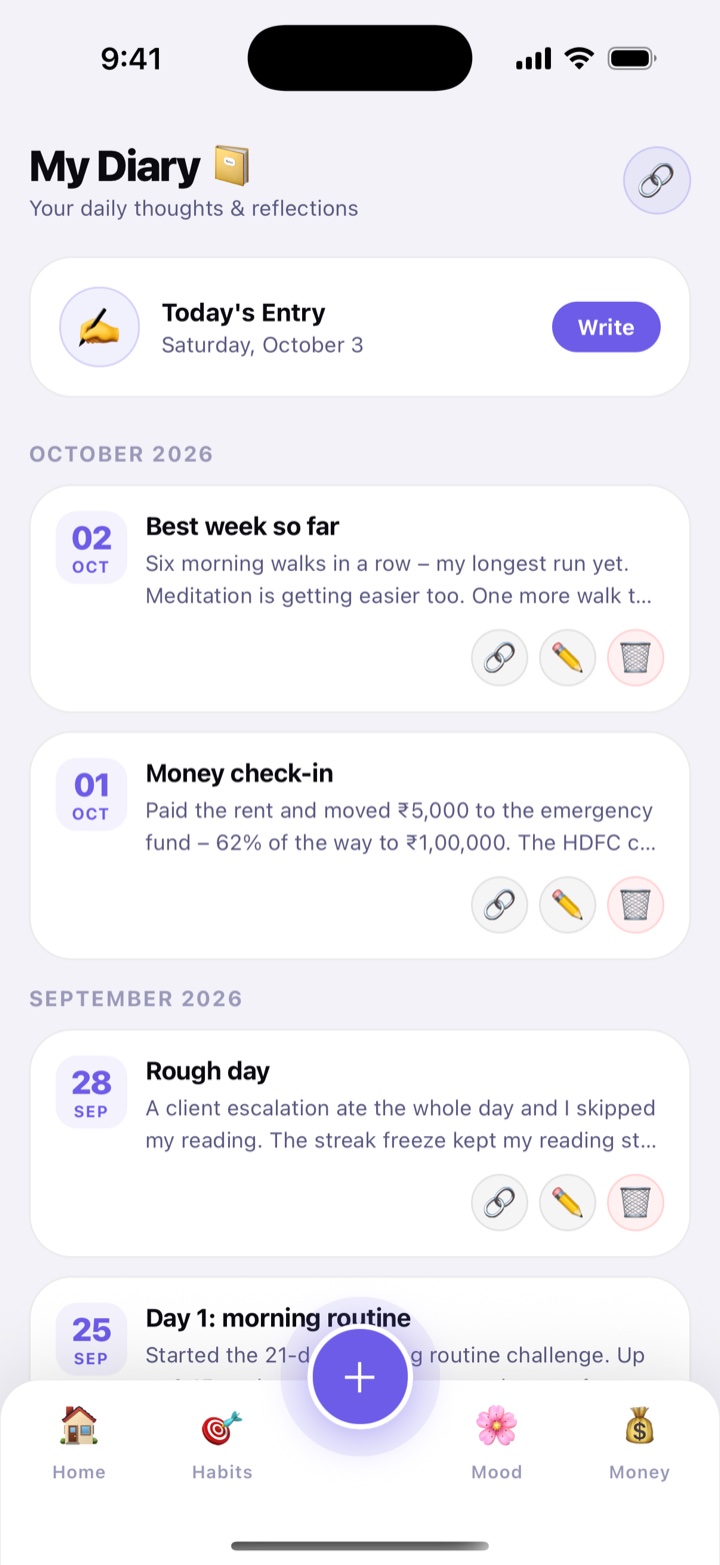
Diary

A private notebook for your thoughts. Write about your day with an optional title and read it back later; entries are grouped by month. Nothing leaves your phone unless you share an entry yourself, and App lock keeps it away from curious eyes.

How to use

  1. Open Diary from the + button at the bottom, or from Explore more on Home.
  2. Tap Write on Today’s Entry, type, and tap Save.
  3. Tap an entry to read it. Use ✏️ to edit, 🔗 to share or 🗑️ to delete.

In daily life

A retired teacher writes a few lines every night about her grandchildren. On their birthdays she reads them last year’s entries.

Diary screen: today's entry card with a Write button, and past entries grouped by month.
Entries, grouped by month

Diary prompts

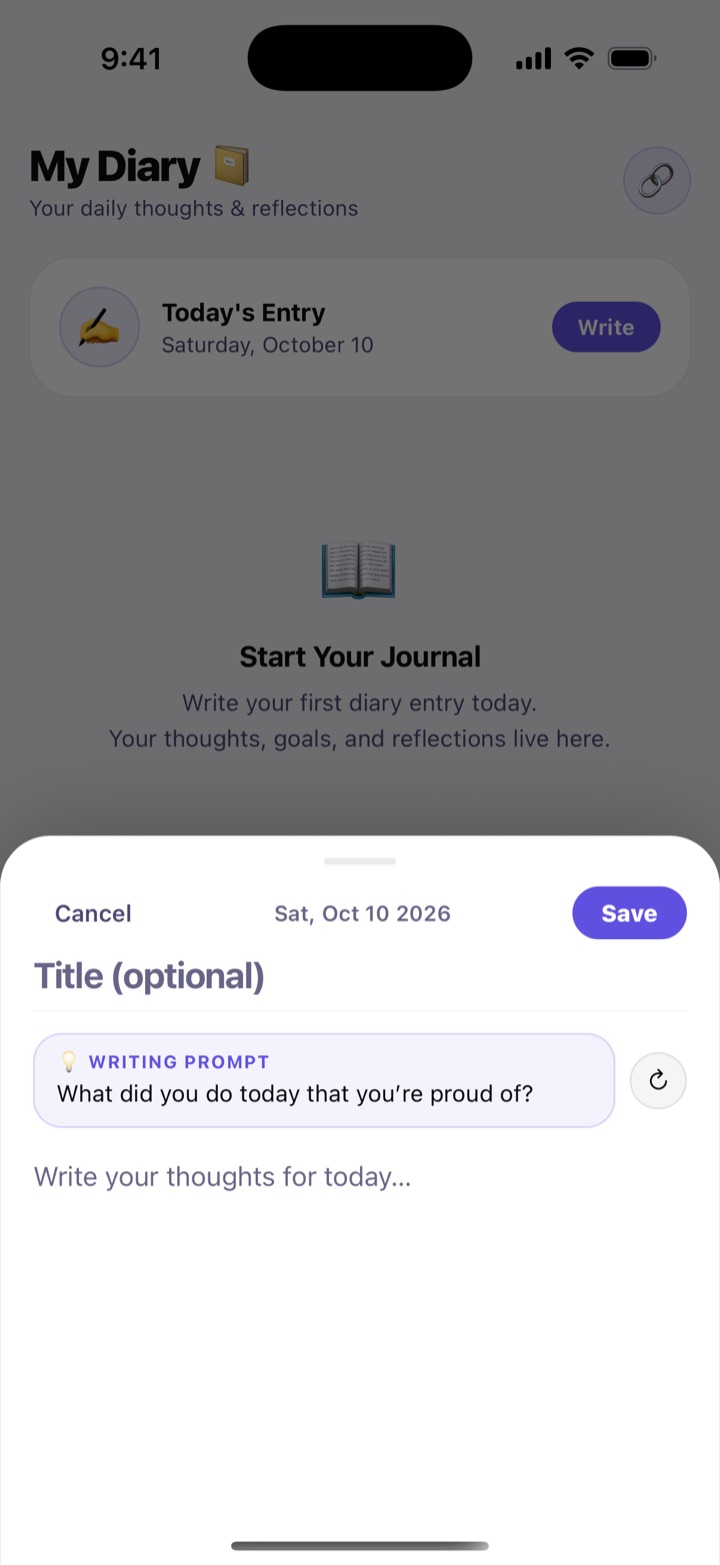
Staring at a blank page is the hardest part. When you start a new diary entry, Habitly suggests a question to write about, chosen to fit the mood you logged that day: “What made today a good day?” after a bright day, a gentler question after a hard one.

How to use

  1. Tap + on the Mood tab, choose Diary, and tap Write to start a new entry.
  2. Read the Writing prompt above the writing box. Tap it to start your entry with that question.
  3. Not feeling it? Tap ↻ for another one.

Prompts only appear on a new, empty entry, so they never get in the way of editing. With no mood logged that day, you get everyday questions like “How was your day?”.

In daily life

After a tiring Monday, Kavya logs a low mood and opens her diary. The prompt reads “What got you through today, however small?” and she writes three honest lines about her friend’s call.

New diary entry sheet with a Writing prompt chip asking “What did you do today that you're proud of?”, a refresh button beside it, and the writing box below.
A writing prompt that fits your mood

What lifts your mood

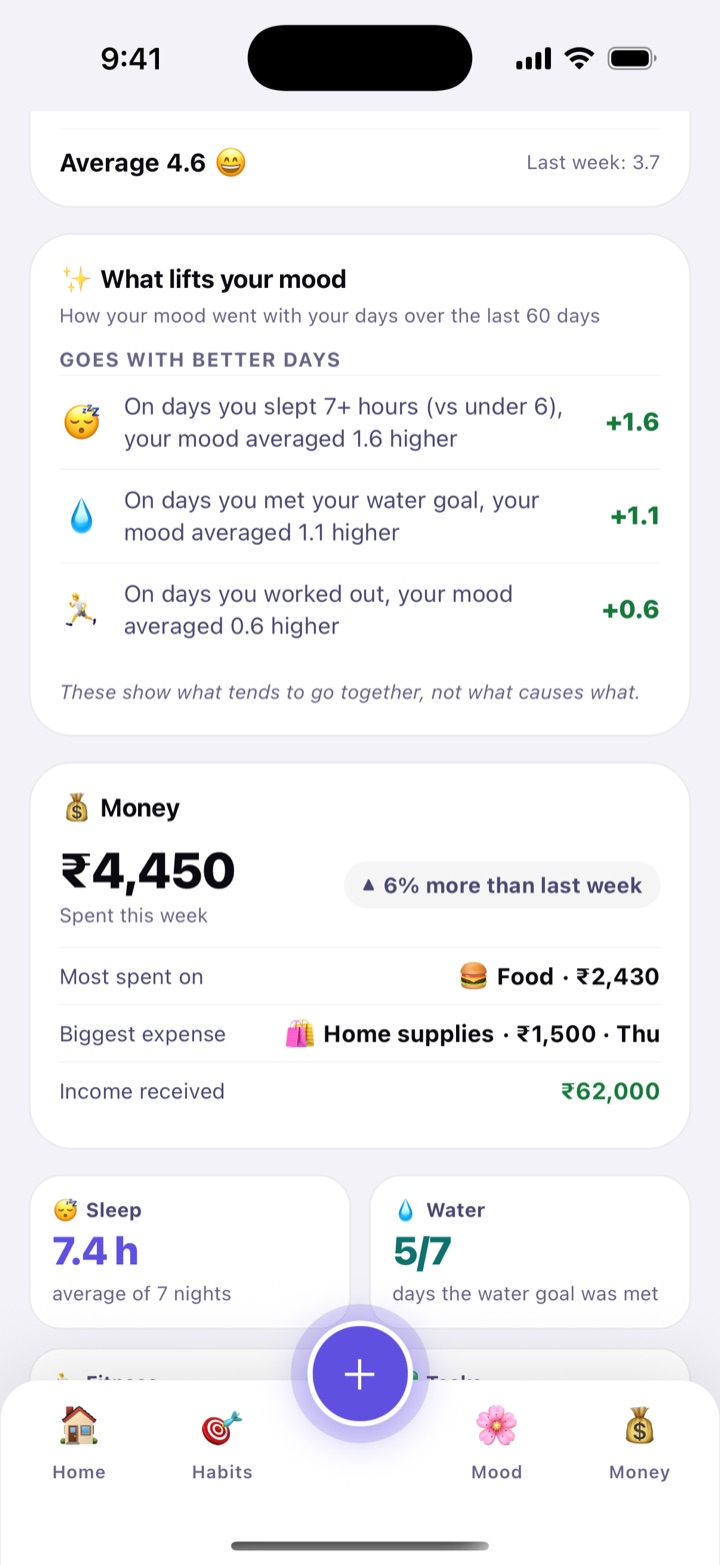
After a few weeks of logging your mood, your Weekly review shows what tends to go with better days and lower ones. Habitly compares your average mood on days you slept 7 hours or more against days under 6, days you met your water goal, days you worked out, days you finished your tasks, and days you did each habit.

A line might read: “On days you worked out, your mood averaged 0.8 higher”. A separate note looks at spending: what you spent on low-mood days against good-mood days.

How to use

  1. Log your mood most days, and keep tracking sleep, water, workouts, tasks or habits.
  2. Open More › Review and scroll to What lifts your mood.
  3. Read Goes with better days and, when there is one, Goes with lower days.

It looks at the last 60 days, not counting today, and shows a comparison only when there are at least 5 days on each side. Until then it says “Not enough days yet”. These are things that go together, not causes: a good night’s sleep may not lift your mood, but the two may travel together. It is not medical advice.

In daily life

Rohit notices that on his gym days his mood averages higher, and on nights he sleeps under 6 hours, the next day dips. He keeps his gym days and sets an earlier bedtime alarm.

Weekly review card called What lifts your mood: under Goes with better days, three lines such as “On days you slept 7+ hours (vs under 6), your mood averaged 1.6 higher”, each with a plus figure, and a note that these show what tends to go together, not what causes what.
What goes with your better days

Money

Every rupee in and out, the bills that come back every month, money shared with friends and family, savings goals, loans, subscriptions and your important papers, and a clear picture of where it all goes.

In this part: Expenses and budgets · Scan a receipt · Expense from SMS · Bills & EMIs · Savings goals · Loans & EMIs · Subscriptions · Lend & borrow · Split expenses · Shopping lists · Monthly report · Document vault · Fill in from a photo

Expenses, income and budgets

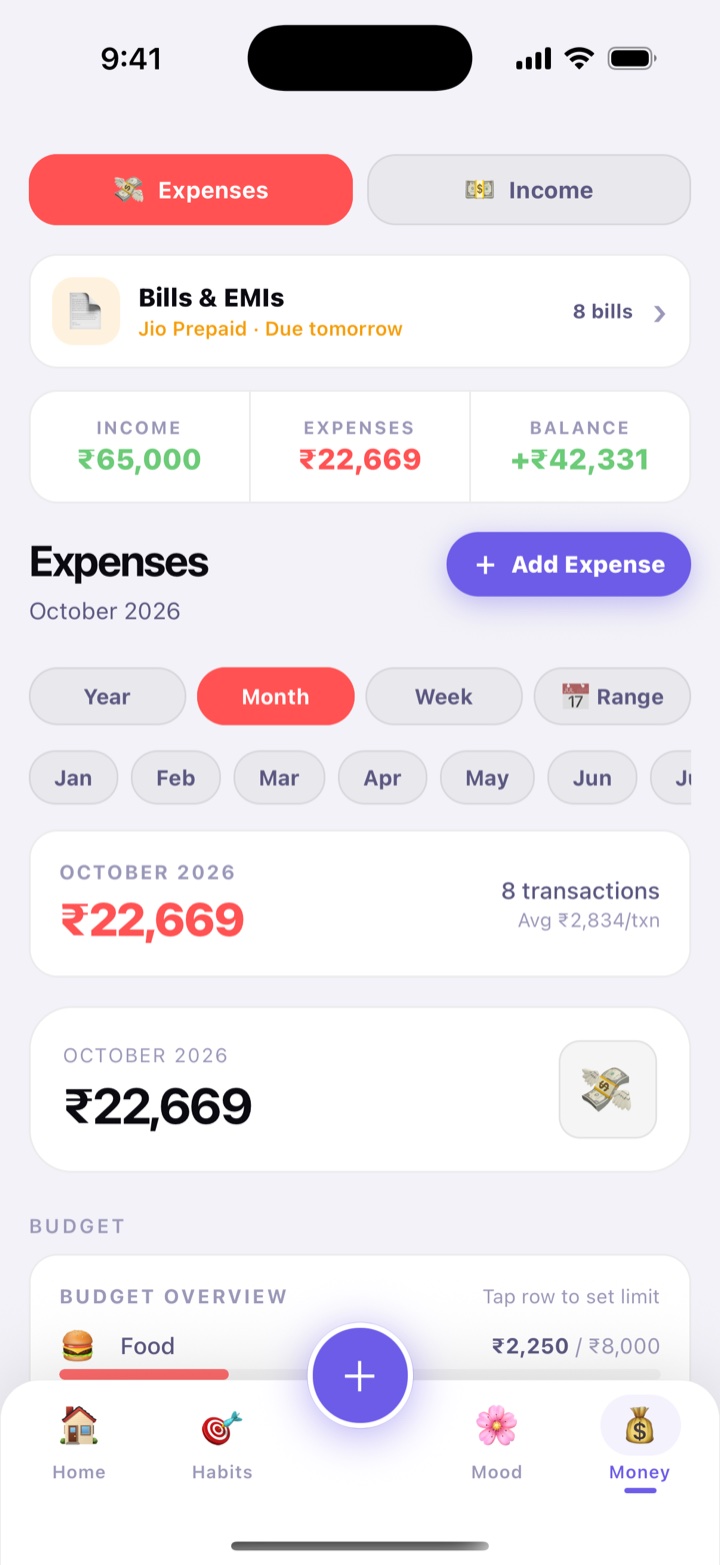
Note an expense in a few seconds with a category: Food, Transport, Shopping, Health, Entertainment, Bills, Education or Other. Add your income too (Salary, Freelance, Investment or Gift) to see what’s left this month. Give any category a monthly limit; its bar warns you once 75% is used and tells you by how much you went over.

Save regular costs like milk, the newspaper or a gym fee as Recurring templates. Tap one to log it, or let it add itself daily, every Monday or on the 1st of the month when you open Habitly that day.

You can also import a bank statement, CSV or PDF, from SBI, HDFC, ICICI, Axis, Kotak, PNB, Bank of Baroda, Canara and more. Habitly sorts the payments into categories (Swiggy to Food, Uber to Transport) and you choose which ones to add. No bank login is needed, and the file is read on your phone.

How to use

  1. Tap Money in the bottom bar, then + Add Expense. Enter the amount, pick a category and add a note.
  2. For money coming in, switch to 💵 Income and tap + Add Income.
  3. Once a category has spending, tap it in Budget Overview to set a monthly limit.
  4. To import, tap 📥 Import next to Transactions, then Pick CSV File or Pick PDF File. Review the list and tap Import.

Switch between Year, Month, Week or a date Range, and search by note or category. A password-protected or scanned PDF can’t be read; download the CSV from net banking instead.

In daily life

A family of four sets a ₹9,000 Food budget. On the 20th the Food bar turns amber and says it is running low, so they plan home-cooked dinners for the rest of the month.

Money screen: the month's expenses, budget bars by category, and income.
Expenses, budgets and income

Scan a receipt

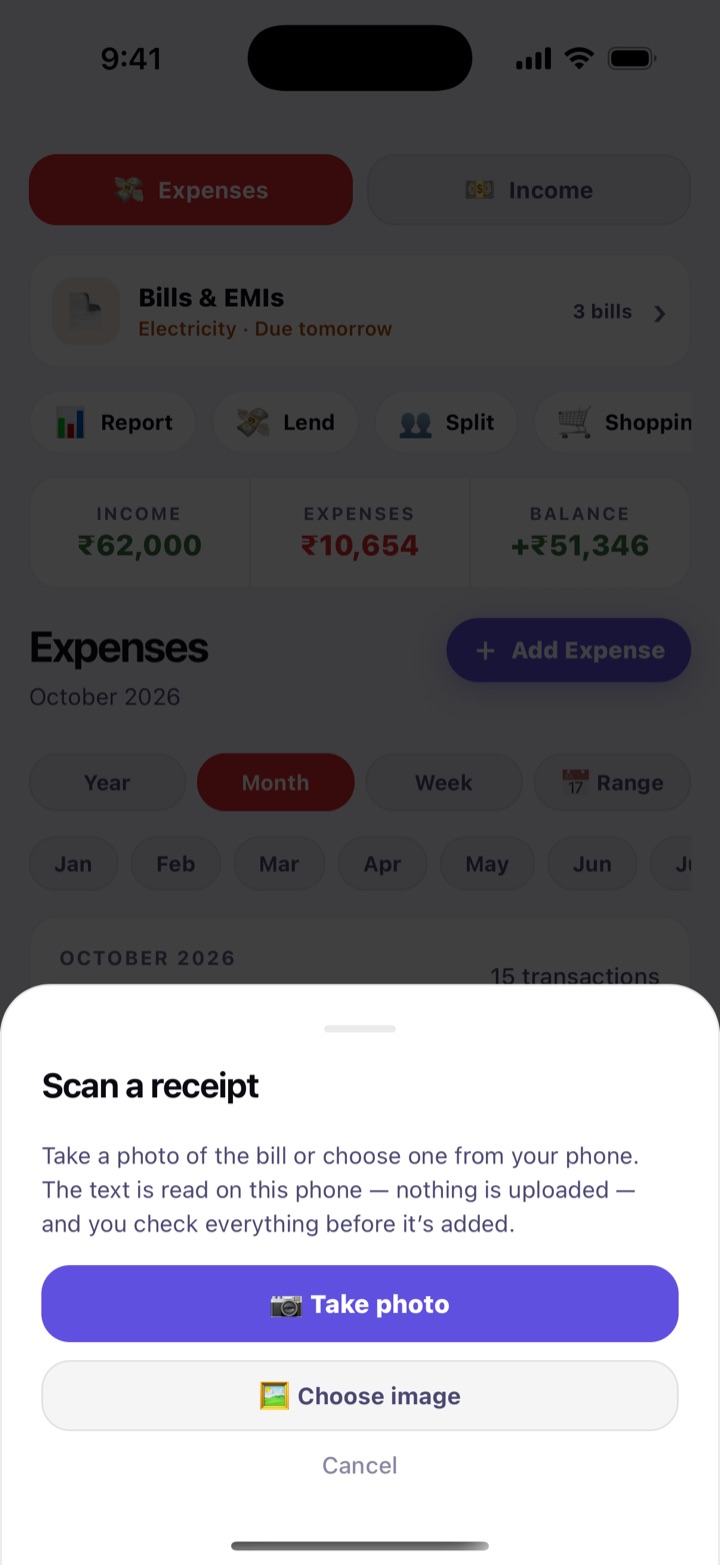
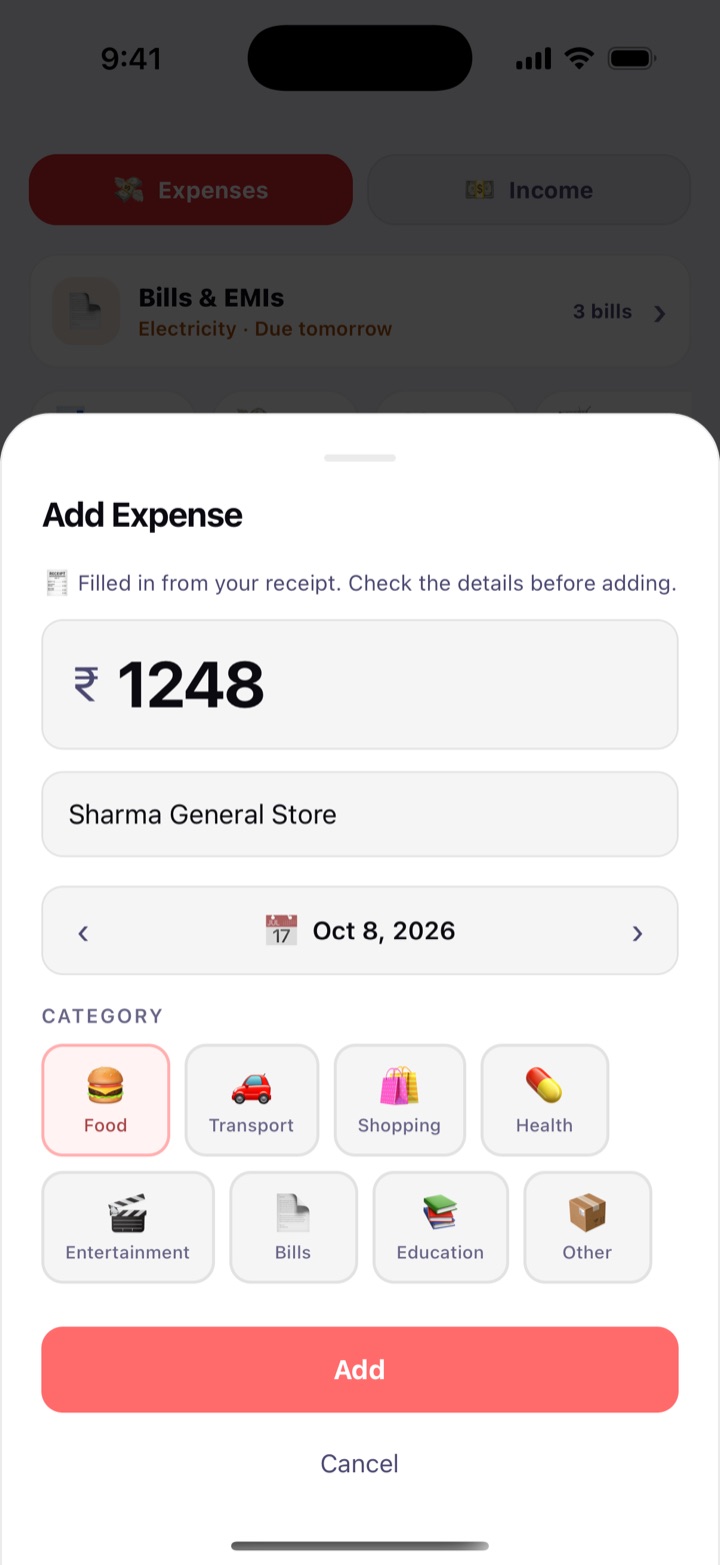
Photograph a shop bill and Habitly fills in the expense for you: the total, the date and the shop’s name, which goes into the note. The text is read on your phone, nothing is uploaded, and you check everything before it is added.

If Habitly isn’t sure about the amount, date or shop name, it says so (“Please check — this was a guess”). If it can’t find a total at all, it asks you to type the amount. Nothing is saved until you tap the add button yourself.

How to use

  1. Tap Money in the bottom bar, then + Add Expense.
  2. Tap Scan receipt, then Take photo or Choose image.
  3. Wait a moment while the receipt is read. The expense form opens with the amount, date and shop name filled in, under the line “Filled in from your receipt. Check the details before adding.”
  4. Fix anything that looks wrong, pick the category (it starts on Food), then tap Add.

Works best with a flat bill in good light, with the whole bill in the frame. A photo you take is deleted right after it is read; an image you choose is only read, never copied. The first time you take a photo, Habitly asks to use the camera.

In daily life

Meena buys the month’s groceries at the kirana store and photographs the bill at the counter. The total, the date and the shop’s name are already in the form by the time she is outside. She taps add and moves on.

Scan a receipt sheet with Take photo and Choose image buttons and a line saying the text is read on this phone.
Take a photo or choose one
Add Expense form filled in from a grocery receipt: a line saying it was filled in from your receipt, the amount 1248, the shop name Sharma General Store in the note box, the date, and the default Food category selected.
The expense, filled in and ready to check

Expense from SMS

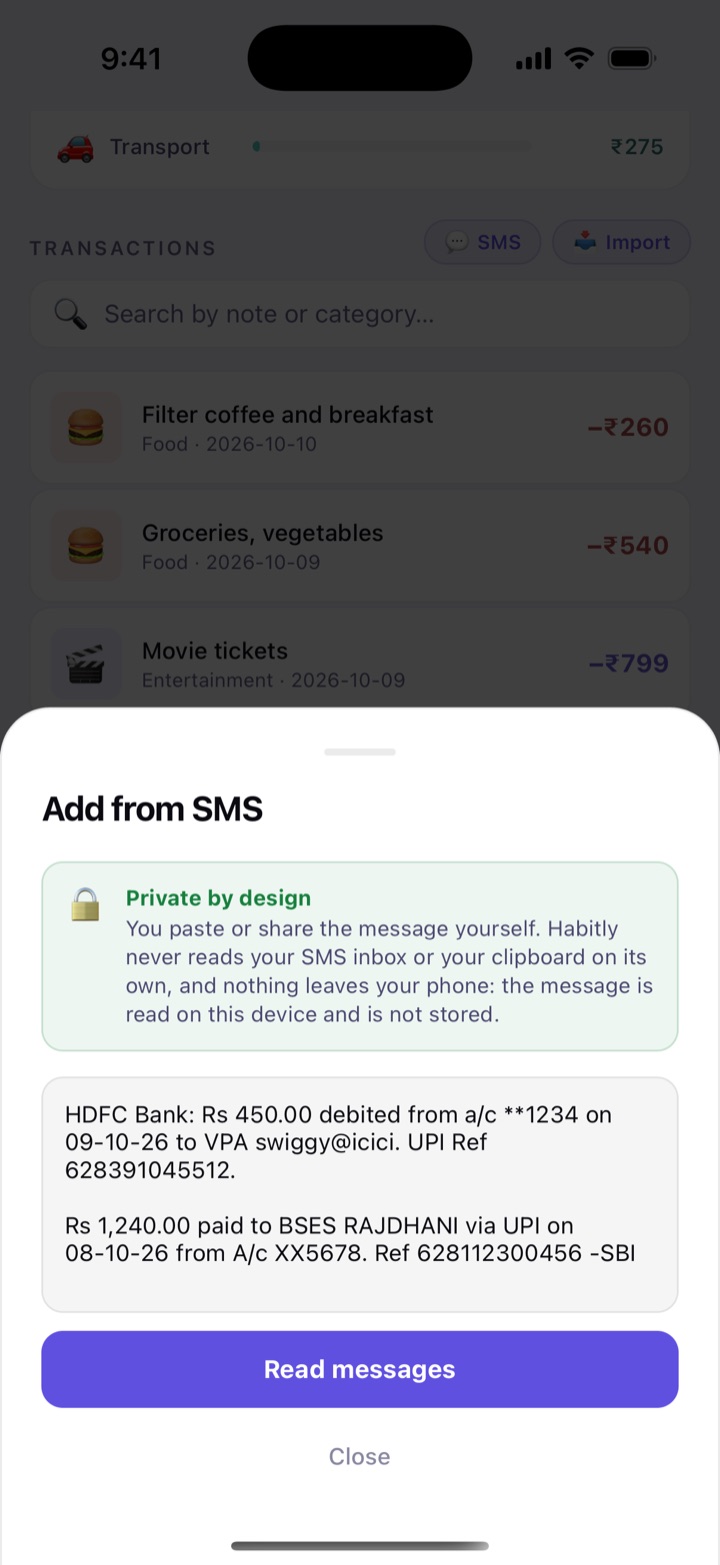
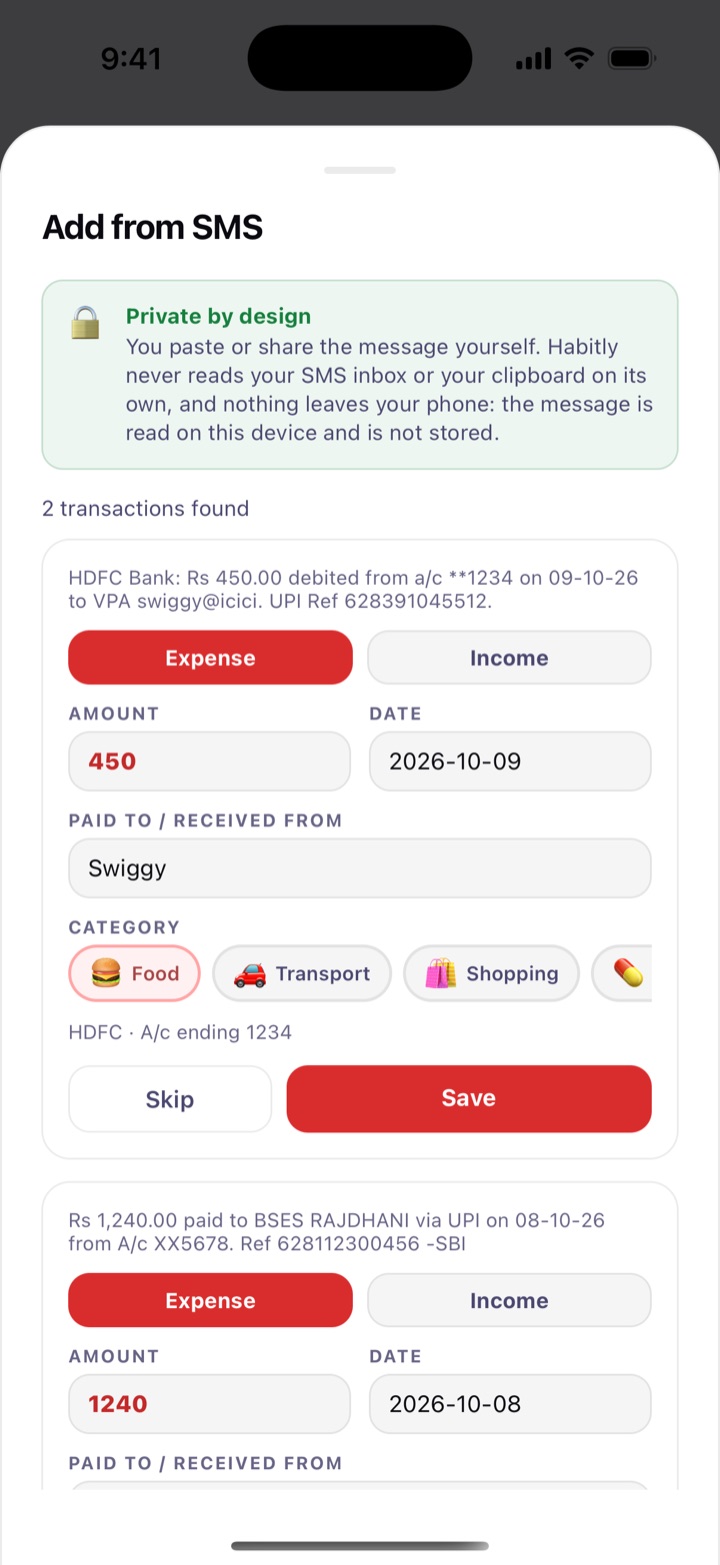
Your bank sends an SMS for every payment. Copy one (or several), paste it into Habitly, and the amount, date and who you paid are filled in, with a category when Habitly can tell, for you to check and save.

Habitly reads the message in front of you and then forgets it. It skips OTPs, balance alerts and bill reminders, spots a message you already added, and remembers the category you chose for a shop so the next one is filled in right. Credits are saved as income.

How to use

  1. In your messages app, touch and hold the bank or UPI message and tap Copy.
  2. Open Money, find Transactions and tap SMS.
  3. Paste into the box (on an iPhone, touch and hold the box and tap Paste; on Android tap 📋 Paste SMS). Put a blank line between messages and tap Read messages.
  4. Check each one and tap Save or Skip, or tap Save 3 new (the number is however many are new) to add them all.

On Android you can also select the message, tap Share and pick Habitly. It lands on the Money screen ready to confirm.

Private by design

  • Habitly has no permission to read your SMS and never looks at your inbox.
  • It never reads your clipboard by itself. Only the text you paste or share is used.
  • Nothing leaves your phone, and the pasted message is not stored.

In daily life

On Sunday night, Anil copies the week’s six UPI messages from his phone, pastes them in together, fixes one category and taps Save. Six expenses are in, without typing a single amount.

Add from SMS sheet with two bank messages pasted into the box and a Read messages button, under a note that Habitly never reads your SMS inbox or clipboard on its own.
Paste one or more bank messages
Transactions found from the pasted messages: each with amount, date, merchant and category to check and Save or Skip buttons, and a Save 2 new button at the bottom.
Check each one, then save

Bills & EMIs

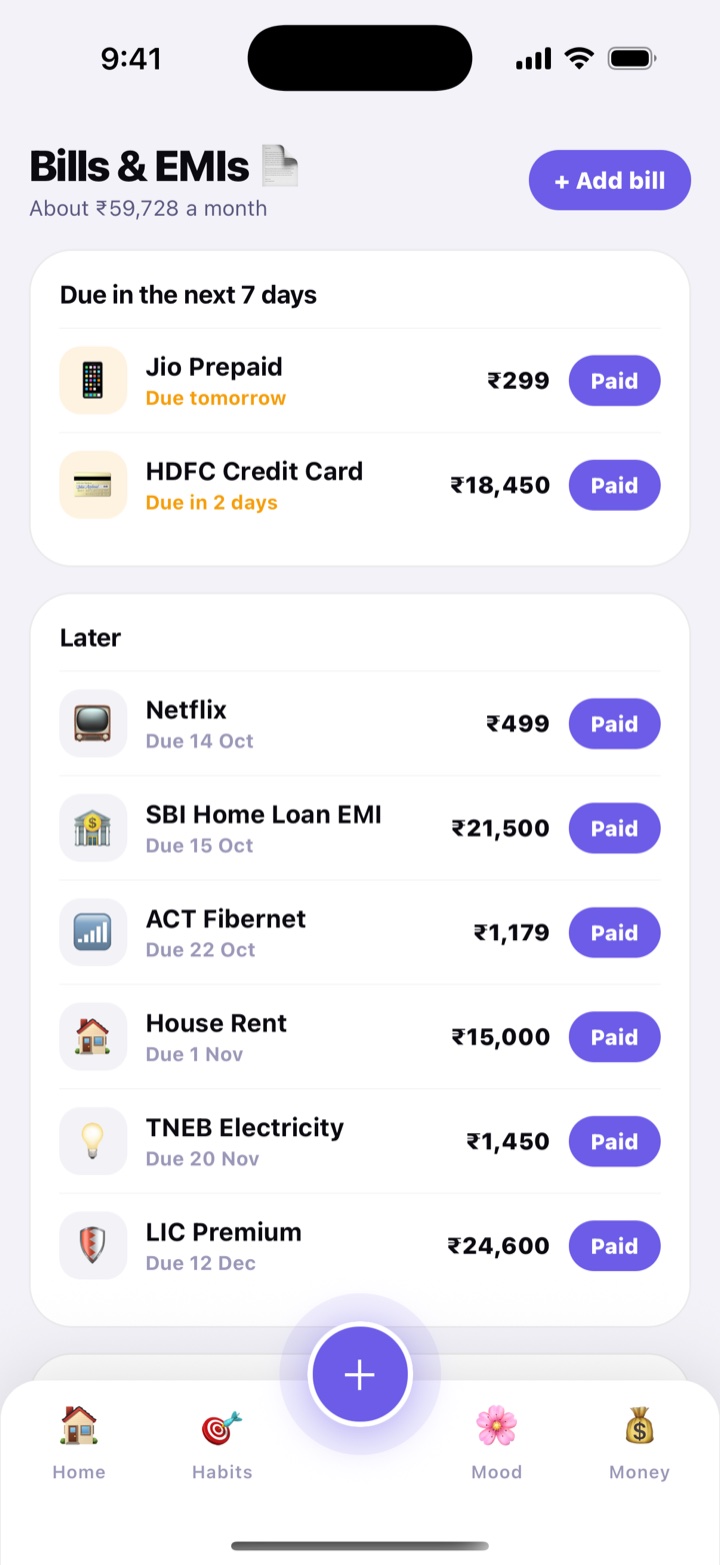
Add each bill once: credit card, loan EMI, rent, electricity, mobile recharge, internet or DTH, OTT, insurance or school fees. Habitly reminds you before every due date, again on the day, and the next morning if it is still unpaid.

When a bill has a fixed amount, tap Paid right in the notification. Habitly adds the payment to your expenses and moves the bill to its next due date. For bills that change each time, like a credit card or electricity, tap Paid in the app and enter the amount.

For the full month-by-month schedule of a loan, use Loans & EMIs. Use one or the other for the same EMI, so you are not reminded twice.

Bills can repeat every month, every 2 or 3 months, every year, every 28 days for prepaid recharges, or just once. The top of the screen shows roughly what your fixed bills cost each month.

How to use

  1. Open More › Bills, or the Bills & EMIs card on Money, and tap + Add bill.
  2. Choose the Type, give it a Name like “HDFC credit card”, and enter the Amount, or switch on The amount changes each time.
  3. Set the Next due date, how it Repeats, and Remind me (on the day, or 1, 2, 3, 5 or 7 days before) at your Reminder time. Tap Save.
  4. After paying, tap Paid, keep Add to expenses on and tap Mark as paid. Made a mistake? Tap Undo under Recently paid.

In daily life

Suresh adds his car loan EMI (₹14,200 on the 5th), the electricity bill and his daughter’s school fees every 3 months. The late fees stop, and so does the “did I pay this?” feeling.

Bills and EMIs screen: bills sorted by due date, each with a Paid button.
Bills sorted by due date

Savings goals

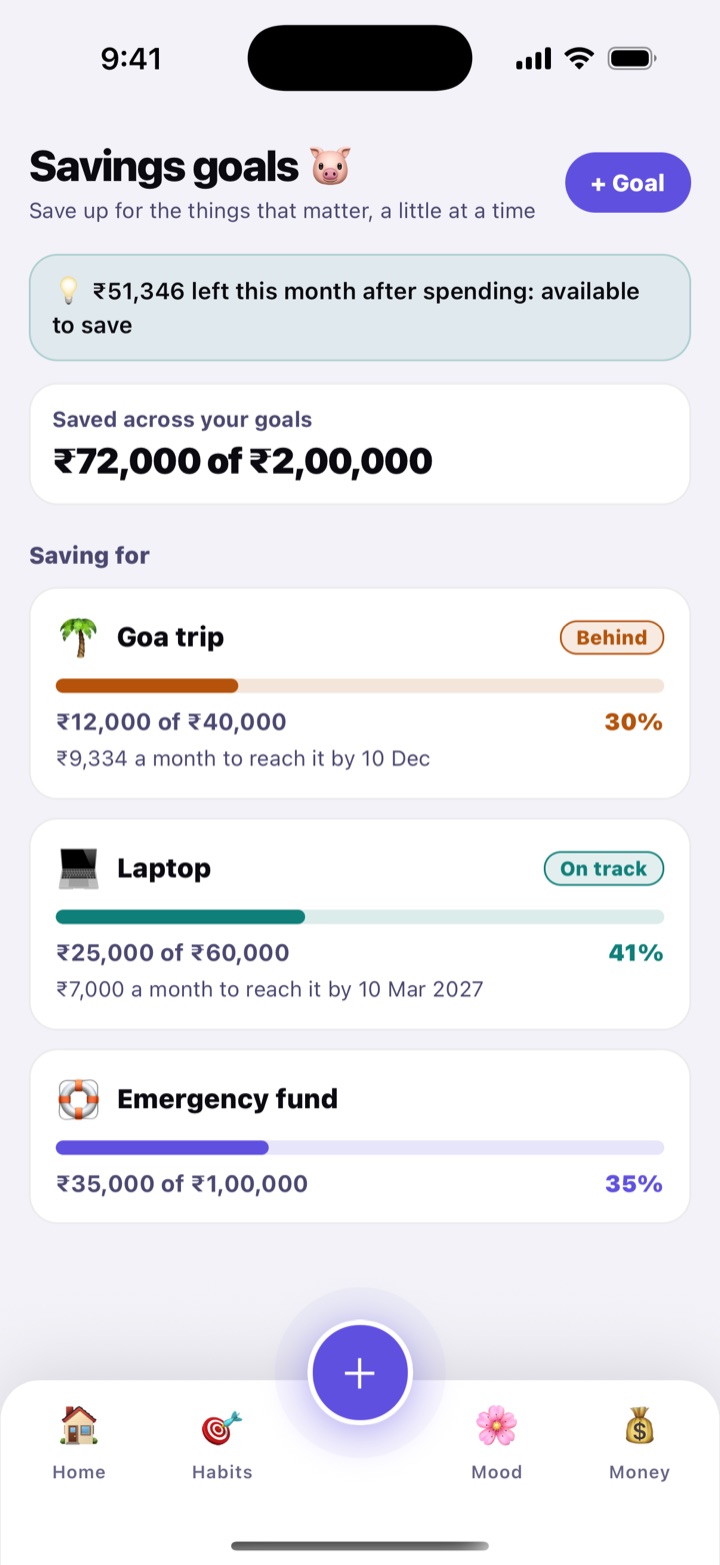
Save up for something, a little at a time: a new phone, a trip, an emergency fund. Give each goal a name, a target amount and, if you like, a deadline. Habitly shows how much you have put away, and with a deadline it works out the monthly amount you need.

Each goal says whether you are On track or Behind a steady pace since you started it. At the top, Habitly shows how much is left this month after spending (your income less your expenses), as a hint of what you could put away.

How to use

  1. Open More › Savings, or tap Savings in the row of tools on Money.
  2. Tap + Goal. Pick an Icon, type What are you saving for? and the Target amount. Add a Deadline if there is one, and tap Save goal.
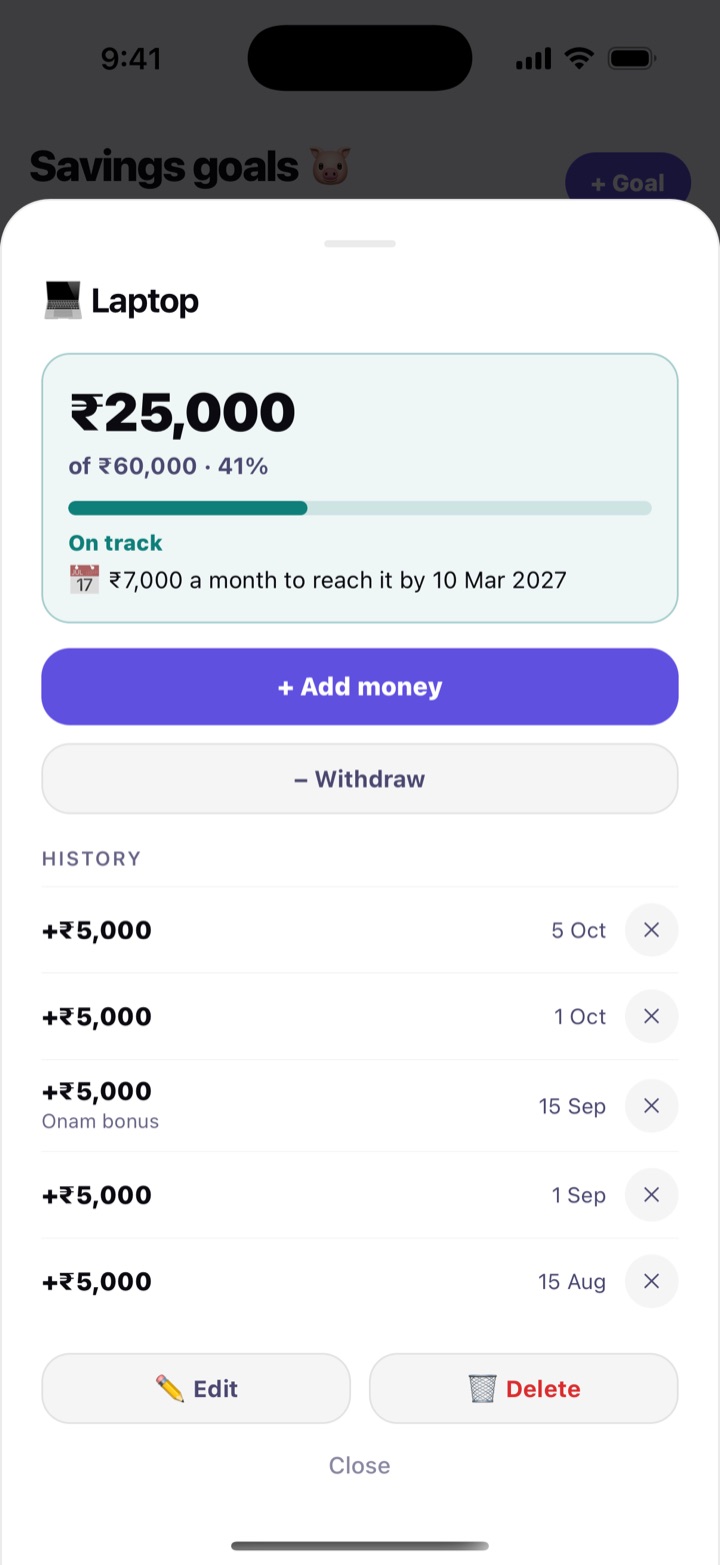
  3. Tap a goal, then Add money whenever you set some aside. Put in too much by mistake? Use Withdraw or remove the entry under History.
  4. When the target is reached, Habitly says “Goal reached!”. You can Archive the goal to tidy the list.

Savings goals are a tracker. Habitly doesn’t move any money; you note what you have saved yourself.

In daily life

Arjun wants a ₹60,000 laptop by March. With ₹25,000 saved, Habitly tells him he needs ₹7,000 a month to get there. Every payday he taps Add money, and the goal shows him whether he is on track.

Savings goals screen: the total saved across goals, and goals with progress bars, such as a laptop and a Goa trip, each marked On track or Behind.
Goals with their progress and pace
A savings goal opened: amount saved of the target, the monthly amount needed by the deadline, the Add money and Withdraw buttons, and the history of money added.
One goal: add money, withdraw, history

Loans & EMIs

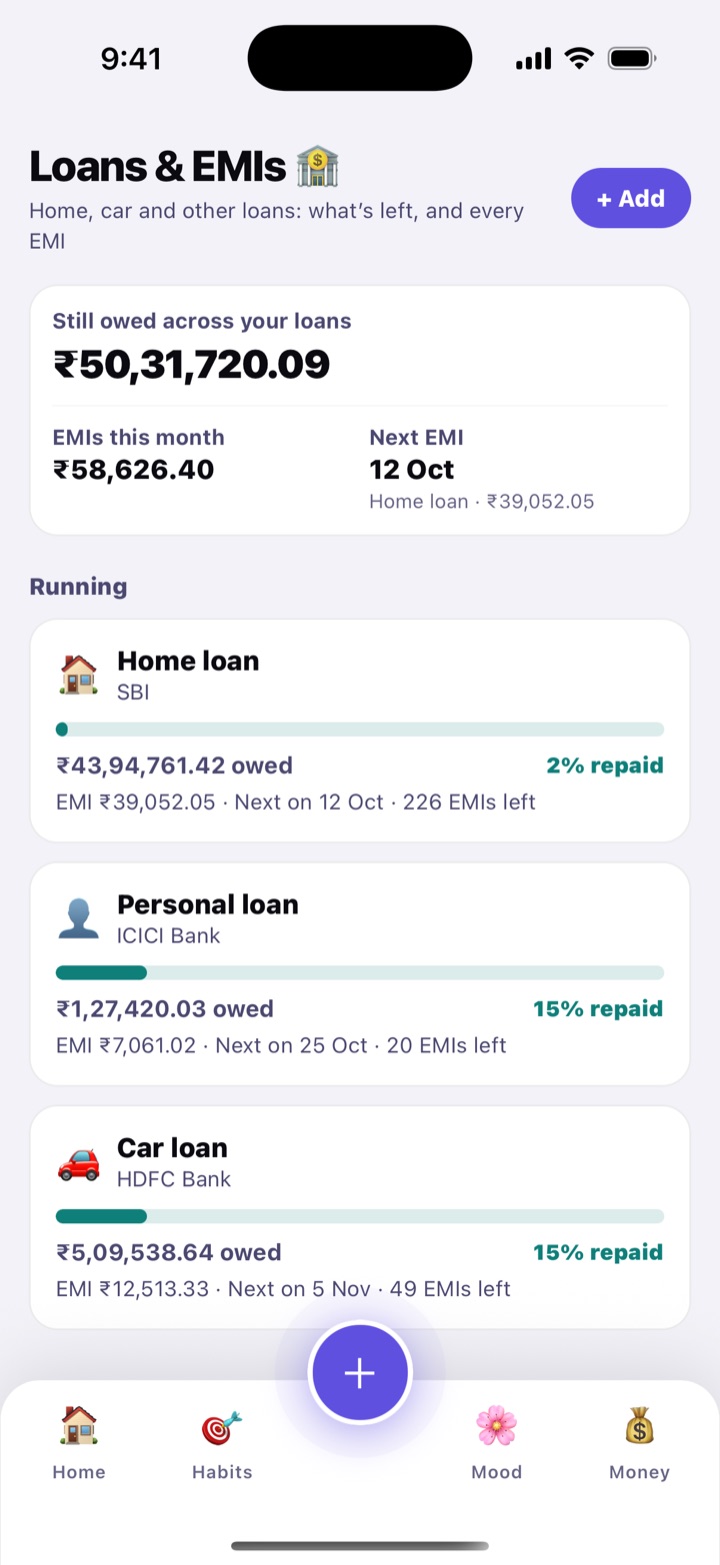
Keep every loan you already have in one place: home, car, two-wheeler, personal, education, gold, or a credit-card EMI. Habitly shows how much is still owed, the month-by-month schedule, and reminds you before every EMI.

Add the amount, the yearly interest rate and the number of months, and Habitly works out the EMI. If your bank’s EMI is slightly different, type it in and Habitly uses that. The loan screen splits what you will pay in all into principal and interest, so you can see what the loan really costs.

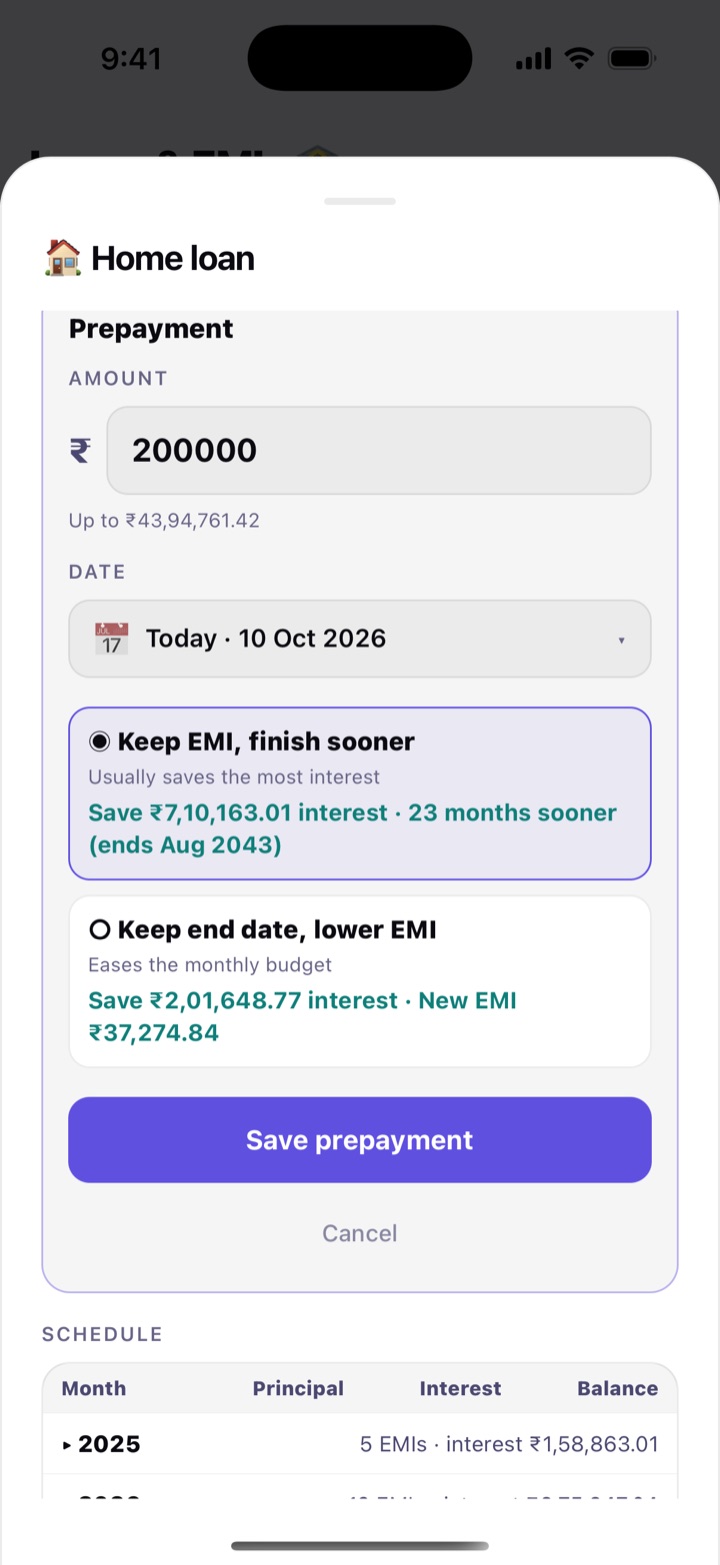
Prepayment calculator. Thinking of paying a lump sum? Enter the amount and choose what it should do: Keep EMI, finish sooner (usually saves the most interest) or Keep end date, lower EMI (eases the monthly budget). Habitly shows how much interest you would save, and the new end date or the new EMI, before you save anything.

How to use

  1. Open More › Loans, or tap Loans in the row of tools on Money. Tap Add.
  2. Choose the Kind of loan, name it, and fill in Loan amount, Interest rate (per year), Tenure in months, the First EMI date and EMI day of the month. Keep EMI reminders on and tap Save loan.
  3. Tap the loan to see the Schedule by year. After paying an EMI, tap Mark paid; switch on Add to expenses to log it as a Bills expense too.
  4. To try a prepayment, tap Prepay or try the calculator, enter the amount, pick what it should do and read the result. Tap Save prepayment only if you really paid it.

Reminders come the day before and on the EMI day, at 9 AM. Habitly only tracks loans you already have; it doesn’t offer, arrange or approve any loan. Already added this EMI under Bills? Use one or the other, so you aren’t reminded twice.

In daily life

Suresh gets a ₹2 lakh bonus and wonders whether to prepay his home loan. The calculator shows that keeping his EMI and finishing sooner saves far more interest than lowering the EMI, so he prepays and sees the end date move forward.

Loans and EMIs screen: the total still owed, EMIs this month and the next EMI, and loans such as a home loan and a car loan with how much is repaid.
All your loans: what is owed and what is next
Prepayment calculator on a home loan: a prepayment amount, the choice between keeping the EMI and finishing sooner or lowering the EMI, and the interest saved with the new end date.
Prepayment calculator: interest saved, new end date

Subscriptions

The streaming apps, mobile recharges, cloud storage and memberships that renew by themselves add up quietly. List them once and Habitly shows what they cost every month and every year, what renews this week, and which free trials are about to turn into a charge.

To save typing, Quick add offers 18 common ones with their usual billing cycle: Netflix, Amazon Prime, Disney+ Hotstar, JioCinema, SonyLIV, ZEE5, Spotify, YouTube Premium, Apple Music, Jio, Airtel, Vi, Google One, iCloud+, Microsoft 365, ChatGPT, cult.fit and Newspaper. Prices change often, so you type the amount yourself. Your own can be added too, with any name, and a cycle of monthly, every 3 or 6 months, yearly, or a number of days (like a 28-day recharge).

Good to know

  • Reminders. Habitly reminds you 2 days before each renewal, and on the day a free trial ends, at 9 AM.
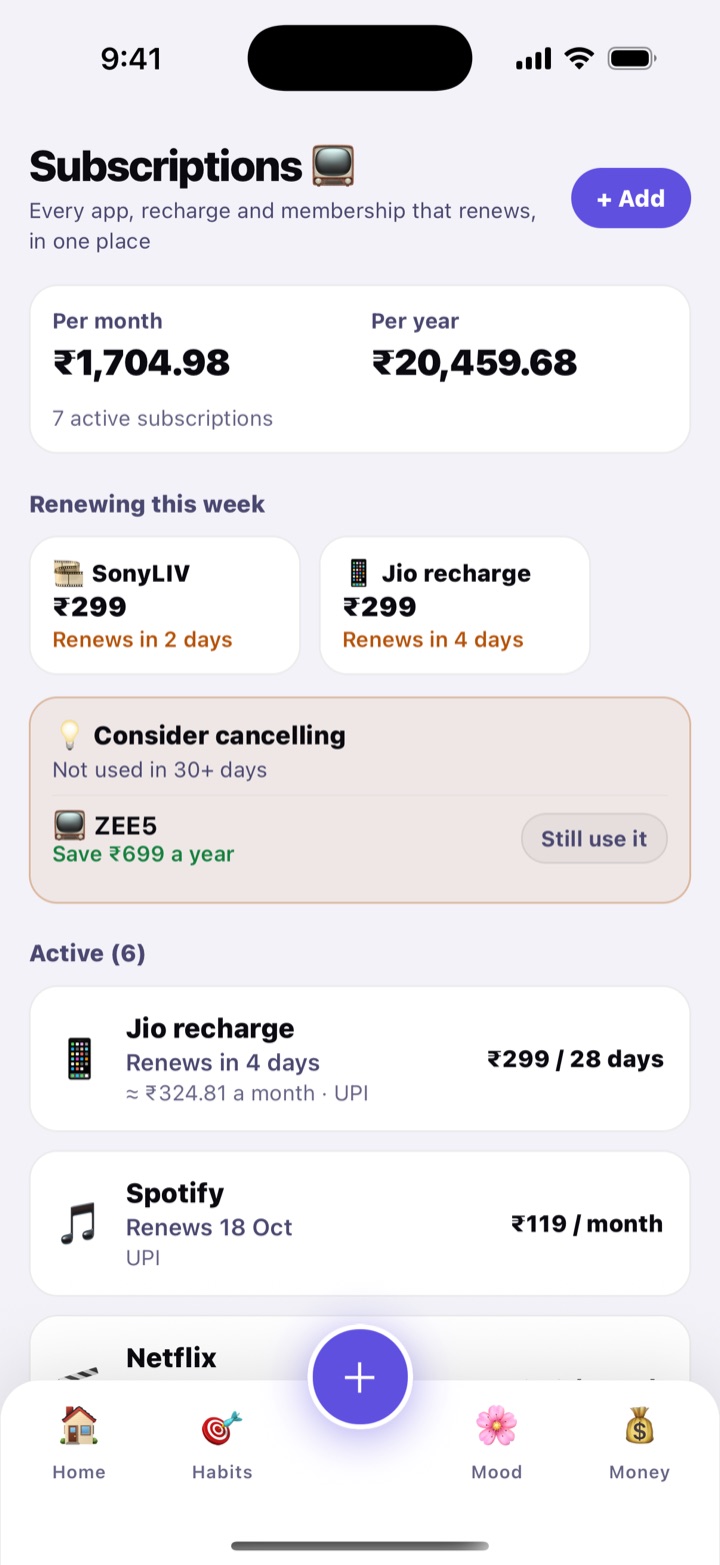
  • Consider cancelling. Tap I used this when you use a service. If you haven’t for 30 days or more, it appears under “Consider cancelling” with what you would save a year. Tap Still use it to dismiss it.
  • Your expenses stay as they are. Add to expenses on renewal is off unless you switch it on. When on, each renewal is logged in Money.
  • Pause or cancel. Cancelling here only updates your list. Remember to cancel with the service itself too.

How to use

  1. Open More › Subscriptions, or tap Subscriptions in the row of tools on Money. Tap Add.
  2. Tap a name under Quick add, or type your own. Enter the Amount each renewal and the Next renewal date.
  3. On a free trial? Set the day it ends under Free trial ends. Tap Save subscription.
  4. On a manual-renewal one, tap Mark renewed after you pay.

In daily life

Divya adds her phone recharge, two OTT apps, Google One and the newspaper. Habitly shows about ₹1,700 a month. One OTT app hasn’t been opened in six weeks, so it shows up under “Consider cancelling”. She cancels it and saves ₹699 a year.

Subscriptions screen: cost per month and per year, a Consider cancelling card for a service not used in 30 days, and subscriptions with their next renewal dates, and free trials at the bottom.
Monthly and yearly cost, and what to cancel
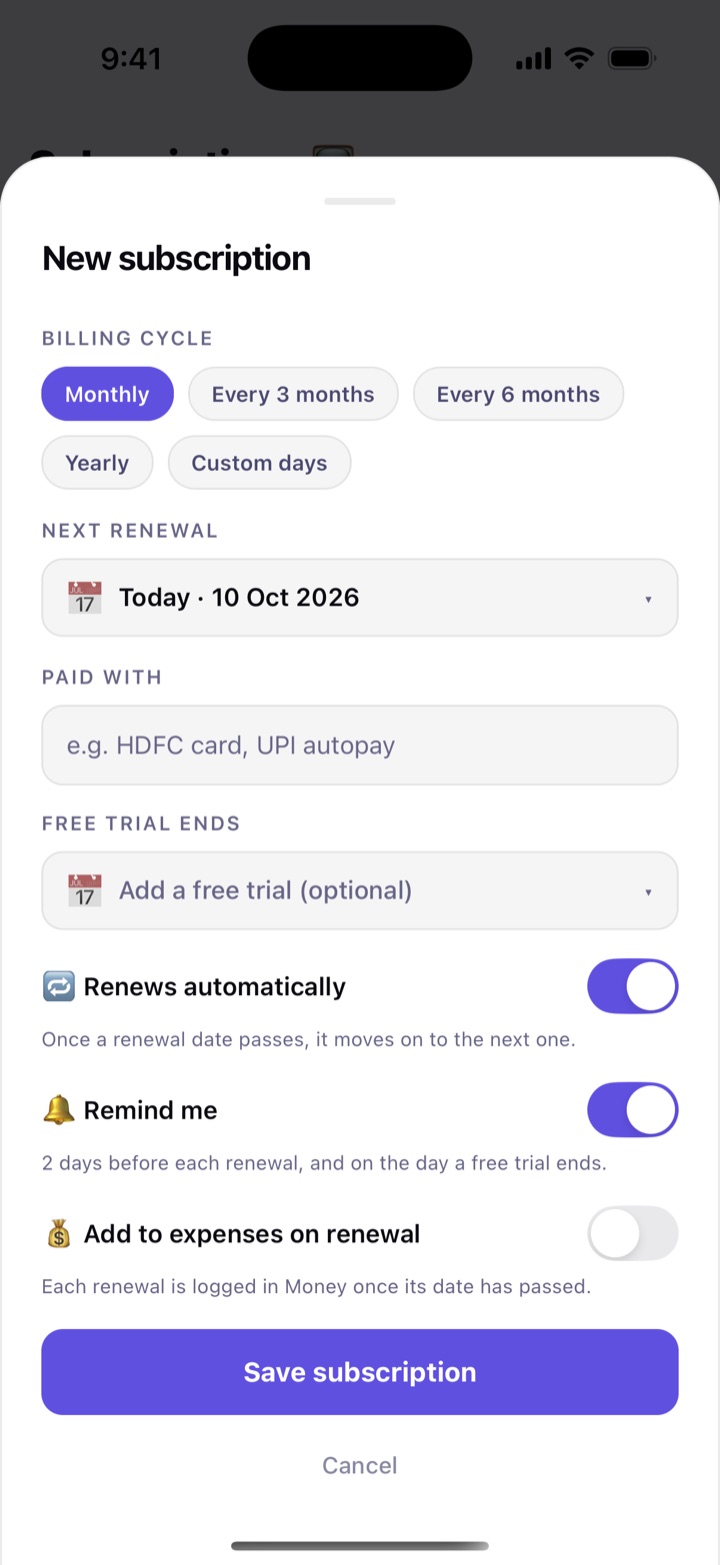
New subscription form: billing cycle options, the next renewal date, a free trial end date, and switches for Renews automatically, Remind me and Add to expenses on renewal (off), above the Save subscription button.
Billing cycle, free trial and reminders

Lend & borrow

The old udhaar khata, on your phone. Note the money you gave a friend or took from family, and see at a glance who owes you and whom you owe. Entries for the same person are grouped together, with a clear line like “owes you ₹2,500” or “you owe ₹800”.

Part-payments are fine. Each time some money comes back, add a payment and Habitly shows how much is left. Set a due date and you get a reminder that day, and another three days later if it is still open.

How to use

  1. Tap Money, then Lend in the row of tools (or More › Lend). Tap + Add.
  2. Choose I gave or I took, type the Name and Amount, and add a due date and a note, like “For the Goa trip”. Switch on Remind me on the due date and tap Save.
  3. Tap a person to see their entries. Use Add payment when some money is paid back, or Mark as settled for the rest.
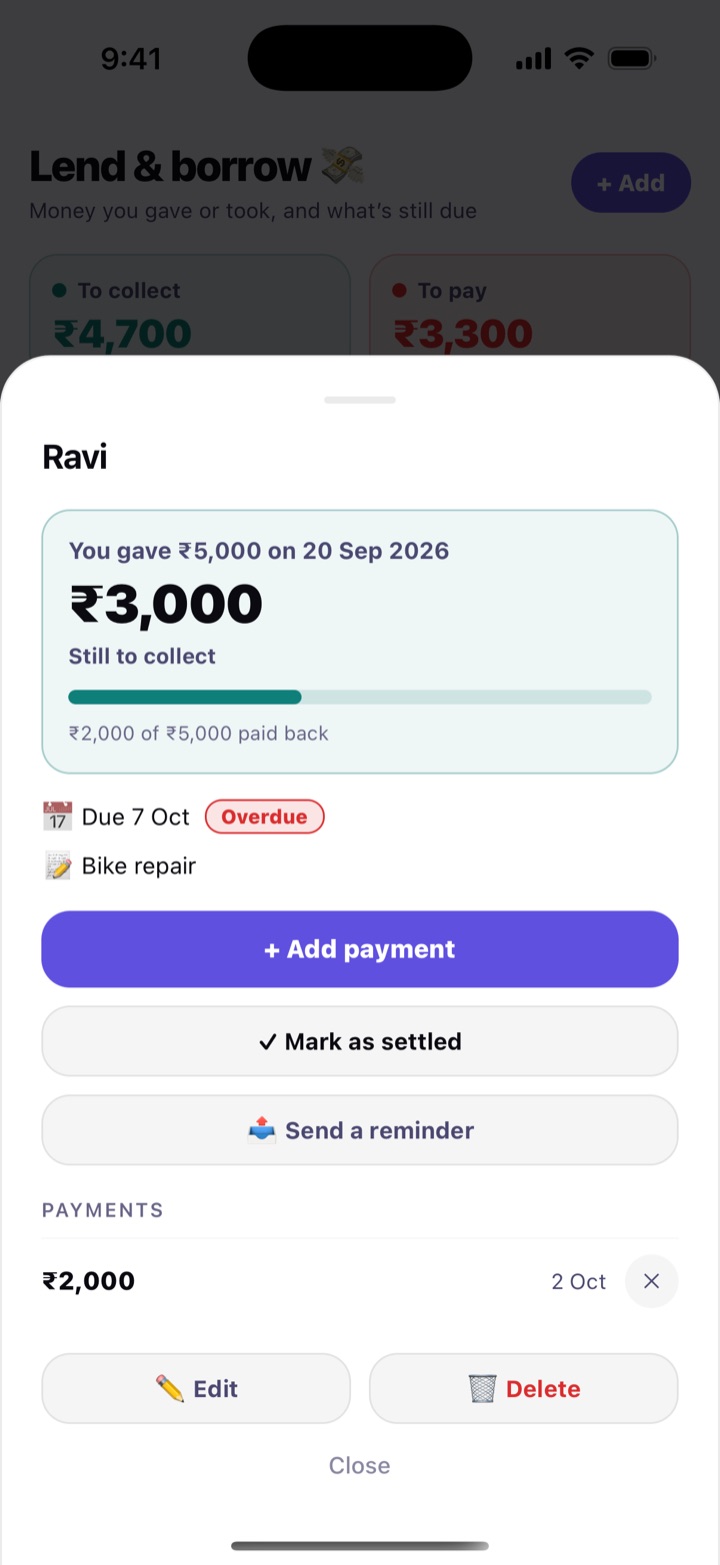
  4. Tap Send a reminder to share a polite message such as “Hi Ravi, just a gentle reminder about ₹2,000 from 2 Oct. Thank you! 🙏”.

When you add a payment, switch on Also add to Money to record it as income (money coming back) or as an expense (money you paid back). Use the filters All, To collect, To pay and Settled to find entries.

In daily life

Karthik lends his cousin ₹5,000 for a bike repair. When ₹2,000 comes back on the 1st he adds a payment, and the card now says ₹3,000 left. No more “did he pay me?”.

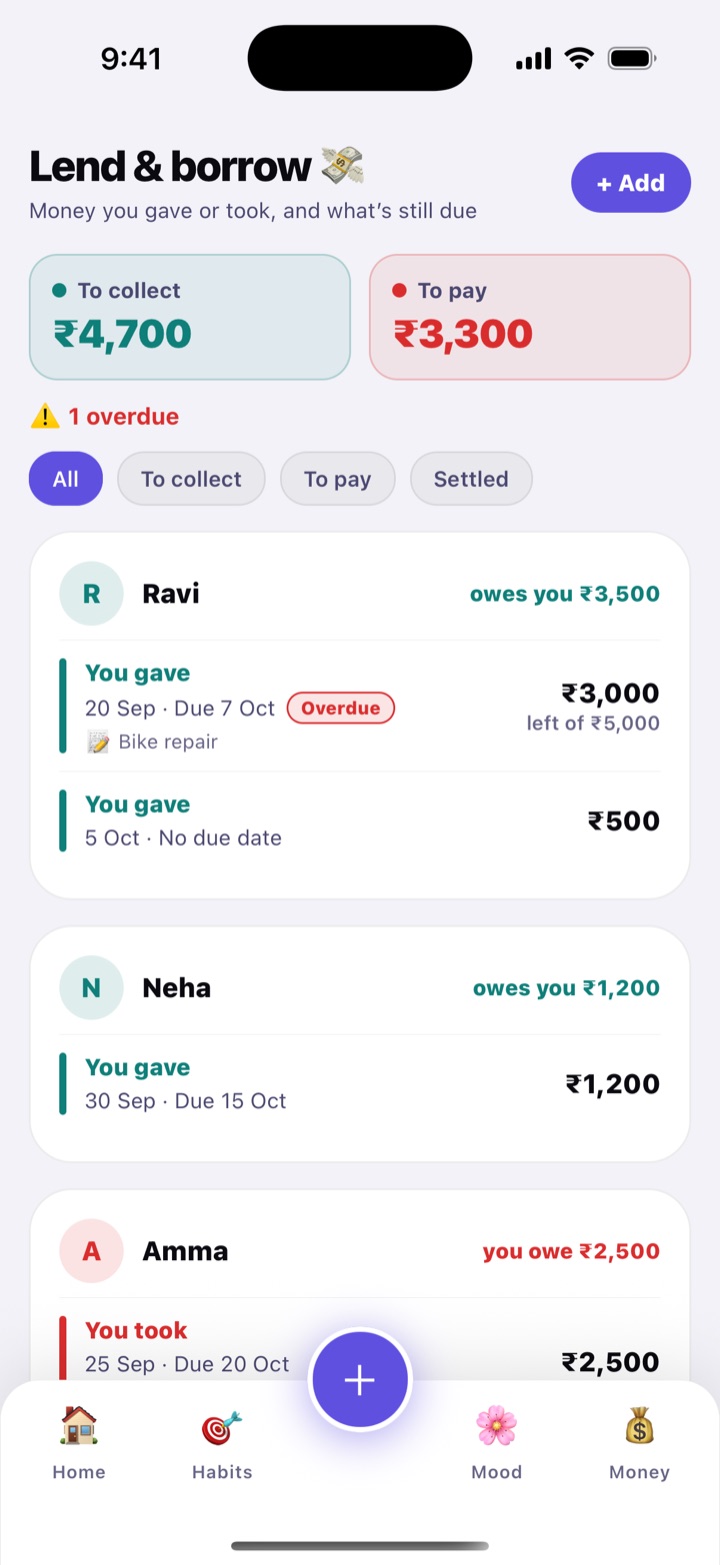
Lend and borrow screen: totals for To collect and To pay, an overdue notice, filter chips, and people with lines such as owes you 2,500 rupees.
Who owes you, and whom you owe
One person's entry: the amount still to collect, a progress line of how much is paid back, the due date and note, the buttons Add payment, Mark as settled and Send a reminder, and the list of payments.
Add payments, or send a gentle reminder

Split expenses

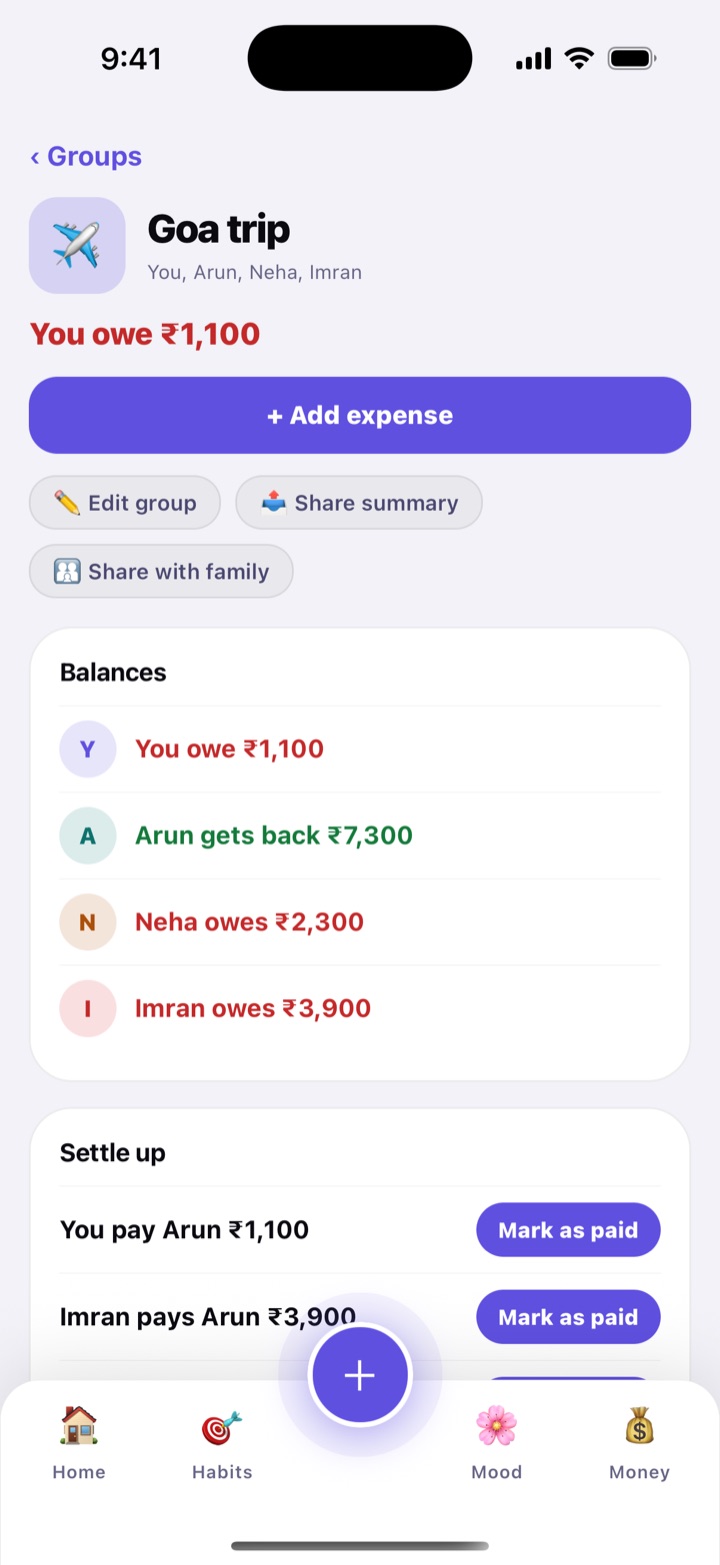
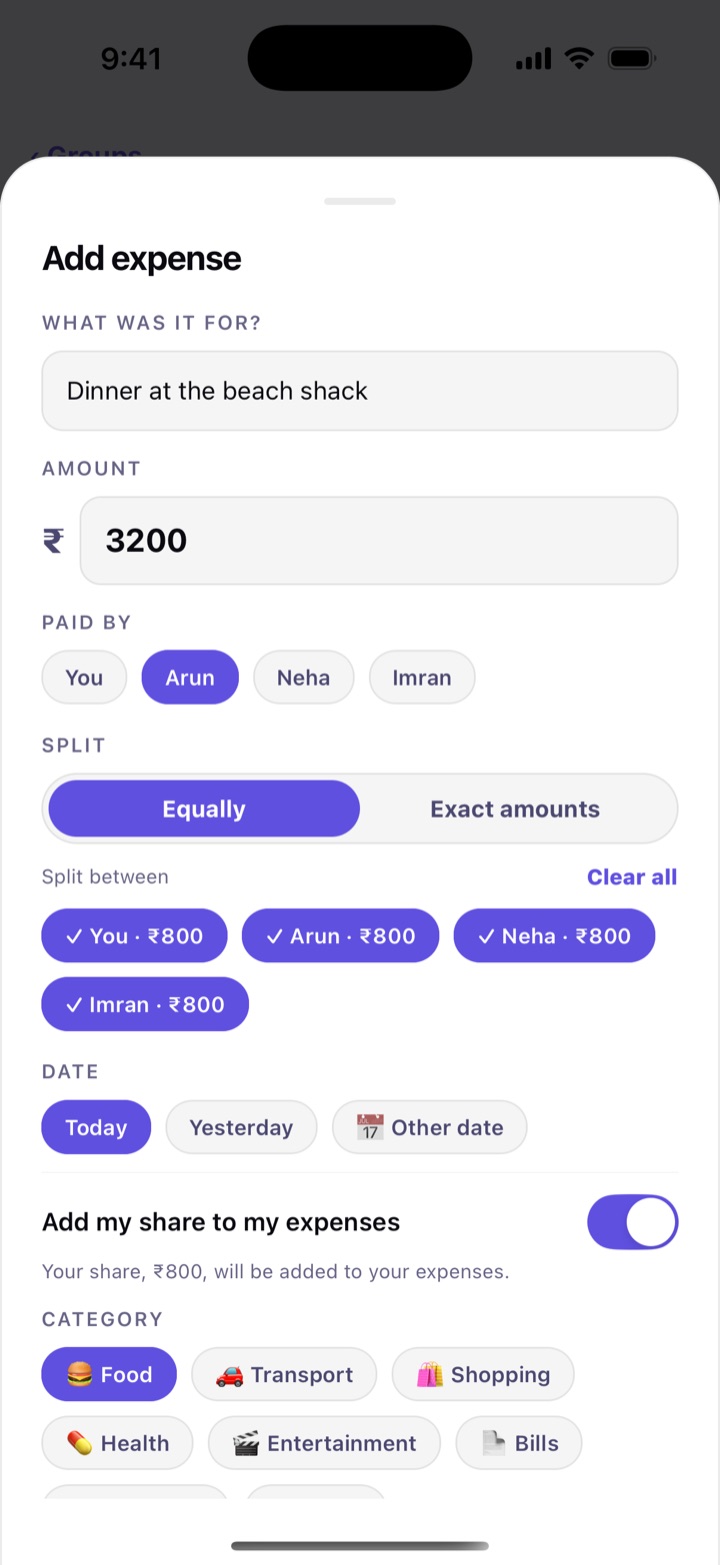
For trips, flatmates and dinners with friends. Make a group, add who is in it, and note each expense: what it was for, who paid and who shares it. Habitly keeps a running balance and tells you the shortest way to settle up, like “Neha pays Arun ₹1,200”.

Split an expense equally, or enter exact amounts when everyone had something different. Switch on Add my share to my expenses and only your part goes into your own spending. When someone pays you back, tap Mark as paid and the balances update.

How to use

  1. Tap Money, then Split (or More › Split). Tap New group, name it, pick a type (Trip, Flat, Food, Party or Office) and add the people. You are always in the group.
  2. Open the group and tap Add expense. Fill in What was it for?, the Amount, Paid by and Split between.
  3. Check Balances and Settle up to see who should pay whom. Tap Mark as paid when it is done.
  4. Tap Share summary to send everyone the balances as a message.

Everything stays on your phone. Friends do not need Habitly, because you share the summary as plain text. If someone repays only part of what they owe, use Record a payment.

In daily life

Six friends go to Goa. Arun pays the hotel, Neha pays the cabs, Imran pays the dinners. At the end of the trip, one tap shows that only three small payments settle it all.

A Goa trip group: balances for each friend, the payments that settle everyone up with Mark as paid buttons, and the list of expenses.
Balances and who pays whom
Add expense sheet: Dinner at the beach shack, an amount, paid by Arun, split equally between four friends, and the option to add my share to my expenses.
Add an expense and choose who shares it

Shopping lists

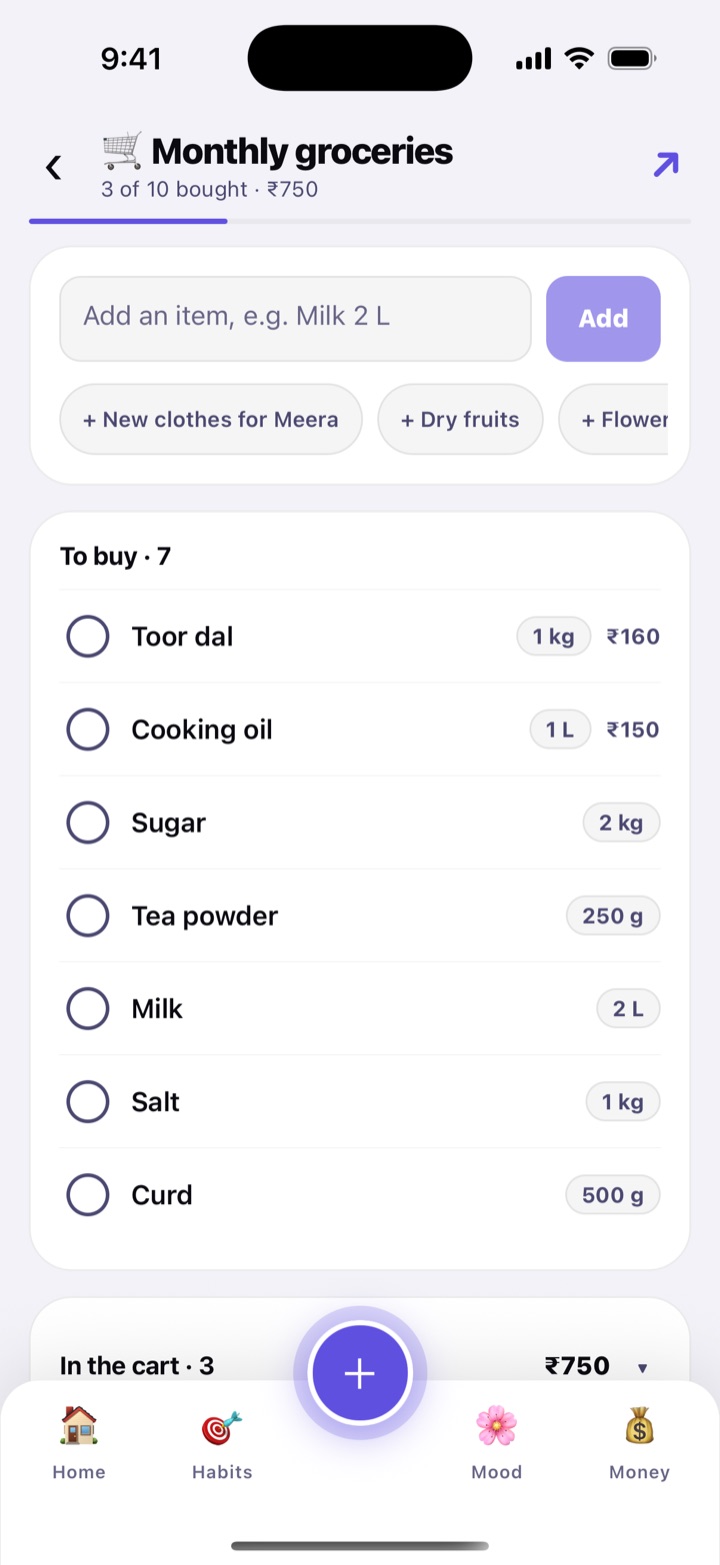
Make a list, take it to the shop and tick things off as they go into the cart. Start from a ready list (Monthly groceries, Vegetables & fruits or Festival shopping) or an empty one. Type an item the way you would say it, like “Milk 2 L” or “Rice 5 kg”, and Habitly picks up the quantity and unit.

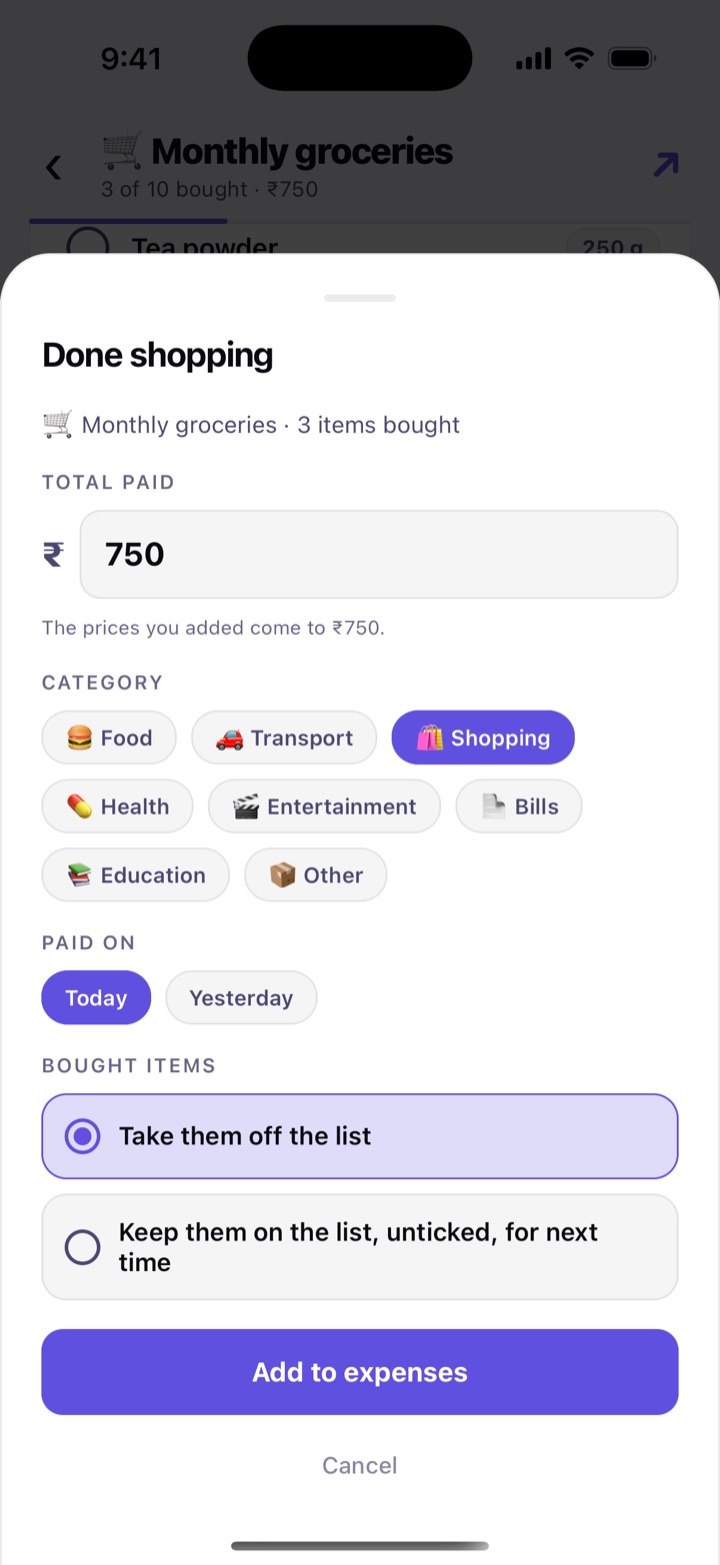
Items you have not bought sit under To buy; ticked items move to In the cart. At the till, tap Done shopping, enter the total from the bill and Habitly adds one expense, so you do not have to type each item’s price.

How to use

  1. Tap Money, then Shopping (or More › Shopping). Tap New list, pick a starting list and an icon, and tap Create list.
  2. Type in Add an item, e.g. Milk 2 L. Tap an item later to set its quantity, unit and price.
  3. Tick each item as you pick it up.
  4. Tap Done shopping, check the Total paid and Category, choose whether to take bought items off the list, and tap Add to expenses.

Use Share list to send the list to someone going to the market, Untick all to reuse it next month and Clear bought items to tidy up.

In daily life

Before Diwali, Sunita makes a Festival shopping list: diyas, sweets, rangoli colours, flowers. Her husband gets the list on WhatsApp, ticks off items at the market, and the ₹3,450 bill lands in her expenses.

A Monthly groceries list: items such as rice 5 kg and toor dal under To buy, and ticked items under In the cart.
To buy, and in the cart
Done shopping sheet: the total paid, the Shopping category, the paid-on date, and the choice to take bought items off the list or keep them unticked for next time, with an Add to expenses button.
Done shopping: one expense for the whole bill

Monthly money report

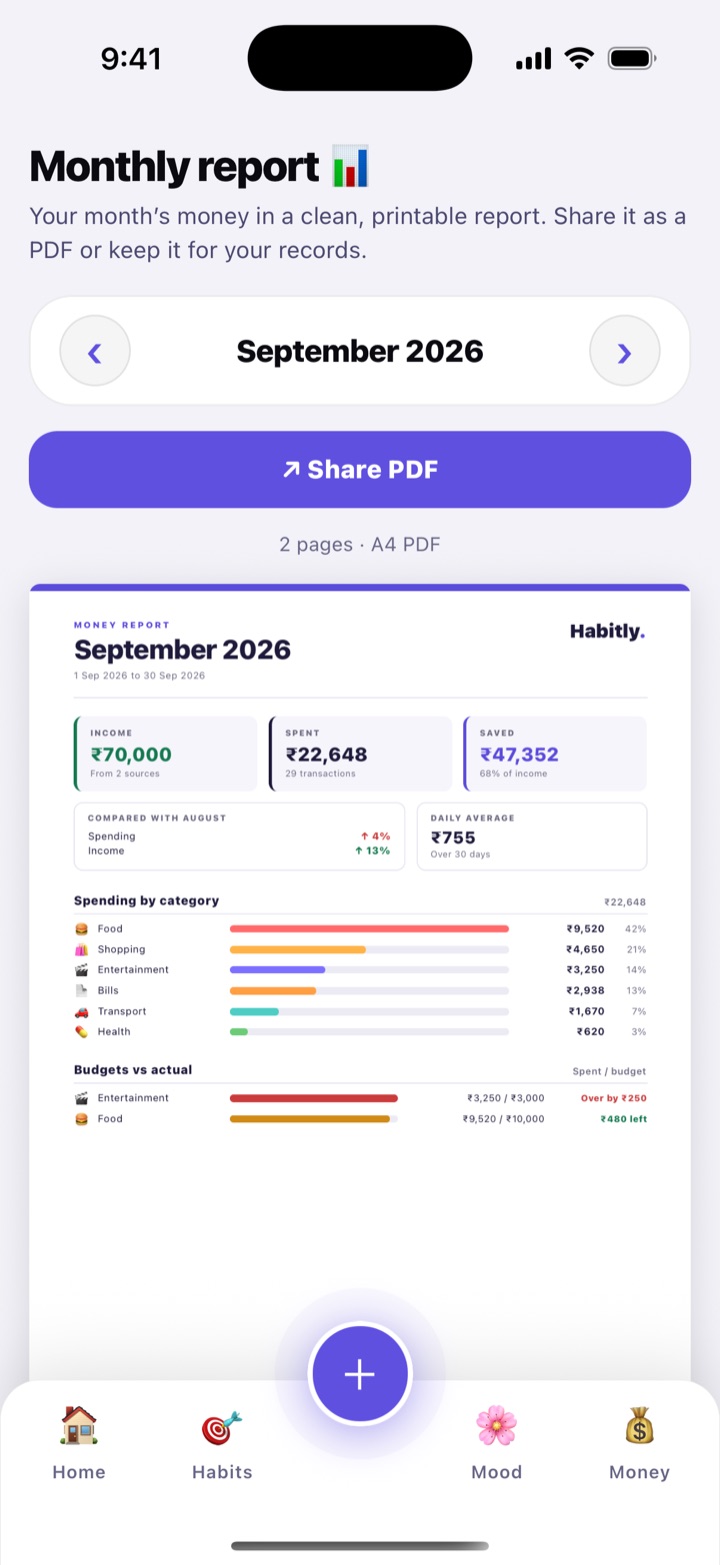
Your month’s money as a clean, printable report. See income, what you spent and what you saved, how spending compares with the month before, your daily average, spending by category, budgets against what you actually spent, your biggest expenses and the bills you paid.

Tap Share PDF to send it as an A4 PDF in WhatsApp, email or Drive, or keep it for your records. It is made on your phone, so your numbers go nowhere until you choose to share.

How to use

  1. Tap Money, then Report in the row of tools (or More › Report).
  2. Use the arrows to move between months. The current month says Month so far.
  3. Scroll through the pages to read it, then tap Share PDF.

A month with no expenses, income or bill payments shows nothing to report. The report also lists income by source (Salary, Freelance, Investment, Gift or Other) and the day you spent most.

In daily life

At the end of each month, Vikram shares the PDF with his wife. Together they see that eating out rose 18% and move ₹2,000 from Entertainment to the home loan.

Monthly report for September 2026: a month switcher, the Share PDF button, and a preview of the A4 page with income, spent and saved, a comparison with August, spending by category and budgets against what was spent.
The month in one report, ready to share as a PDF

Document vault

Passports, Aadhaar, PAN, driving licences, insurance policies, warranties and other papers, in one place on your phone. Add the details, keep a photo or PDF with each one, and Habitly reminds you before anything expires.

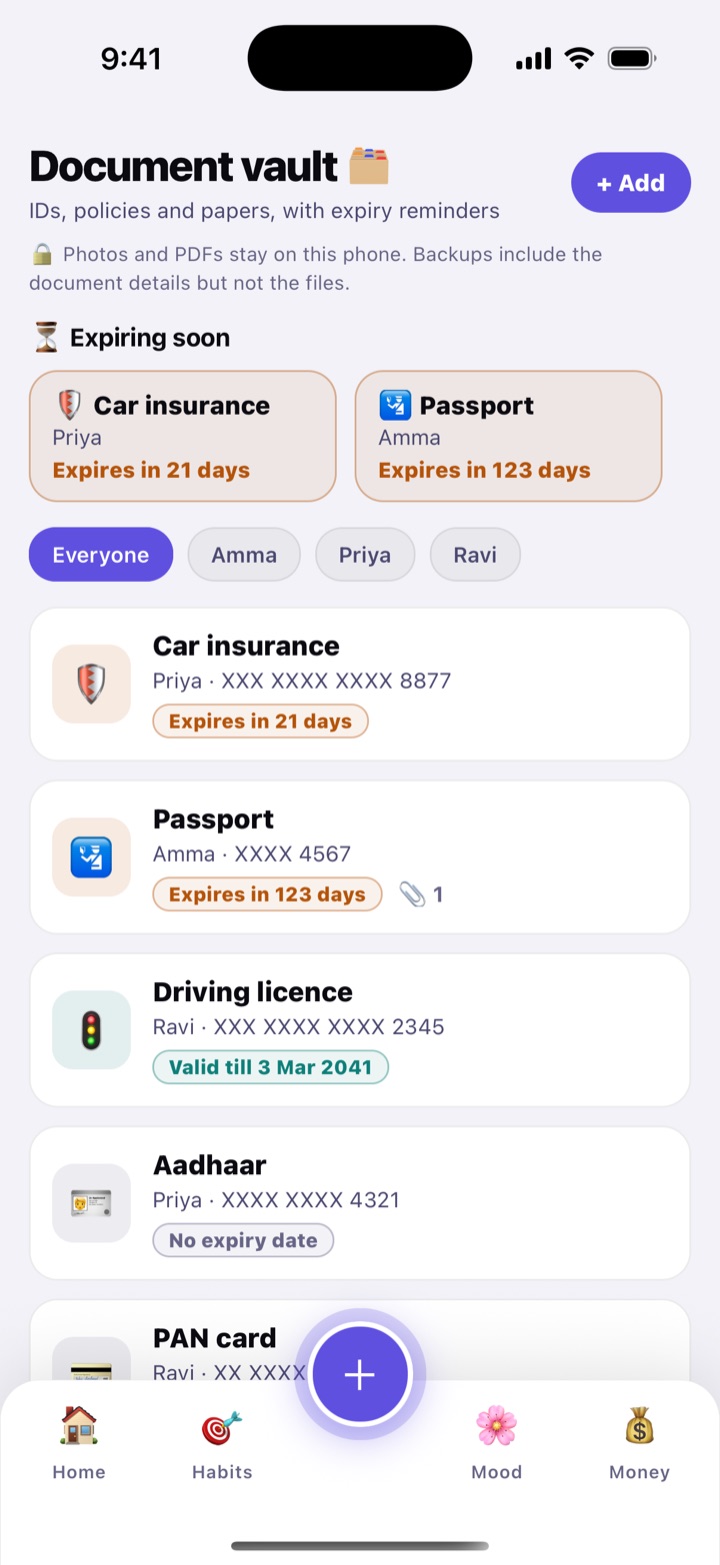
The vault is locked. Each time you open it, Habitly asks for your fingerprint, face or phone screen lock, and it locks again when you leave the screen or switch to another app. Document numbers show hidden (like XXXX XXXX 4321) until you tap Show, and they never appear in notifications.

How to use

  1. Open More › Documents and confirm it’s you. Tap Add.
  2. Choose the Type (Passport, Aadhaar, PAN card, Driving licence, Voter ID, Vehicle RC, PUC, insurance, Property papers, Warranty and more), and add a title and Whose is it?, like “Amma”.
  3. Add the document number and the Expiry date. Under Remind me before it expires, choose the First reminder: only on the day, or 7 days to 6 months before.
  4. Tap Add file or Take photo to keep a picture or PDF with it. Tap Save.

Good to know

  • The first reminder depends on the document: a passport starts 6 months ahead, an Aadhaar or PAN a month ahead. Another reminder comes on the expiry day. Both are at 9 AM.
  • Documents expiring soon are listed at the top. If you track several people’s papers, filter by name.
  • Photos and PDFs (up to 20 MB each, 10 per document) are copied into Habitly’s private storage on your phone. Backups include the document details but not the files, so keep the originals safe.
  • The vault isn’t shared with family and sends nothing anywhere. If your phone has no screen lock at all, Habitly tells you the vault can’t be locked, and lets you open it anyway.

In daily life

Before booking a trip, Rekha opens the vault and sees her mother’s passport expires in four months. She renews it in time, and the reminder she set 6 months ahead is why she knew.

Document vault: a note that photos and PDFs stay on the phone, Expiring soon cards for car insurance and a passport, filter chips for each person, and documents with hidden numbers and their expiry dates.
Expiring soon, and numbers kept hidden
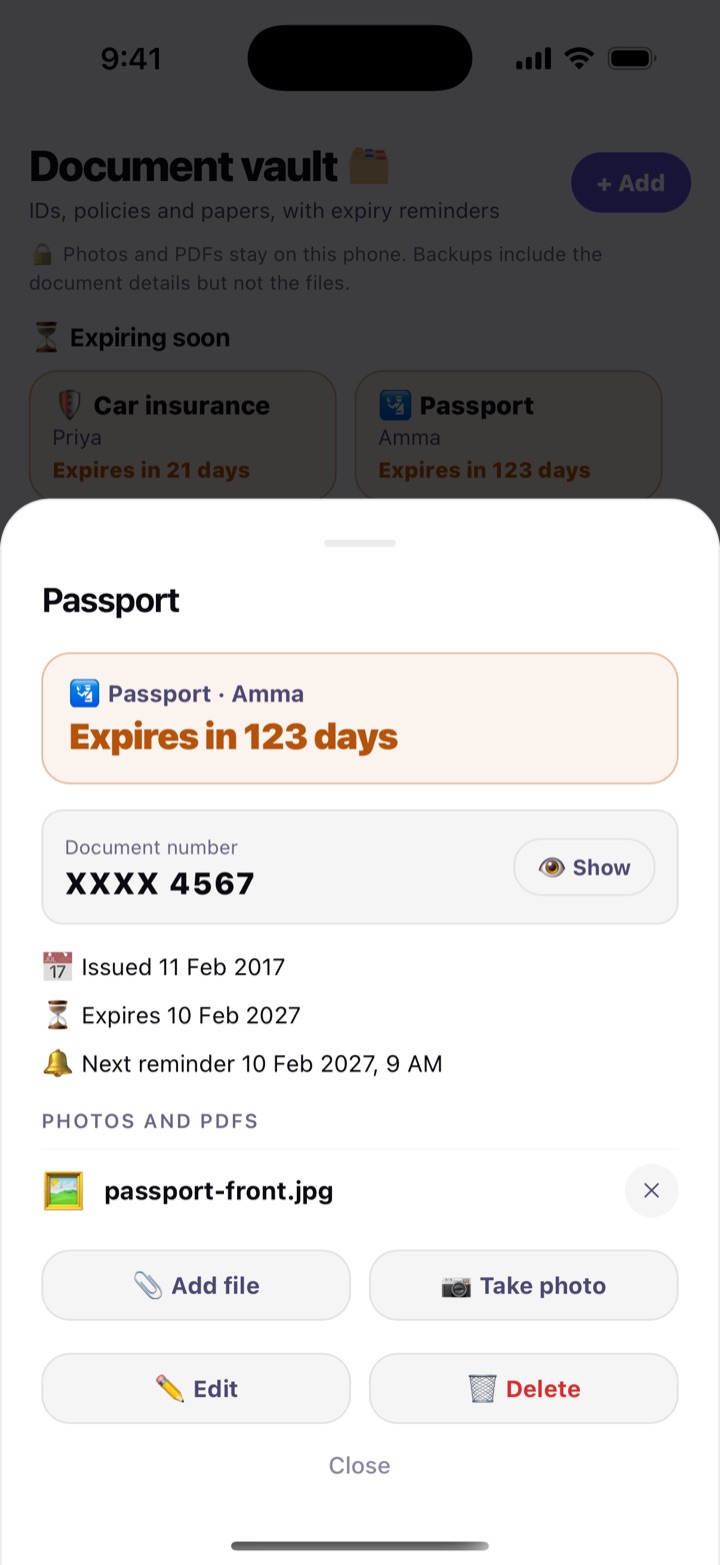
One document opened: its hidden number with a Show button, issue and expiry dates, the next reminder date, and a Photos and PDFs list with the attached file and Add file and Take photo buttons.
One document, with its next reminder

Fill in a document from a photo

Instead of typing a long passport or policy number, photograph the document. Habitly reads the text on your phone and suggests the type, number, name and dates. You choose what to use.

It can read a passport, Aadhaar, PAN card, driving licence, voter ID, and insurance or PUC papers. It never fills a box you have already filled in unless you tap Replace. The text it reads is thrown away; only what you accept is saved, and the photo is added to the document when you save.

How to use

  1. In the vault, tap Add and find Fill in from a photo.
  2. Tap Take photo or Add file and wait for “Reading the photo…”.
  3. Under Found on the photo, tap Use next to a suggestion, or Use all.
  4. Check every field against the document, then tap Save.

A photo in good light, with the whole document in the frame, reads best. Always check the number against the original; a blurry photo can be misread.

In daily life

Imran photographs his driving licence. The licence number, his name and the expiry date appear as suggestions, and he taps Use all and fixes one digit that was misread.

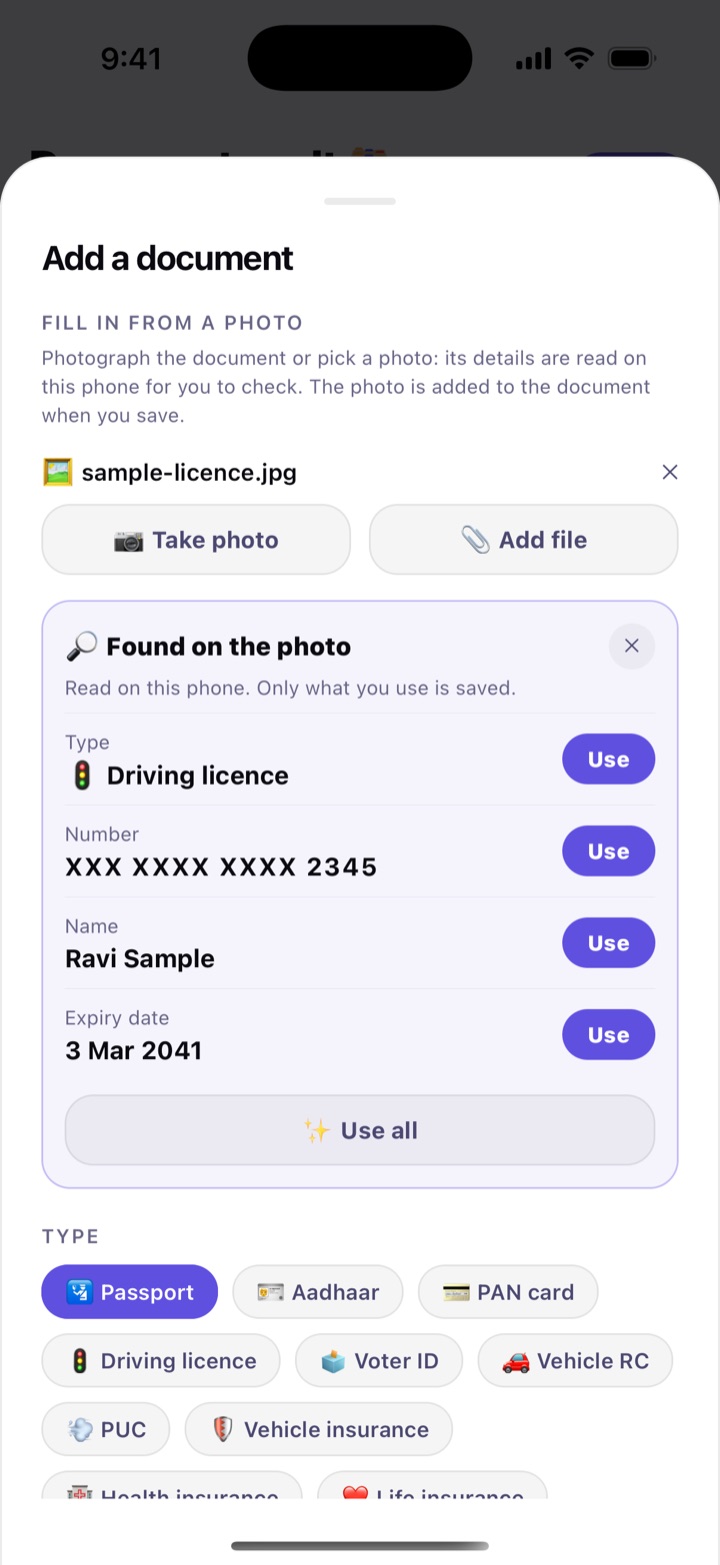
Add document form with a Found on the photo card listing a suggested type, number, name and expiry date, each with a Use button, and a Use all button.
Suggestions from the photo, to use or ignore

Home & family

The things a household has to remember: the AC service, the gas cylinder, the dog’s vaccination, the school fees, the insurance renewal and the milk that didn’t come on Tuesday.

In this part: Home care · Pets · Kids’ corner · Vehicle · Deliveries & house help · Study planner

Home care

Keep track of what your home needs and when. Add an upkeep schedule such as an AC service every 6 months, an RO filter change, pest control or water tank cleaning. Habitly shows what is due, overdue or coming up, and reminds you a week before and on the day, at 9 AM.

Add your AC, RO, fridge, washing machine, geyser, inverter, chimney, TV or microwave under Things, with the brand, model, price, the shop and the invoice or serial number. Note when the warranty and the AMC end, and Habitly reminds you 30, 7 and 1 days before. Renewed it? Tap Renewed and enter the new end date.

The Gas tab follows your LPG cylinder. Log the day a new cylinder started and Habitly shows how much of it is used and roughly when it will run out. It begins with the usual 45 days and learns the real figure from your last few cylinders. A reminder tells you when to book the next one, and you can tap Booked once you have.

How to use

  1. Open More › Home care. On the Things tab, tap Add a thing, pick what it is, and fill in the warranty or AMC end date.
  2. On the Upkeep tab, pick a suggestion like AC service, or tap Add schedule. Choose how many months it repeats and when it was last done.
  3. When the work is finished, tap Done. Add who did it and what it cost. Keep Add to Money on to put the cost in your Bills expenses.
  4. On the Gas tab, tap New cylinder started each time you change the cylinder, and Booked when the refill is on its way.

The things you add stay as text on your phone. There are no photos of invoices. What is due in the next 7 days also shows on Home and in the Calendar.

In daily life

The Mehtas add their AC (warranty ends in November) and an AMC for the RO. Habitly reminds them in time to renew, and one morning it says the gas cylinder should run out in about 8 days, so Mrs Mehta books the refill before the kitchen goes quiet.

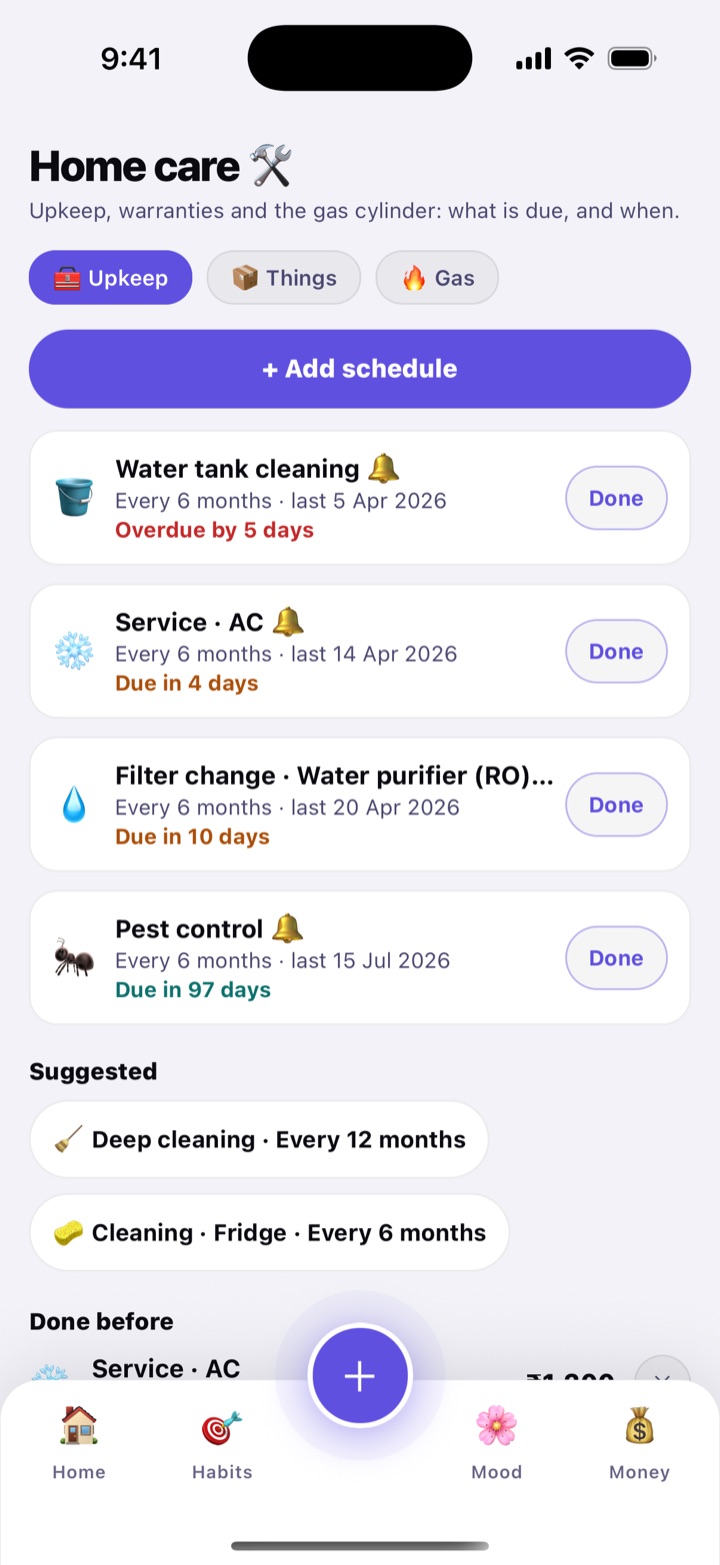
Home care, Upkeep tab: AC service, RO filter change and water tank cleaning schedules with due dates, and a Done button on each.
Upkeep that is due, with a Done button
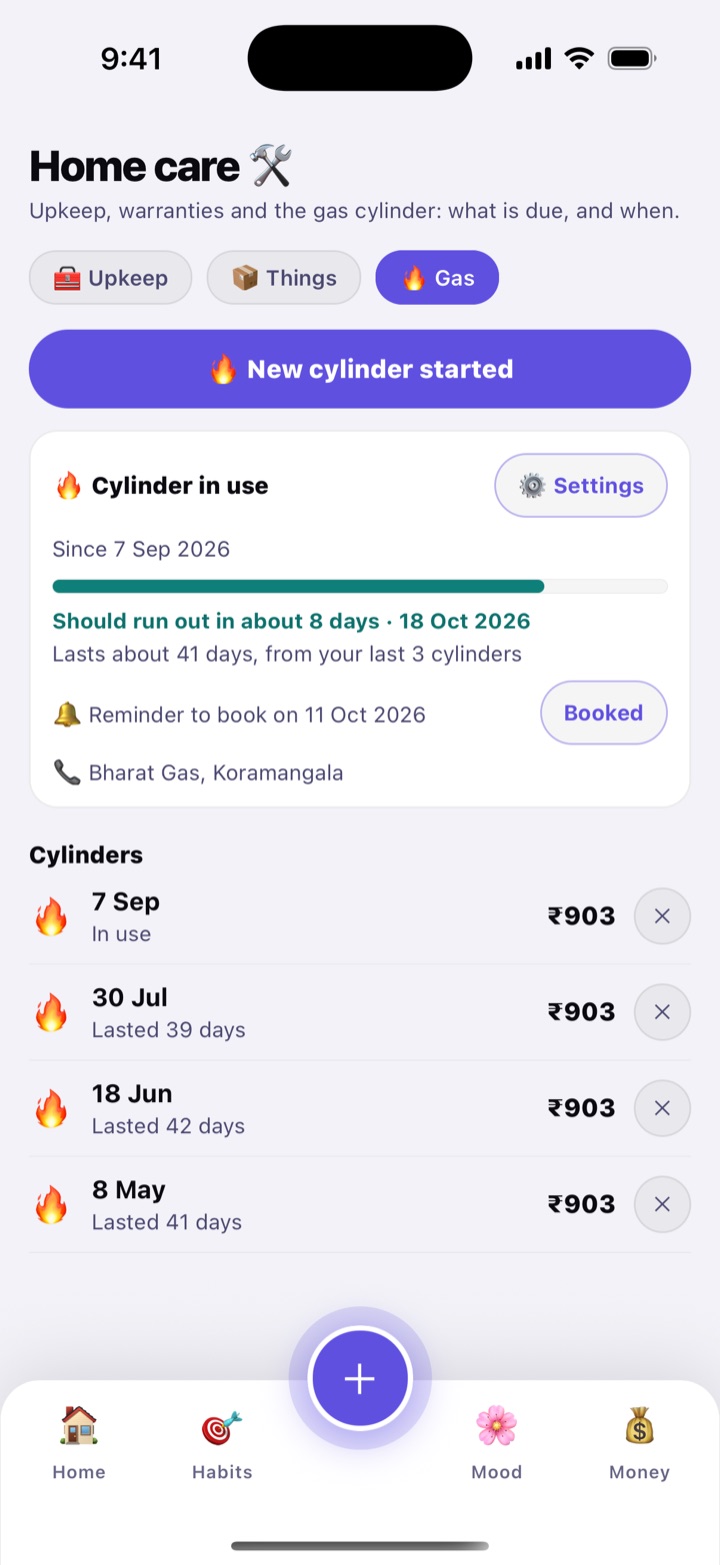
Home care, Gas tab: the cylinder in use with a progress bar, a note that it should run out in about 8 days, a Booked button and the history of earlier cylinders.
The gas cylinder and when it should run out

Pets

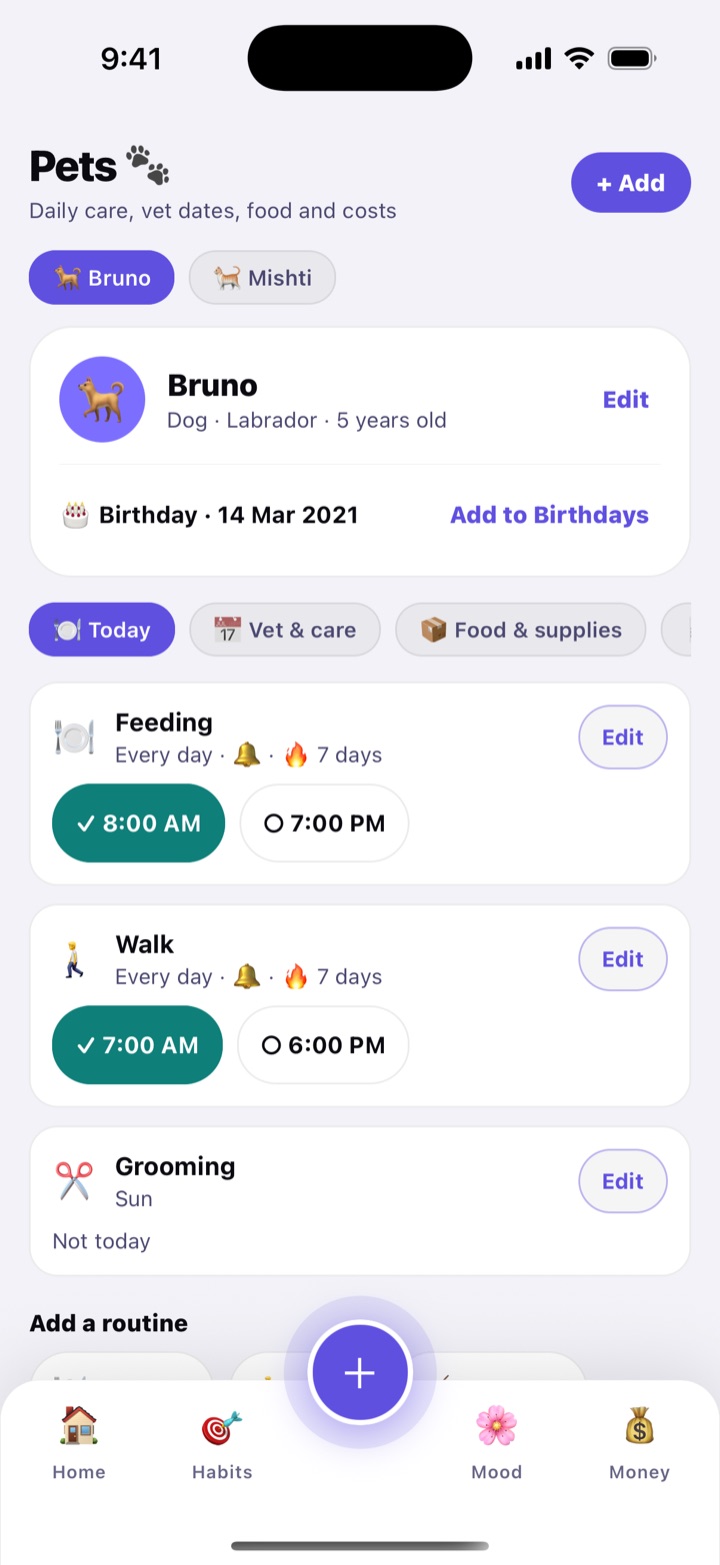
Add your dog, cat, bird, fish or rabbit, and keep their day in one place: feeding, walks, cleaning and grooming, the vet and vaccination dates, the food and litter you have left, and what they cost each month.

Under Today, set routines with one or more times a day and the days they apply, such as feeding at 8 AM and 7 PM. Tick each one off as you do it, and Habitly counts how many days in a row you have kept it up. A reminder can come at each time.

Under Vet & care, add the dates your vet or groomer gives you: check-up, vaccination, deworming, tick and flea, grooming. They can repeat every few months, and when you tap Done the next date is counted from that day. Habitly only reminds you. It doesn’t suggest any schedule.

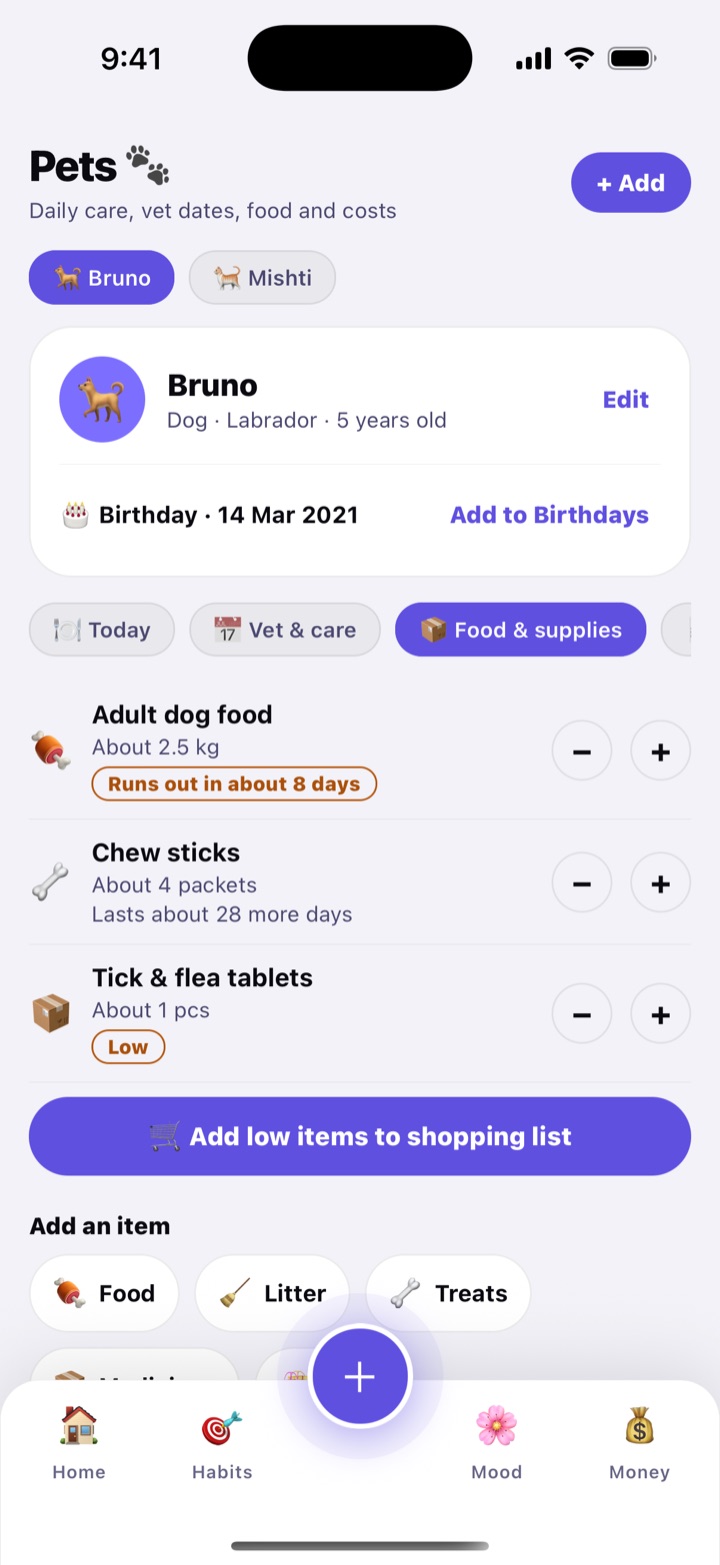
Under Food & supplies, note how much you have at home and how much is used in a week, and Habitly works out when it runs out. Low items can go straight onto a shopping list. A pet’s birthday or adoption day can be added to Birthdays with one tap.

How to use

  1. Open More › Pets and tap + Add. Enter the name, pick the type and, if you like, the breed and a birthday.
  2. On Today, tap Add a routine, choose Feeding or Walk, set the times and days, and switch on Remind me at these times.
  3. On Vet & care, tap Add a date, choose the kind, the date and how often it repeats.
  4. On Food & supplies, under Add an item, tap a chip such as Food, Litter or Treats, then fill in At home now, Usual use per week and Low at.
  5. On Costs, tap a quick-add like Food or Vet, or Add a cost. Keep Add to Money on to count it in your expenses.

With several pets, tap a name at the top to switch. Today’s routines and anything due soon also appear on Home as “Pets today”.

In daily life

Bruno the Labrador gets fed at 8 AM and 7 PM, and the family ticks each meal so nobody feeds him twice. His rabies booster is due on the 16th, and the bag of food says it runs out in about 8 days, so it goes on the shopping list this week.

Pets screen for Bruno the dog: today's feeding and walk routines with tick buttons and a day streak.
Today’s feeding and walks, ticked off
Pets, Food and supplies tab: dog food and treats with how much is left, a Low tag, and how many days until they run out.
Food and supplies, and when they run out

Kids’ corner

Add each child and keep their school life together: fee dates, tuition and activity classes, exams and parent-teacher meetings, pocket money, and a small diary of firsts and proud moments.

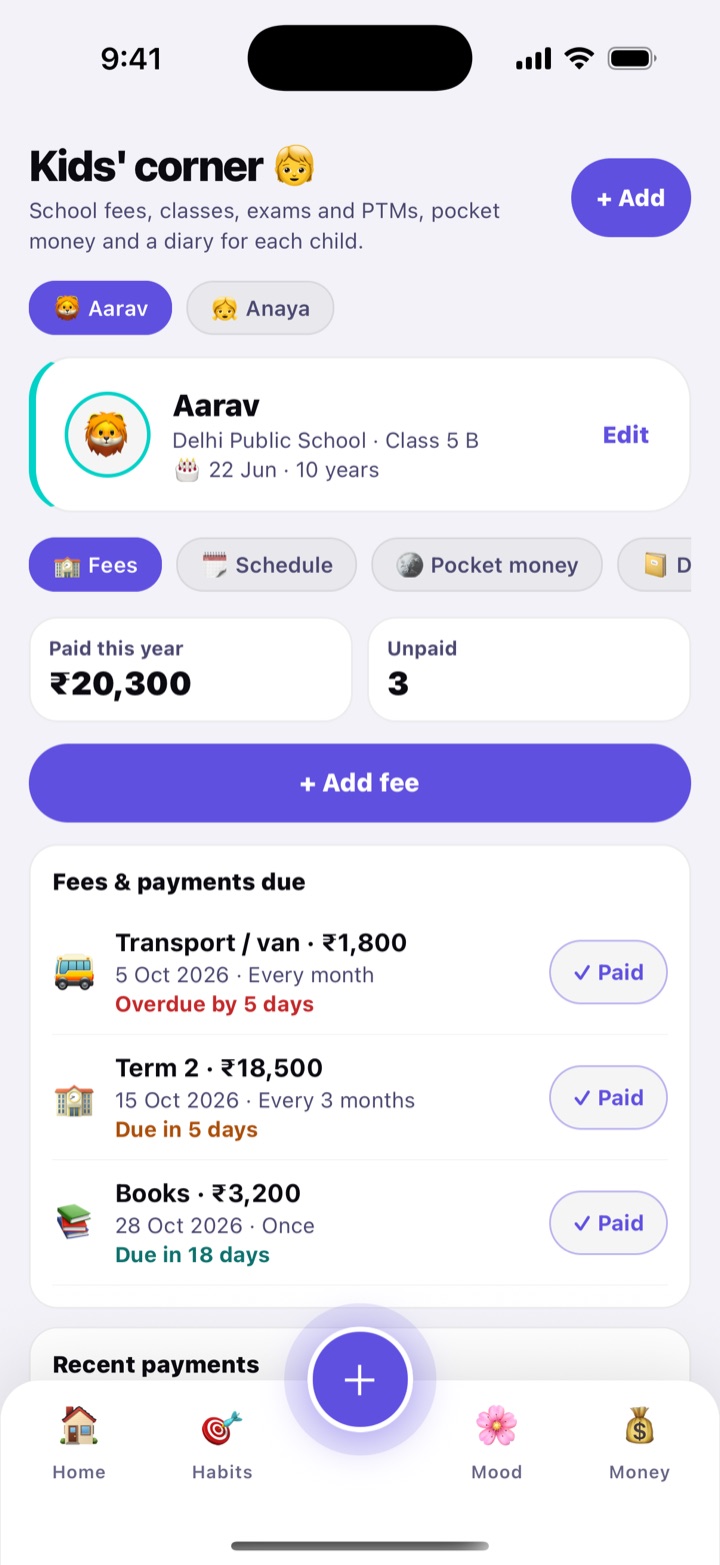
Fees holds term fees, the van, books, uniform or a school trip, each with a due date, an amount and a repeat (once, monthly, every 3 or 6 months, or yearly). Habitly reminds you 7 days and 1 day before, and shows how many fees are unpaid and how much you have paid this year. Tap Paid to log the payment, and it can go into your Education expenses.

Schedule lists the weekly classes, with days, time and the teacher or place, and a reminder 15, 30 or 60 minutes before. It also holds exams, PTMs and school events. On an exam, tap Plan study to create it in the Study planner.

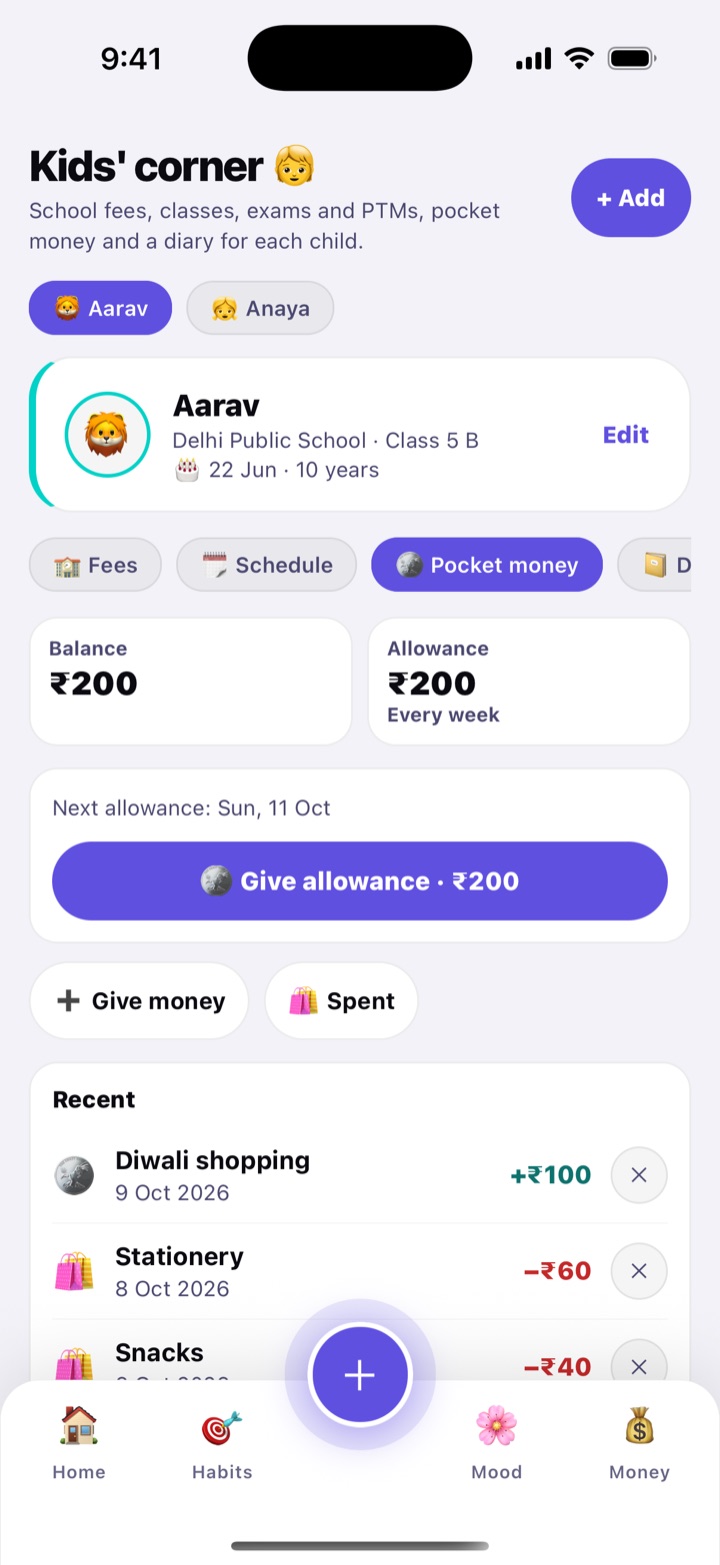
Pocket money keeps a running balance. Set a weekly or monthly allowance, tap to give it when it is due, and note what the child spends. Diary keeps first words, school moments, achievements and height and weight, written as plain notes.

How to use

  1. Open More › Kids and tap + Add. Enter the name, birthday, school and class. Switch on Also add to Birthdays if you want birthday reminders.
  2. On Fees, tap Add fee, pick the kind, enter the amount, the due date and how often it repeats.
  3. On Schedule, tap Add class for tuition, dance or sports, or Add exam or event for an exam or PTM.
  4. On Pocket money, tap Tap to set under Allowance, then use Give money and Spent.

You can add up to 10 children. Deleting a child also deletes their fees, classes, events, pocket money and diary, but expenses already in Money stay.

In daily life

Aarav’s term fee of ₹18,500 is due on the 15th and his van fee is a few days late. Both show up with a Paid button. Tuition on Monday, Wednesday and Friday at 5 PM comes with a nudge half an hour before, and his ₹200 weekly allowance is one tap when it is due.

Kids' corner for Aarav, Fees tab: how much was paid this year, a count of unpaid fees, an overdue van fee and a term fee with their due dates and Paid buttons.
School fees with due dates and a Paid button
Kids' corner, Pocket money tab: a balance, a weekly allowance with a Give allowance button, Give money and Spent buttons, and a list of recent money given and spent.
Pocket money with a running balance

Vehicle

Add your car, bike or scooter and keep its fuel, mileage, services, paperwork dates and running costs together. It works for petrol, diesel, CNG, hybrid and electric vehicles.

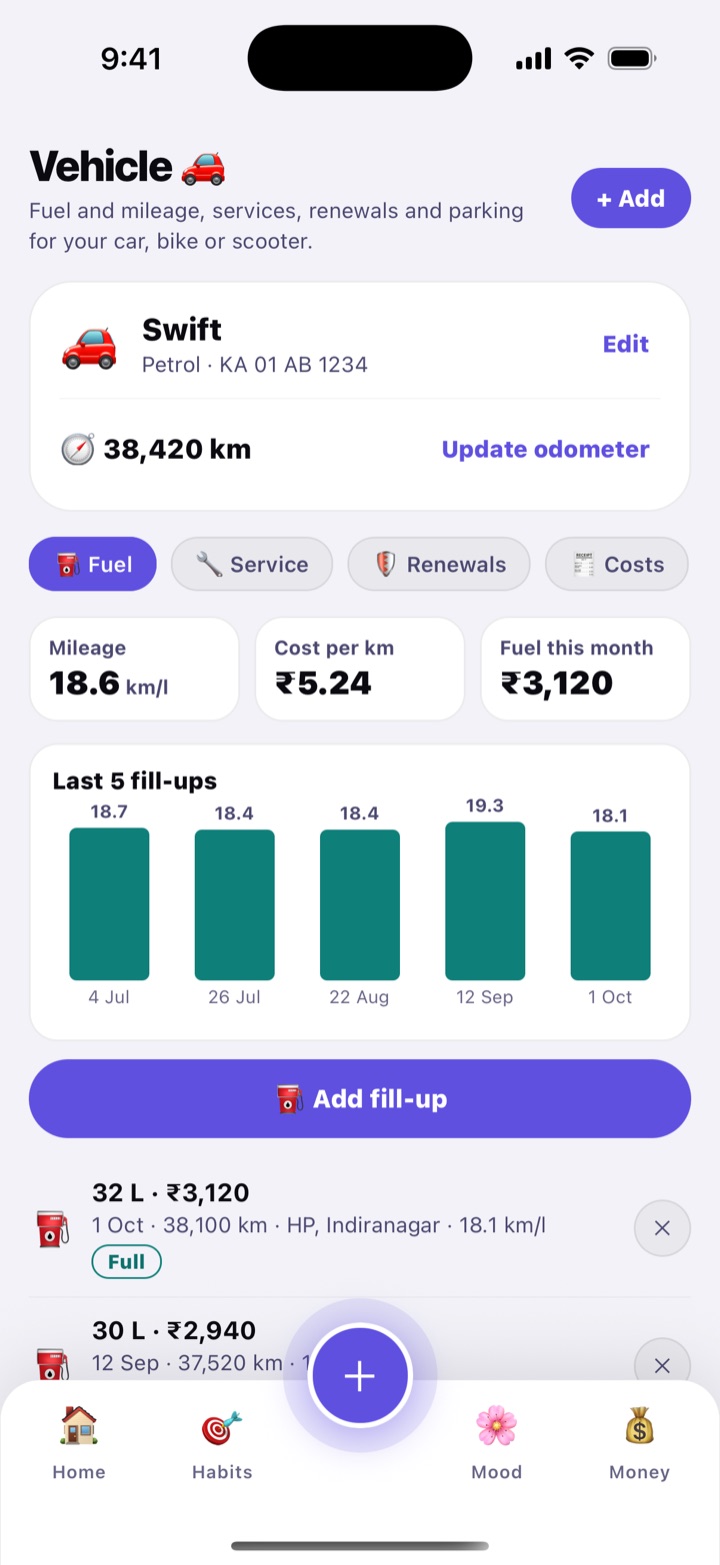
Fuel logs each fill-up with the odometer, the litres (or kg, or kWh) and what you paid. Fill in the total or the price per litre and the other is worked out. Mark a fill-up as a full tank, and Habitly measures your mileage from one full tank to the next and shows the cost per km. For an electric vehicle, the same screen logs charges.

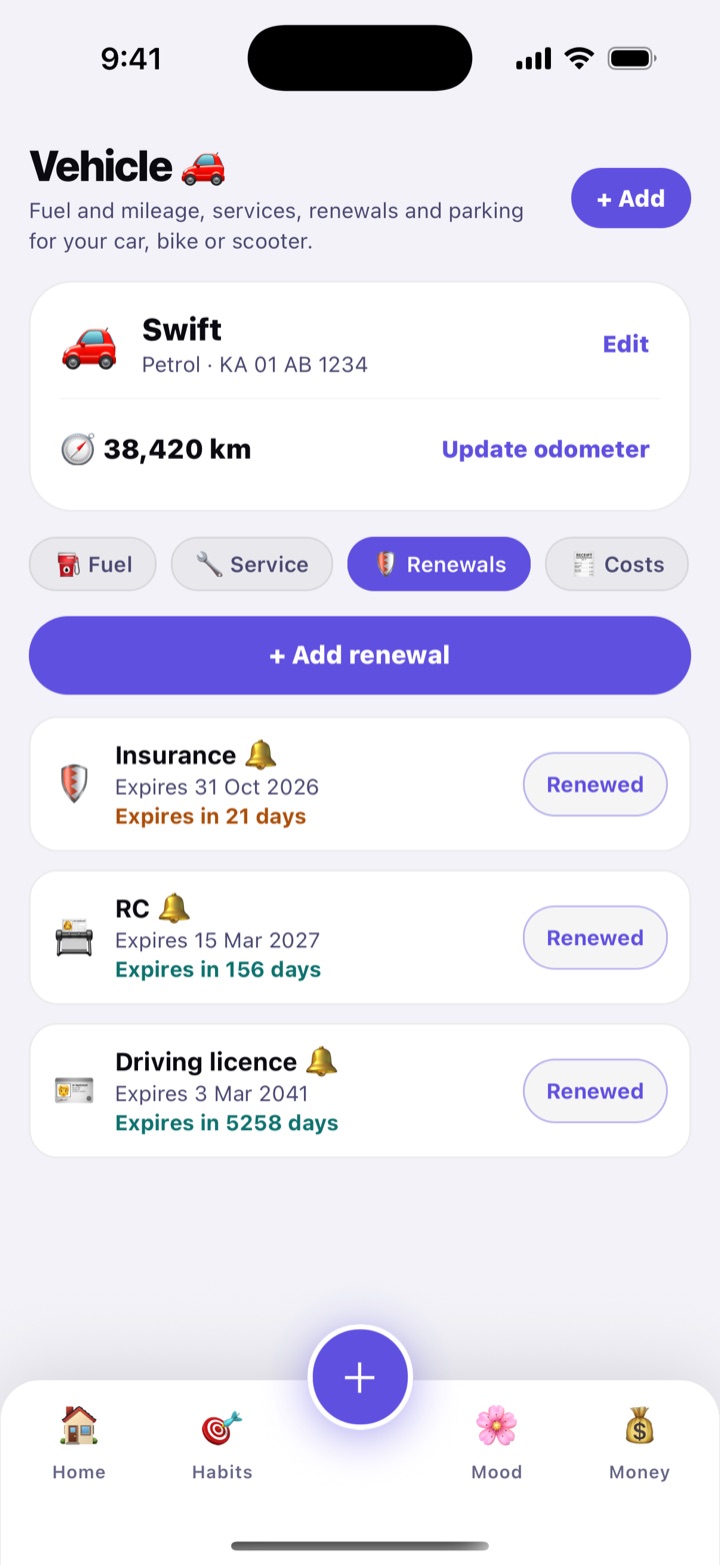
Service keeps the history and lets you set reminders such as every 6 months or every 5,000 km, whichever comes first. Renewals holds the expiry dates of insurance, PUC, RC, driving licence and FASTag, with reminders 30, 7 and 1 days before by default.

Costs adds parking, tolls, washing and fines, and shows this month’s total split into fuel, service and other. Parking answers “where did I park?” with a note like “Level 2, B-14, near lift”. No location is used. If the parking is paid, set when it ends and you get a reminder 10 minutes before.

How to use

  1. Open More › Vehicle and tap + Add. Enter the name, type, fuel, registration number and the odometer reading.
  2. On Fuel, tap Add fill-up, enter the odometer, quantity and total, and switch on Full tank when you filled it up.
  3. On Service, tap Add service reminder and set months, km or both. After a visit, tap Log service.
  4. On Renewals, tap Add renewal, pick Insurance or PUC and enter the expiry date. Once renewed, tap Renewed and enter the new date.

Distance-based service reminders are checked against your latest odometer, so tap Update odometer now and then. You can keep up to 10 vehicles.

In daily life

Ravi fills the Swift every two weeks and ticks Full tank, so he sees about 18 km/l and what each kilometre costs. The car insurance expires on 2 November, and the reminder arrives with enough time to compare quotes.

Vehicle screen for a Swift car: odometer, average mileage in km per litre, cost per km and a list of recent fill-ups.
Fuel, mileage and cost per km
Vehicle, Renewals tab: insurance, PUC and driving licence with their expiry dates and how many days are left.
Insurance, PUC and other renewals

Deliveries & house help

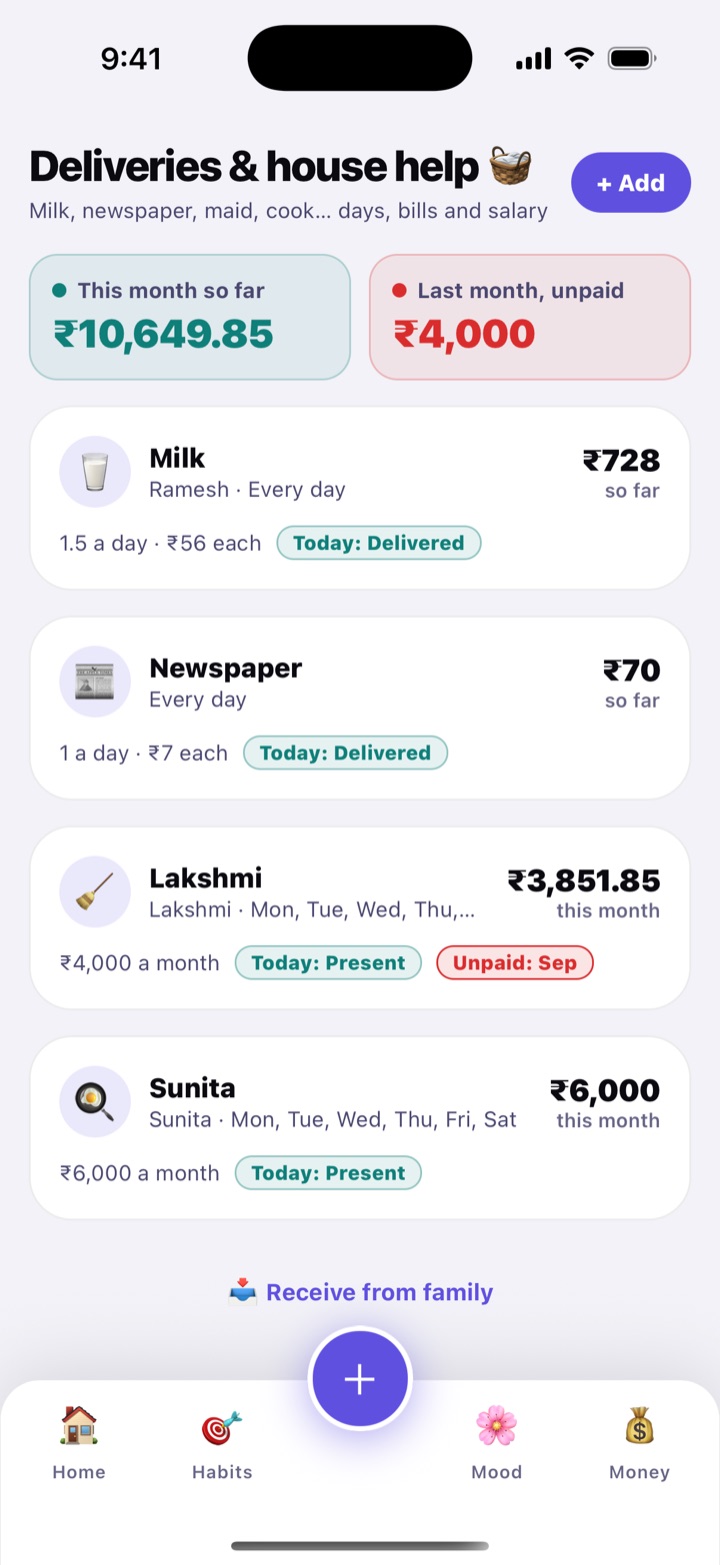
Add the milk, newspaper, water can, vegetables, maid, cook, driver or gardener. Mark the days someone didn’t come, and Habitly works out the month’s bill or salary for you. No more counting days on the calendar at the end of the month.

For a delivery, enter the price per unit, the usual quantity a day (0.5 for half a litre) and the days it comes. For house help, enter the monthly salary and how many free leaves they get. Each leave beyond those costs a day’s pay, and an extra visit can be added too.

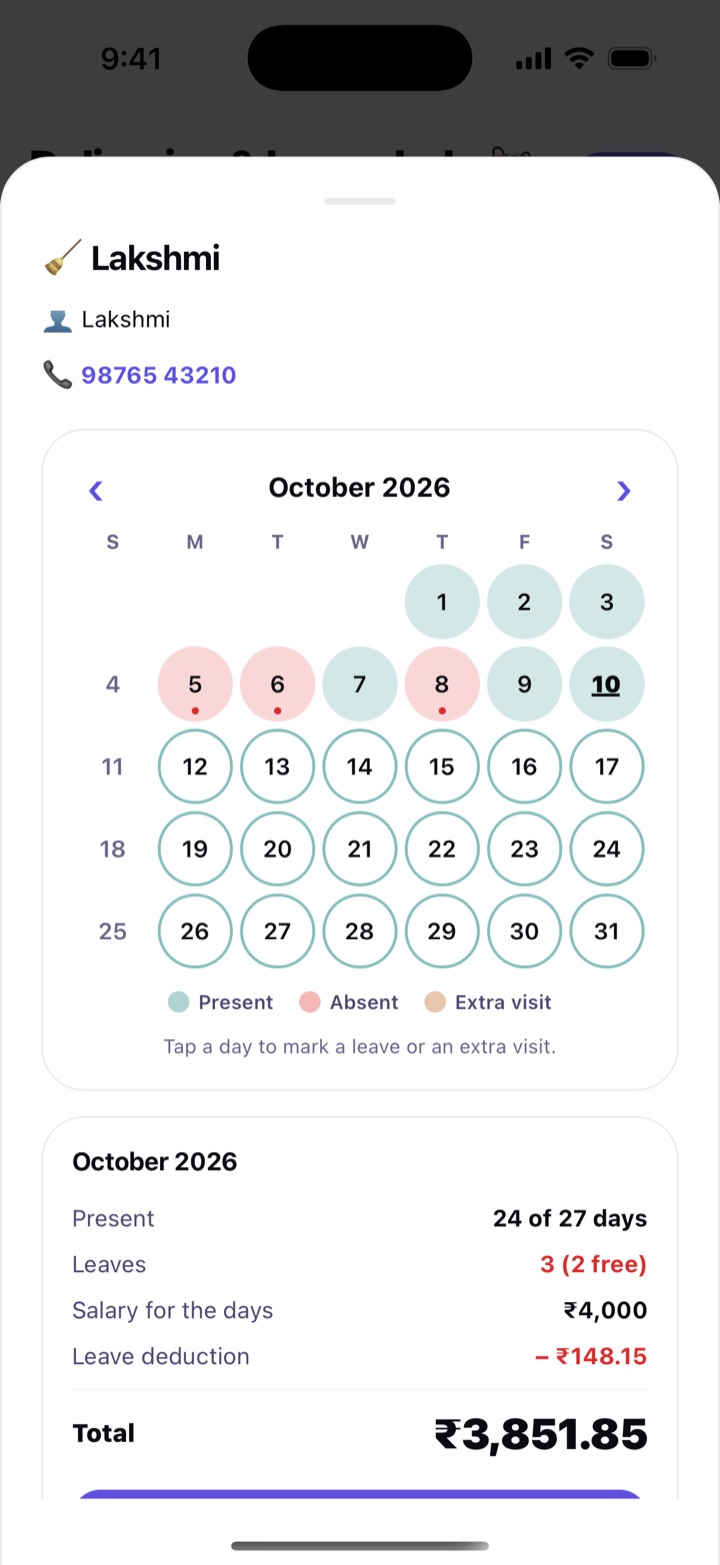
Open any item to see its monthly calendar. Tap a day to mark it missed, or to add extra quantity or an extra visit. The month’s total updates at once, and you can go back to earlier months. Tap Mark month paid to record the payment, with an option to add it to your expenses. Last month’s unpaid amount stays on top of the screen until you do.

An evening reminder (8 PM unless you change it) asks “Did it come today?” on the days they are expected. Home shows Today’s deliveries & help, where one tap marks Didn’t come.

How to use

  1. Open More › Daily help (the screen is called Deliveries & house help) and tap + Add. Choose what it is, then enter the price and quantity, or the salary.
  2. Set the Days, the Starts on date and, for help, the Free leaves a month. Switch on Evening reminder and tap Save.
  3. Tap the item, then tap a day in the calendar to mark a missed delivery, a leave or an extra.
  4. At month end, tap Share summary to send the list of days and the total on WhatsApp. Then tap Mark month paid.

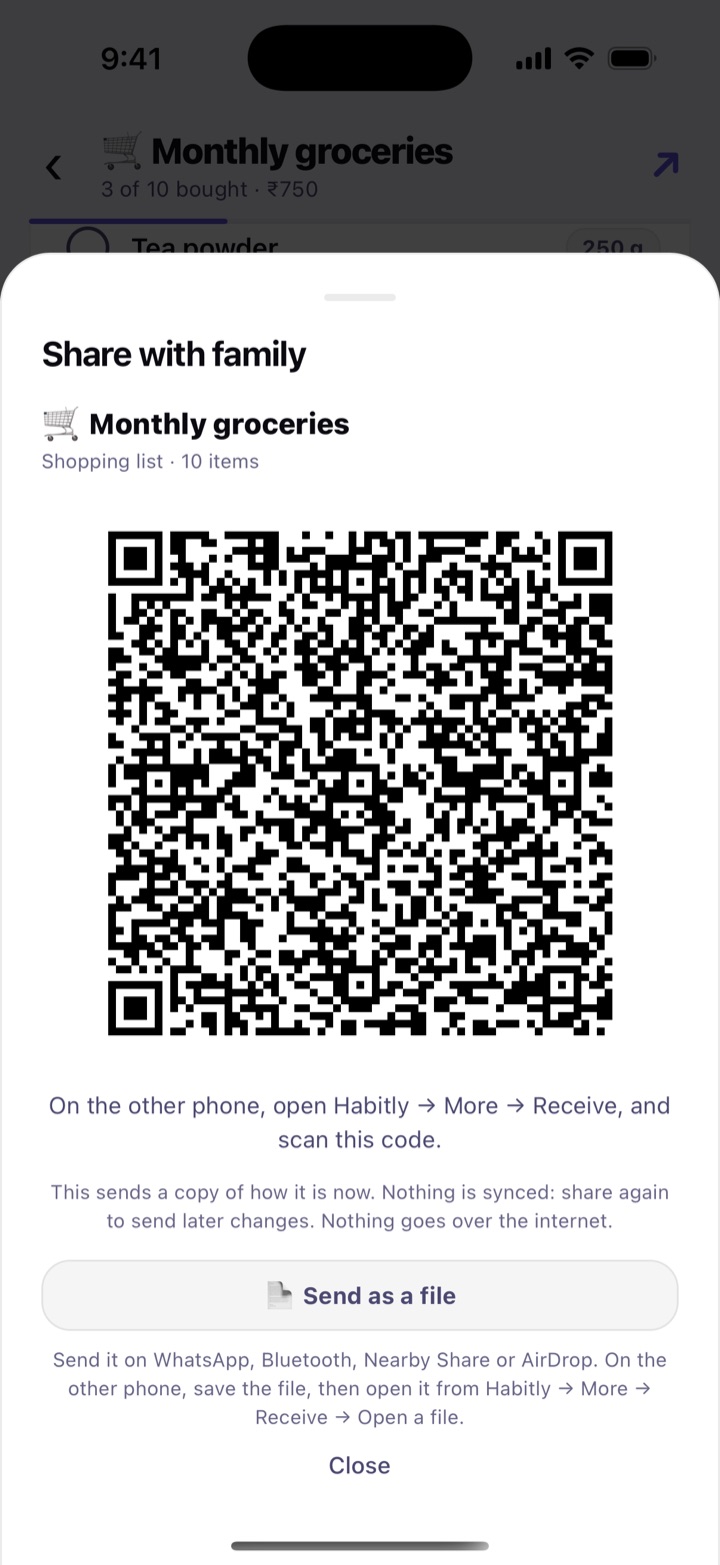
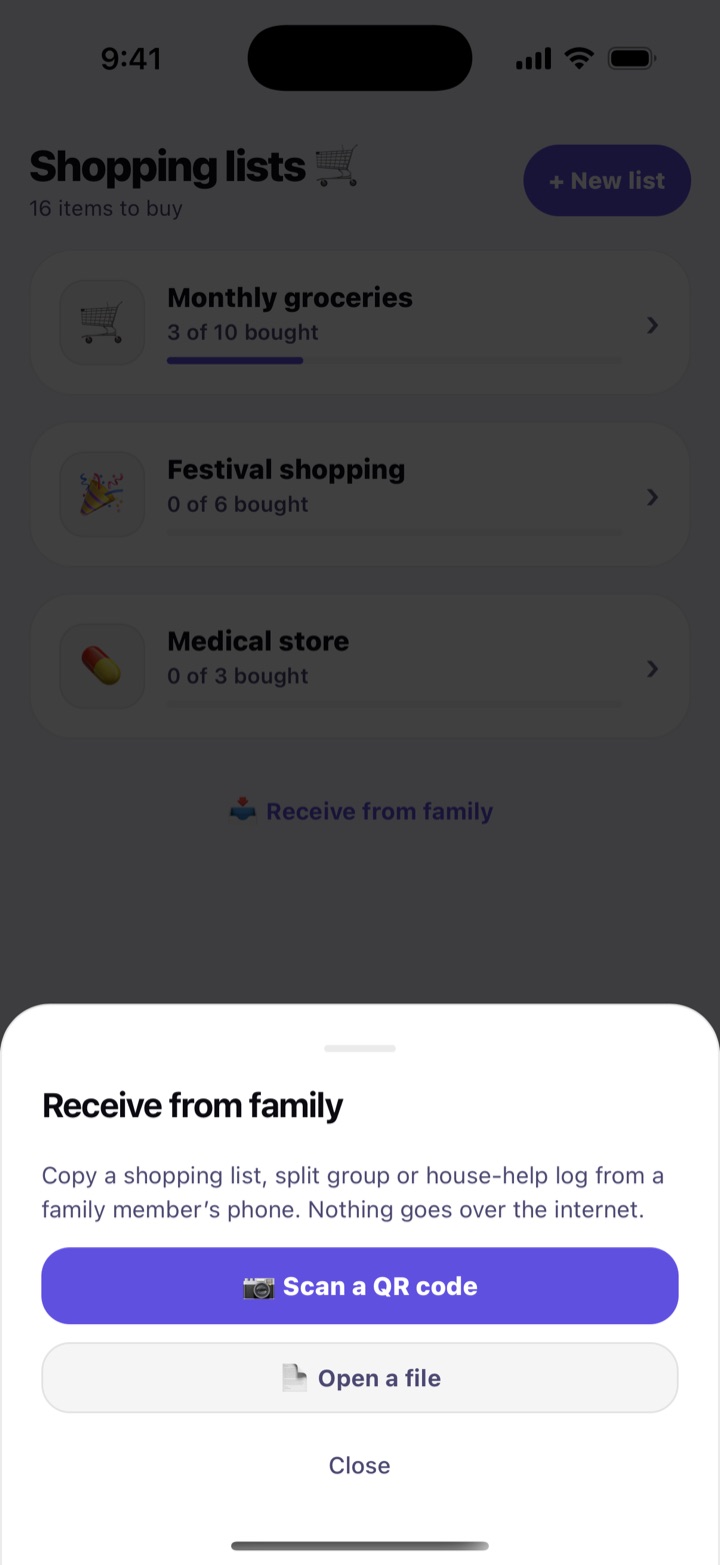
Share with family on an item shows a QR code (or a file) that another family phone can scan from More › Receive. The other person gets a copy of the calendar and payments as they are now. It is not a live sync, so share again to send later changes, and nothing goes over the internet. Shopping lists and split groups can be shared the same way.

In daily life

Lakshmi gets ₹4,000 a month with 2 free leaves. She was off 3 days in October, so Habitly deducts one day’s pay (₹148) and shows ₹3,852 for the month. The milk shows 1.5 litres a day at ₹56, minus the 2 days it didn’t come.

Deliveries and house help screen: this month's total so far, last month's unpaid amount, and cards for milk, newspaper, a maid and a cook.
Deliveries and help, with the month’s totals
Monthly calendar for the maid: days present, leaves marked, free leaves, a leave deduction, the total for the month and buttons to share the summary and mark the month paid.
The month’s calendar, salary and Mark month paid

Study planner

Add an exam with its date, its subjects and their chapters, and Habitly plans each day for you. It spreads the topics over the days left, keeps the last days for revision, and adjusts as you go.

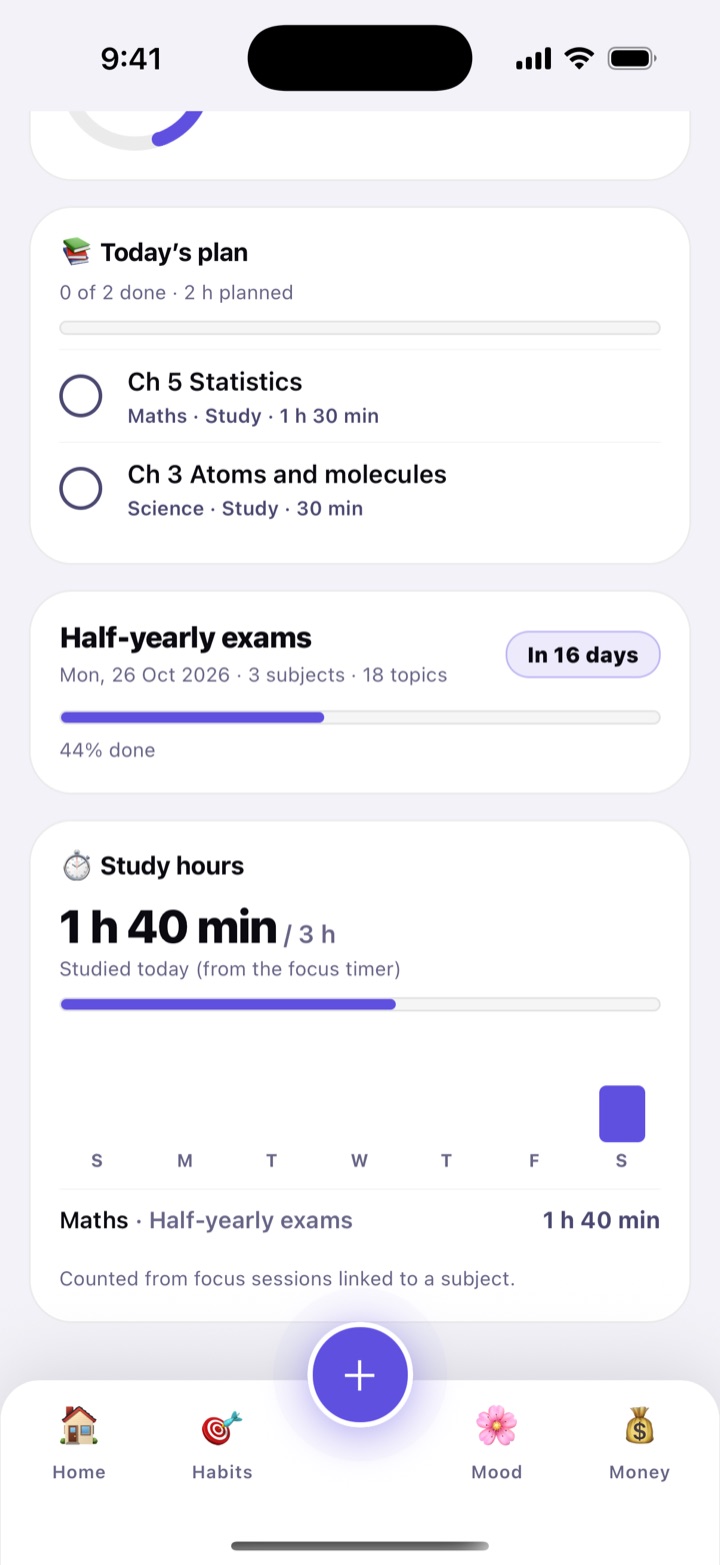
Type or paste a whole syllabus, one chapter per line, and each line becomes a topic. Tap a topic to move it from Not started to Studying to Revised. If you set a topic’s difficulty (easy, medium or hard) the plan gives it more or less time. Today’s plan lists what to study, and you tick each one off. The coming days show what is next, with revision days kept for the end. If everything doesn’t fit in your daily hours, Habitly says so and tells you roughly how many hours a day would be enough.

Open Plan settings to choose your study hours a day (3 to start), your rest days and how many revision days to keep before the exam (2 to start). Reminders: the day’s plan at 7 AM, and an evening reminder the night before an exam. Choose a subject in the Focus timer and the hours you focus are counted toward it. Home shows an Exam countdown card.

How to use

  1. Open Study from Explore more on Home, or from the More menu, and tap + Exam. Enter the exam name, date and, if you know it, the start time.
  2. Open the exam and tap Add subject. Then tap Add topics and paste the chapters, one per line.
  3. Each day, open Today’s plan and tick the topics you finished. Tap a topic any time to move it on to Studying or Revised.

If your child’s exam is in Kids’ corner, tap Plan study on it and the exam is added here.

In daily life

A Class 10 student adds her half-yearly exams: Maths, Science and English, 6 chapters each. With 3 hours a day and 2 days kept for revision, the planner gives her two or three chapters a day, and the exam countdown on Home keeps the date in front of her.

Study planner: overall progress, Today's plan with two topics to study and tick off, the Half-yearly exams card with the days left, and the study hours counted from the focus timer.
Today’s plan and your exams
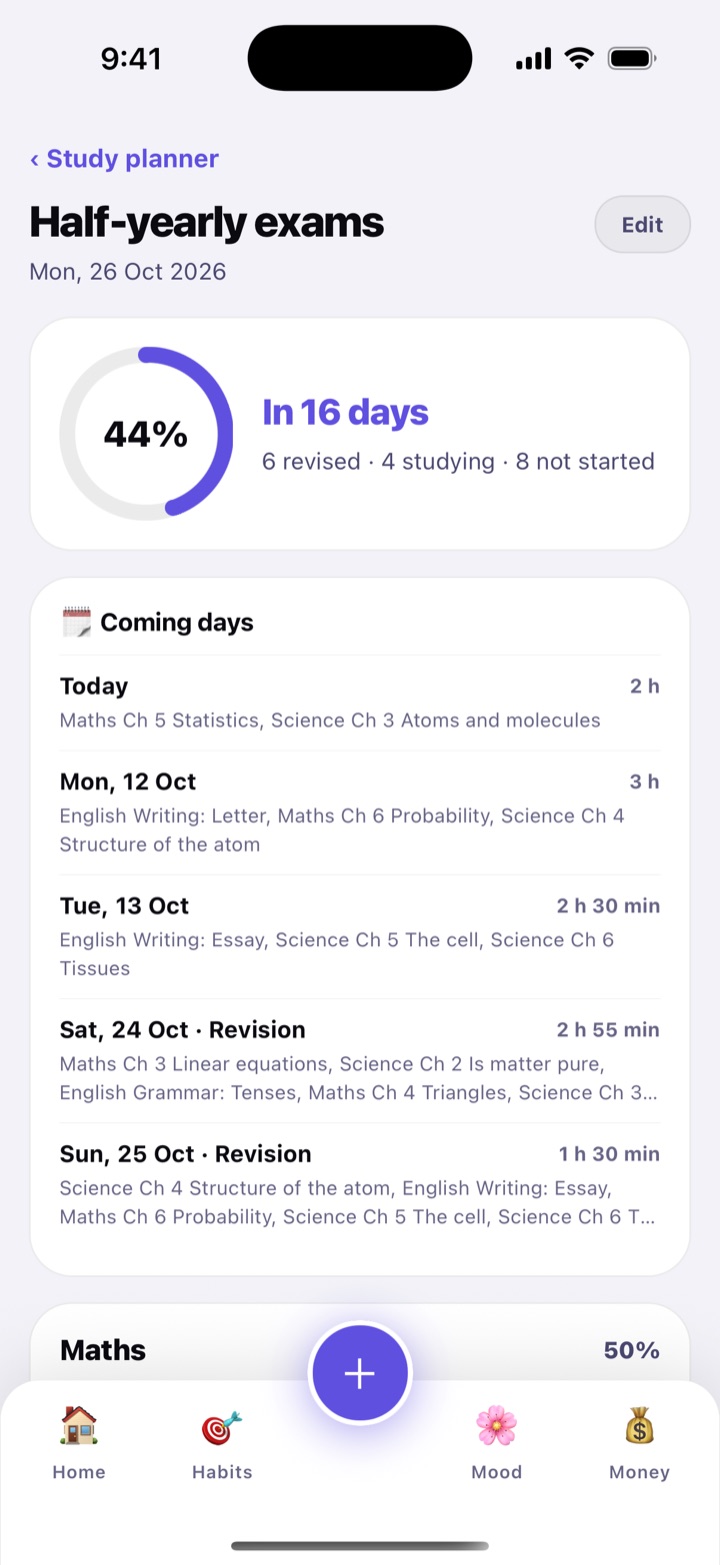
An exam in the Study planner: days left, percent done, how many topics are revised, studying and not started, and the Coming days plan with Revision days kept before the exam.
The days ahead, with revision at the end
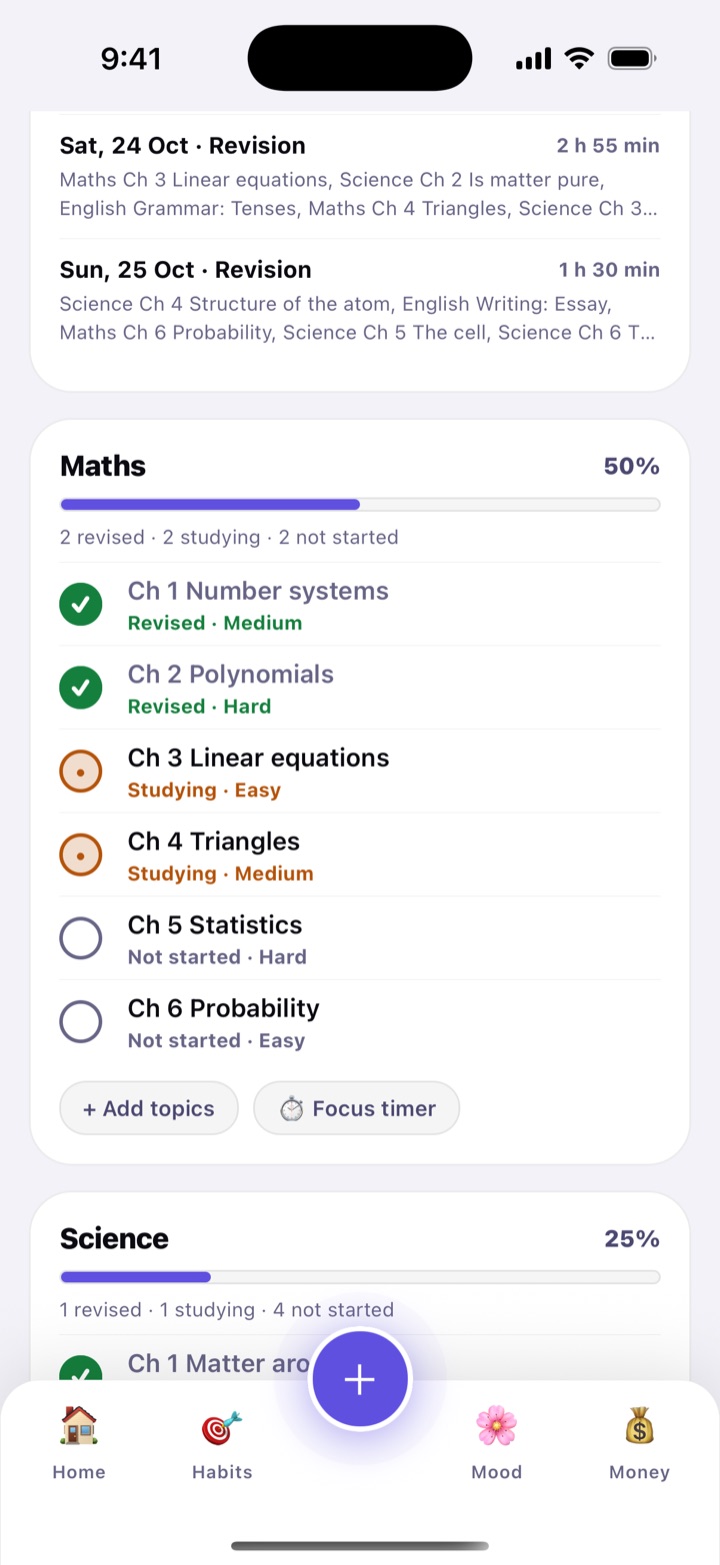
A subject in the Study planner: its chapters marked Revised, Studying or Not started, each with a difficulty of Easy, Medium or Hard, and the Add topics and Focus timer buttons.
Chapters moving from Not started to Revised

Health

Your readings, your medicines and your cycle in one private log. It is for your own records, and it is not medical advice.

In this part: Health log · Medicine reminders · Women’s health · Private mode · Period supplies

Health log: BP, sugar and weight

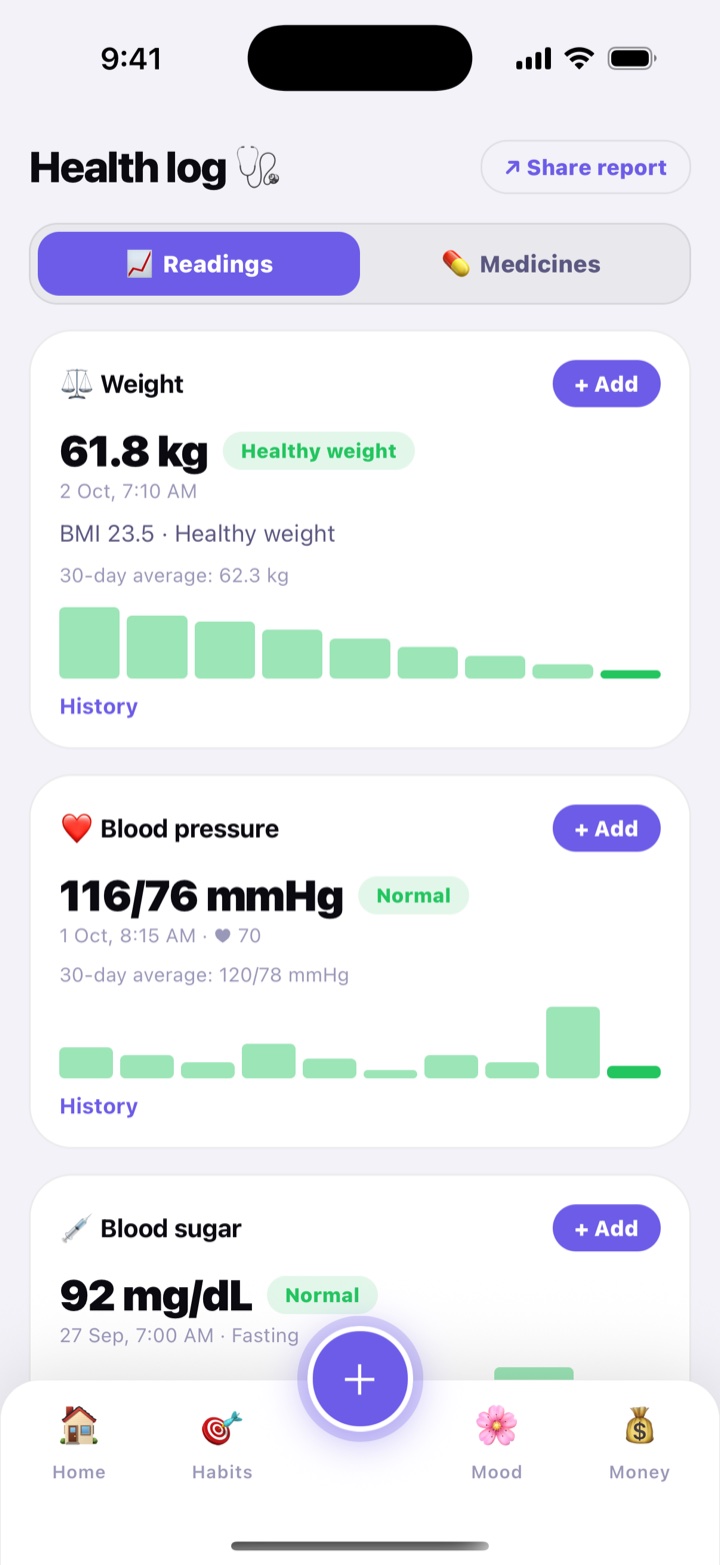
Note your blood pressure, blood sugar and weight each time you measure. Every reading gets a simple label based on common guidelines (ISH 2020 for BP, ADA for sugar and WHO for BMI), with a 30-day average and the full history. Before a check-up, Share report sends a plain summary of the last 30 days, with your medicines, to your doctor by WhatsApp or email.

How Habitly labels a reading

Blood pressure mmHg
  • Low under 90 / 60
  • Normal 90–129 / 60–84
  • High-normal 130–139 / 85–89
  • High 140 / 90 and up
  • Very high 180 / 110 and up
Blood sugar, fasting mg/dL
  • Low under 70
  • Normal 70–99
  • Above normal 100–125
  • High 126 and up
Blood sugar, 2 hours after a meal or any time mg/dL
  • Low under 70
  • Normal 70–139
  • Above normal 140–199
  • High 200 and up
BMI needs your height
  • Underweight under 18.5
  • Healthy weight 18.5–24.9
  • Overweight 25–29.9
  • Obesity range 30 and up

Either BP number can move a reading into a band. A very high BP or a low sugar reading also tells you what to do next. These are general guides, not a diagnosis. Always follow your doctor’s advice.

How to use

  1. Open More › Health and stay on 📈 Readings.
  2. Tap + Add on Weight, Blood pressure or Blood sugar. For sugar, choose Fasting, 2 hours after a meal or Any time.
  3. Tap Add your height to see your BMI once.
  4. Before a doctor’s visit, tap ↗ Share report.

In daily life

Mr. Iyer, 62, checks his BP every morning. At his monthly visit he taps Share report and sends 30 days of readings to his doctor on WhatsApp, instead of carrying a notebook.

Health log readings: blood pressure, blood sugar and weight with BMI, each with its label and an Add button.
Readings with labels and BMI

Medicine reminders

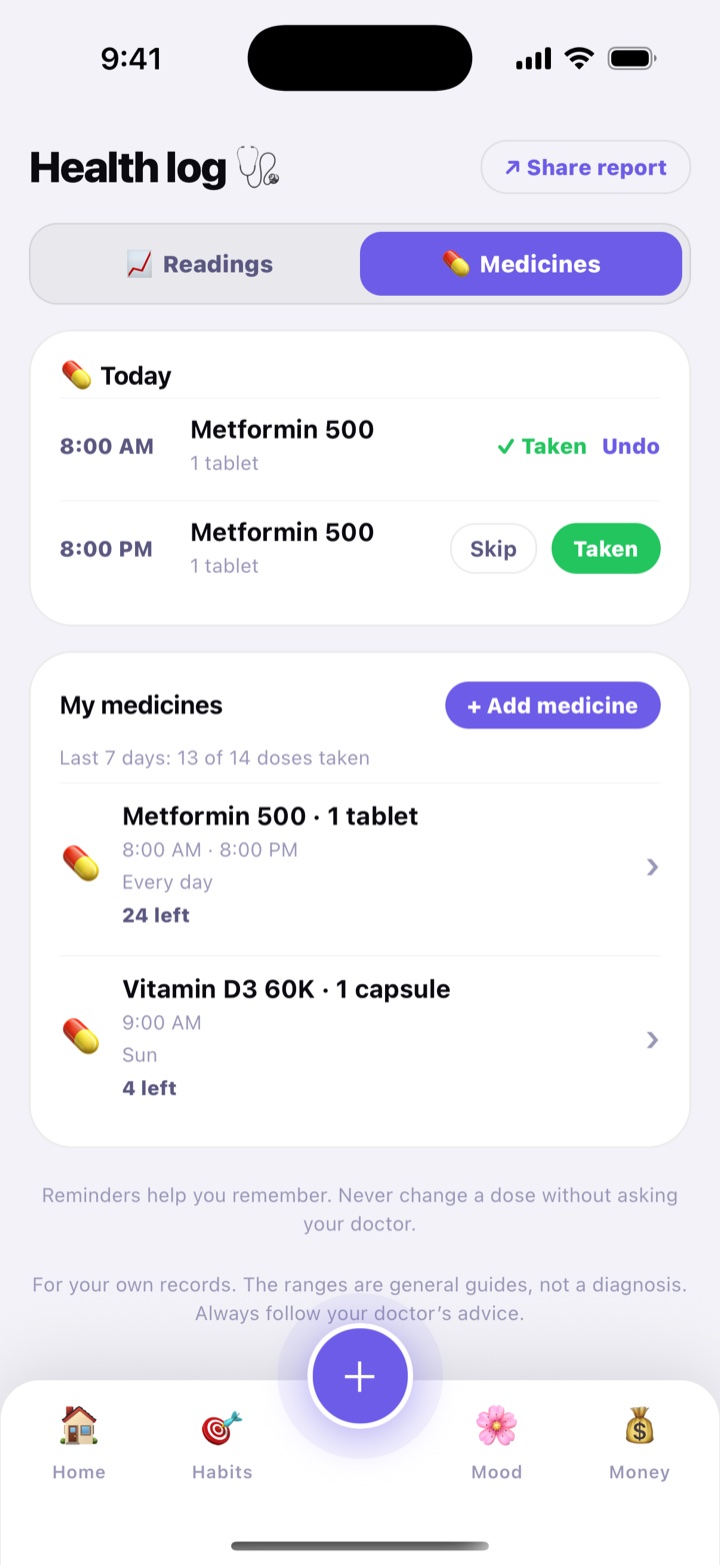
Add each medicine with its dose and times, up to 6 a day, every day or on chosen weekdays, with an end date for a short course. At each time you get a reminder, and you tap Taken right in the notification.

Enter how many tablets you have, and Habitly counts down with every dose and warns you when about 5 days are left. A line like “Last 7 days: 13 of 14 doses taken” shows how regular you have been.

How to use

  1. Open More › Health › 💊 Medicines and tap + Add medicine.
  2. Enter the Medicine name (like Metformin 500), the Dose (1 tablet), the Times (tap + Add a time for more) and the Days.
  3. If you like, add Tablets left and when the Course ends. Keep 🔔 Remind me at each time on and tap Save.
  4. Tap Taken in the reminder, or on Today’s medicines on Home.

Reminders help you remember. Never change a dose without asking your doctor.

In daily life

Amma takes Metformin 500 after breakfast and after dinner. Her son set it up on her phone. She taps Taken twice a day, and Habitly tells her when the strip is nearly over, so she can refill in time.

Medicines tab: today's doses with Taken and Skip buttons, the medicine list, and how many doses were taken in the last 7 days.
Today’s doses and the last 7 days

Women’s health

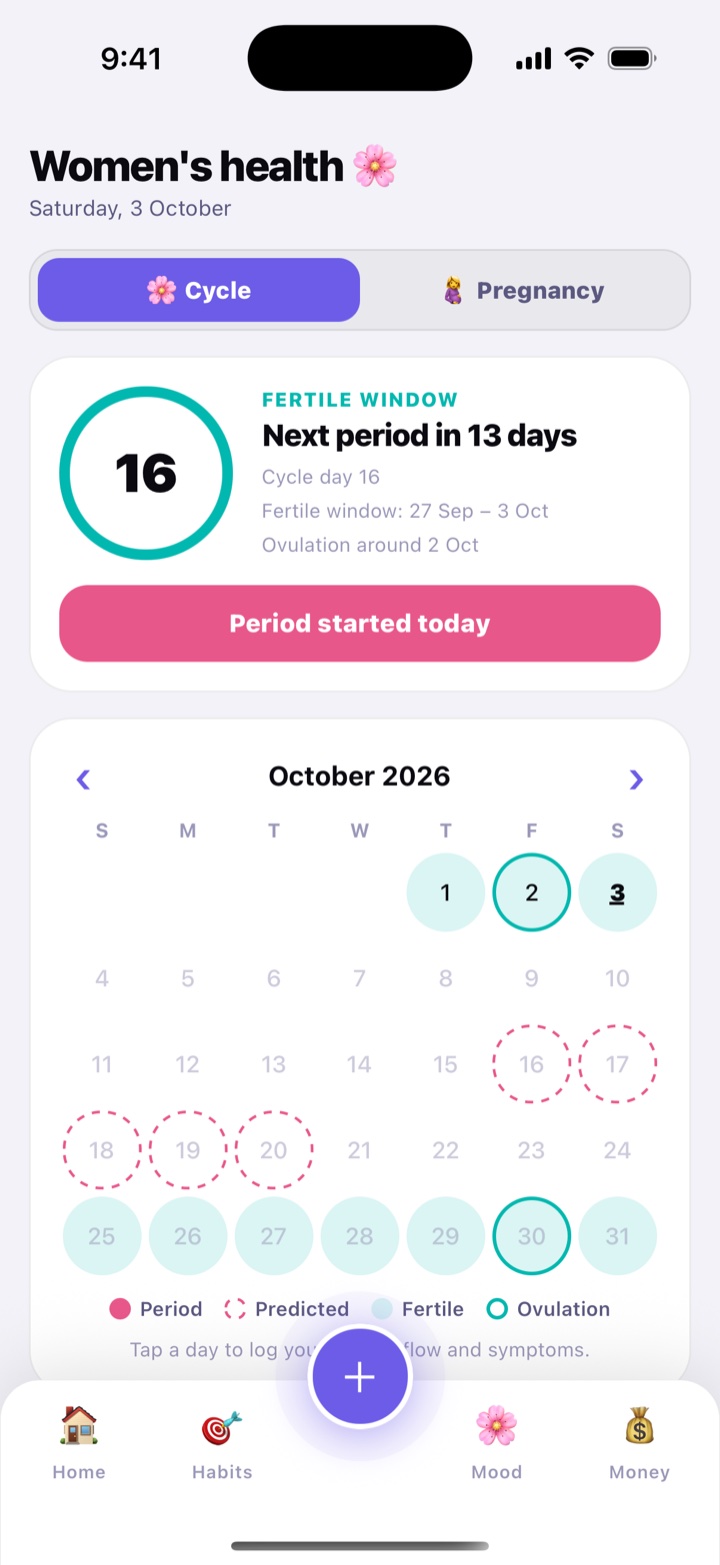
Turn it on in My features and a cycle and pregnancy tracker appears. Log your period in one tap, and Habitly predicts your next period, fertile window and ovulation from your own history. Tap any day to note flow and symptoms such as cramps, headache or tiredness, and get a reminder 2 days before your period.

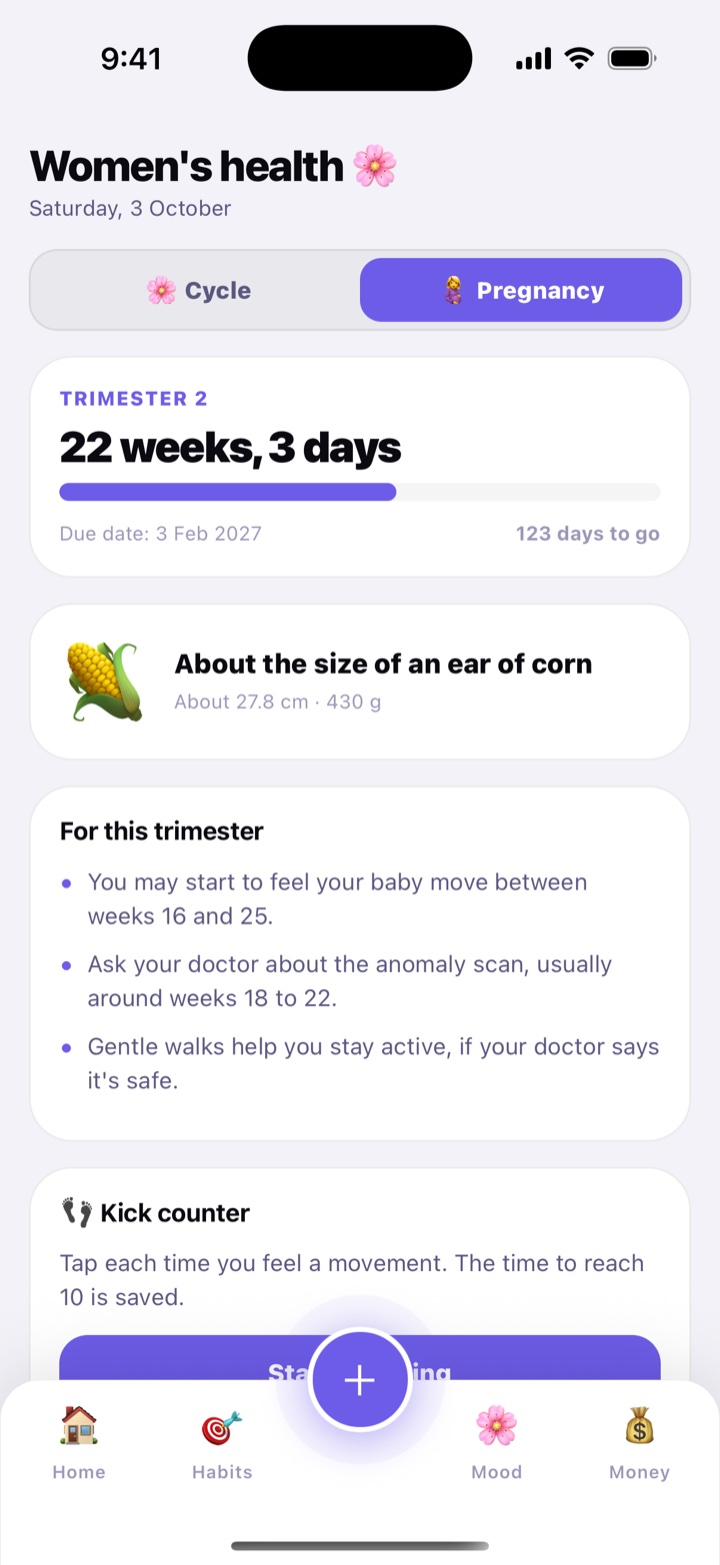
In Pregnancy, enter your last period or the due date your doctor gave you. You see how many weeks along you are, the trimester, the days to go, and your baby’s size each week next to familiar foods: a mango at 19 weeks, a brinjal at 28, a coconut at 31. There are tips for each trimester, a kick counter and a contraction timer.

Daily reminders for the pill, folic acid, iron tablets or prenatal vitamins come at the time you choose.

How to use

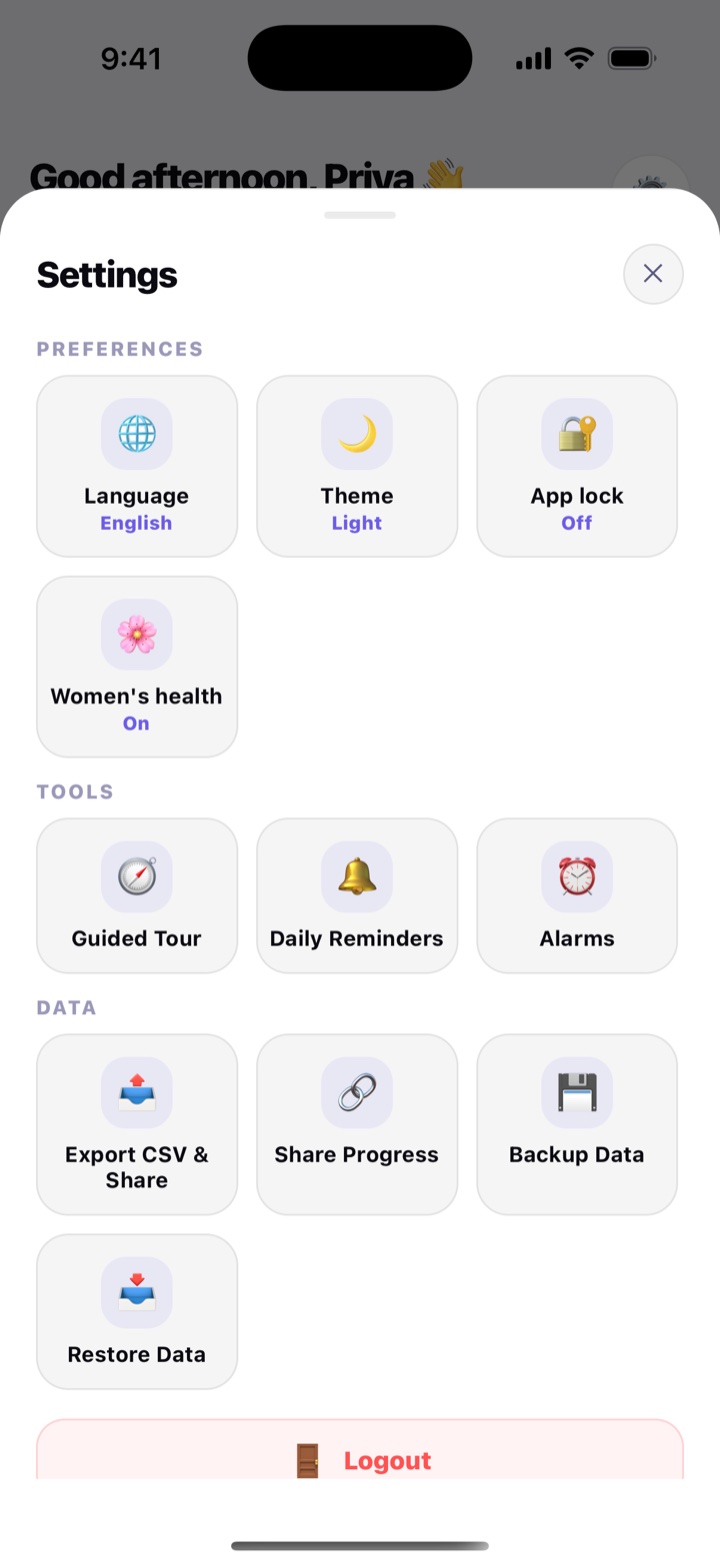
  1. On Home, tap ⚙️ › My features and switch on Cycle (women’s health).
  2. In 🌸 Cycle, tap Period started today, and Period ended today when it ends. Tap a day on the calendar to add flow and symptoms.
  3. Switch on Remind me 2 days before my period.
  4. Expecting? Tap 🤰 Pregnancy, choose Last period or Due date, and tap Start tracking.

Predictions are estimates from your logs. They are not for birth control or medical advice.

In daily life

In her eighth month, Lakshmi taps Start counting each evening and taps once for every kick. Habitly saves how long it took to reach 10, and the screen reminds her to call the doctor if the baby moves less than usual.

Cycle tracker: days to the next period, the fertile window, and a calendar marking period and predicted days.
Cycle: next period and fertile window
Pregnancy tracker: weeks along, trimester, due date and the baby's size this week.
Pregnancy, week by week

Women’s health private mode

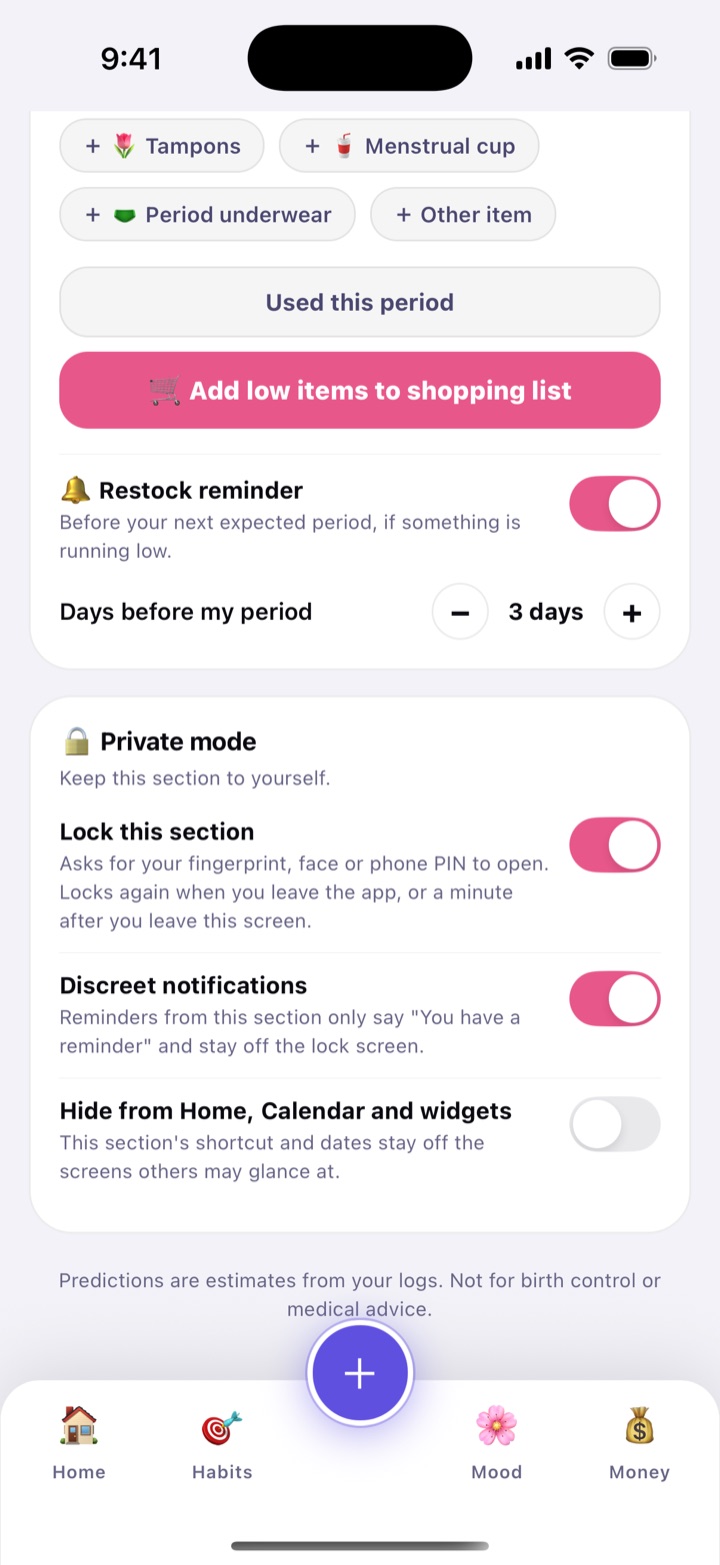
Keep your cycle section to yourself, even on a phone others pick up. Private mode has three switches, and you choose which to use.

The three switches

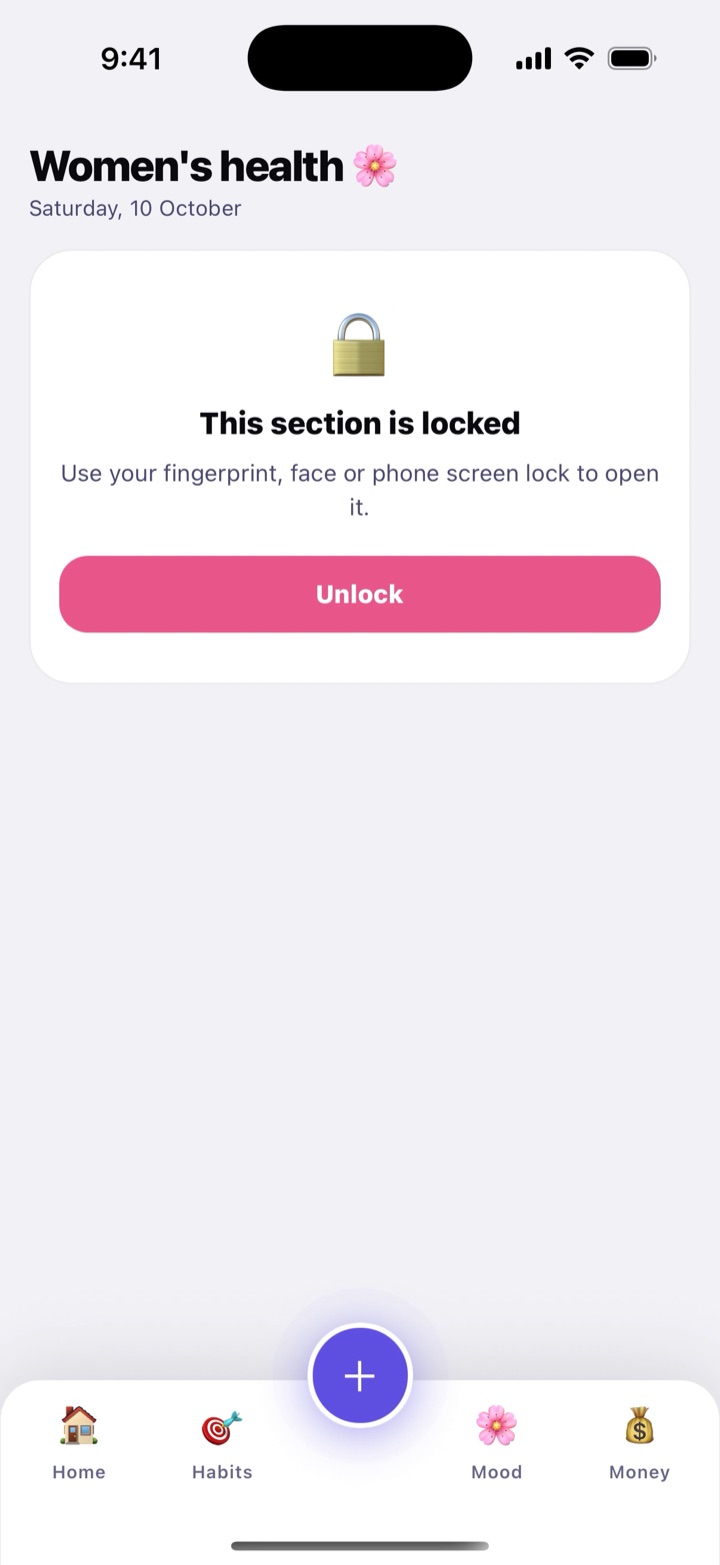
  • Lock this section asks for your fingerprint, face or phone PIN to open it. It locks again when you leave the app, or a minute after you leave the screen.
  • Discreet notifications make reminders from this section say only “You have a reminder”, and keep them off the lock screen.
  • Hide from Home, Calendar and widgets keeps the section’s shortcut and dates off the screens others may glance at.

How to use

  1. Open Cycle from More and scroll down to 🔒 Private mode.
  2. Switch on any of the three. For the lock, your phone needs a fingerprint, face or screen lock set up first.
  3. My features shows a line under Cycle telling you which parts are on.

If the phone loses its screen lock, the section can’t stay locked, and Habitly offers to open it and turn the lock off.

In daily life

Nisha shares a tablet with her teenage sister. With the lock and “Hide from Home” on, nothing about her cycle shows up unless she unlocks that one section.

The Private mode card at the bottom of the cycle screen with three switches: Lock this section, Discreet notifications and Hide from Home, Calendar and widgets.
Private mode: lock, discreet reminders, hidden dates
The Women's health screen locked: “This section is locked”, the message “Couldn't unlock. Try again.” and an Unlock button.
A locked section asks you to unlock it

Period supplies

Keep count of the pads, tampons, liners or pain-relief tablets you have at home, and get a reminder to restock before your next period, not in the middle of it.

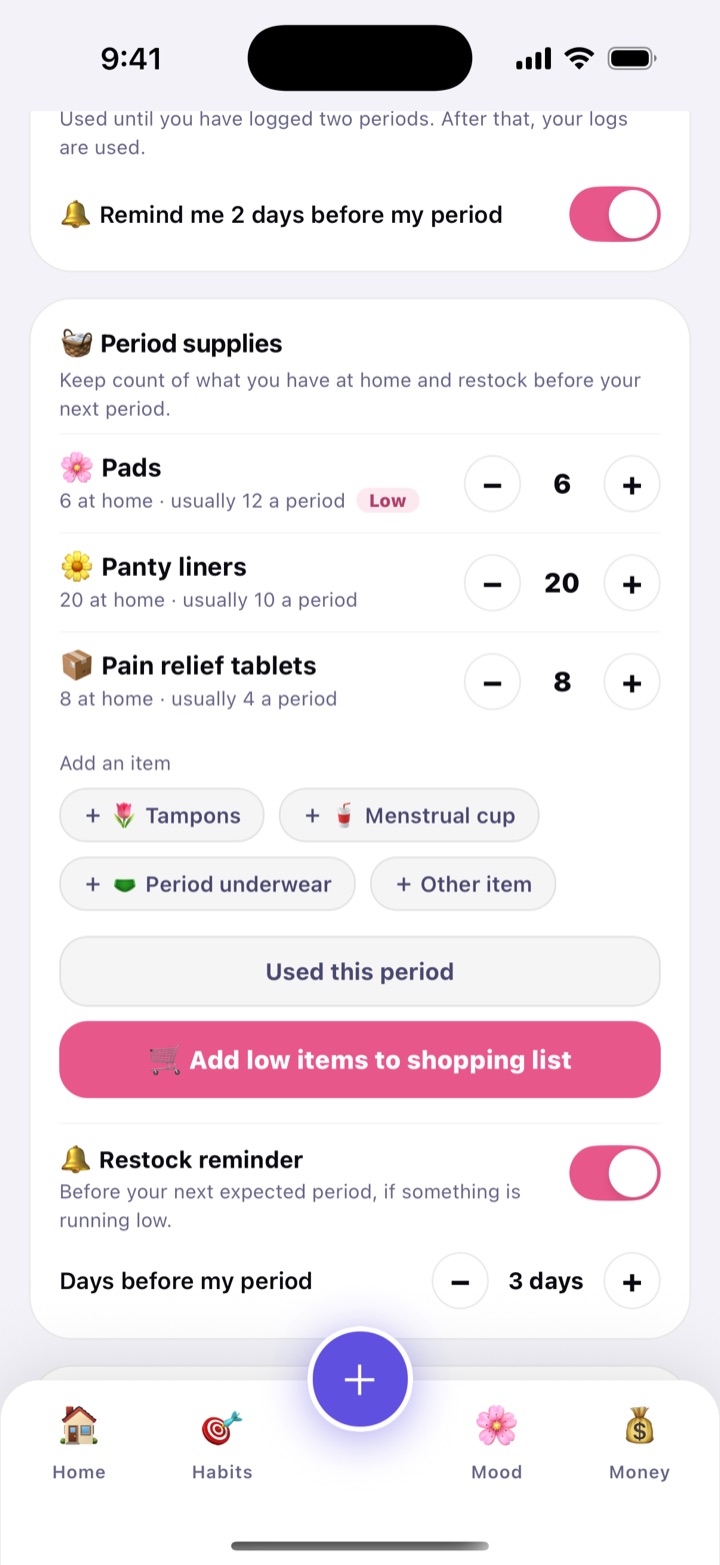
Add what you use, set how many you have and how many you usually use in a period, and tap − each time you use one. When an item drops to the level you chose, it is marked Low. After a period you can update every count in one tap from the usual use, and low items go onto a shopping list.

How to use

  1. In Cycle, find Period supplies. Under Add an item, tap + Tampons, + Menstrual cup, + Period underwear or + Other item for your own.
  2. Tap an item to set Usual use per period and Low when at or below. Use − and + to keep the count right, or tap Used this period after a period.
  3. Switch on Restock reminder and choose how many days before your period to be reminded.
  4. Tap Add low items to shopping list to pick a list, or Share as text.

If Shopping is switched off in My features, you can still share the list as text.

In daily life

Three days before her predicted period, Shreya gets “Time to restock: Pads”. She adds it to the Monthly groceries list and picks it up on her way home.

Period supplies card: pads, liners and pain-relief tablets with the number at home, the usual use per period and a Low marker on one item, plus the restock reminder.
What you have at home, and what is low
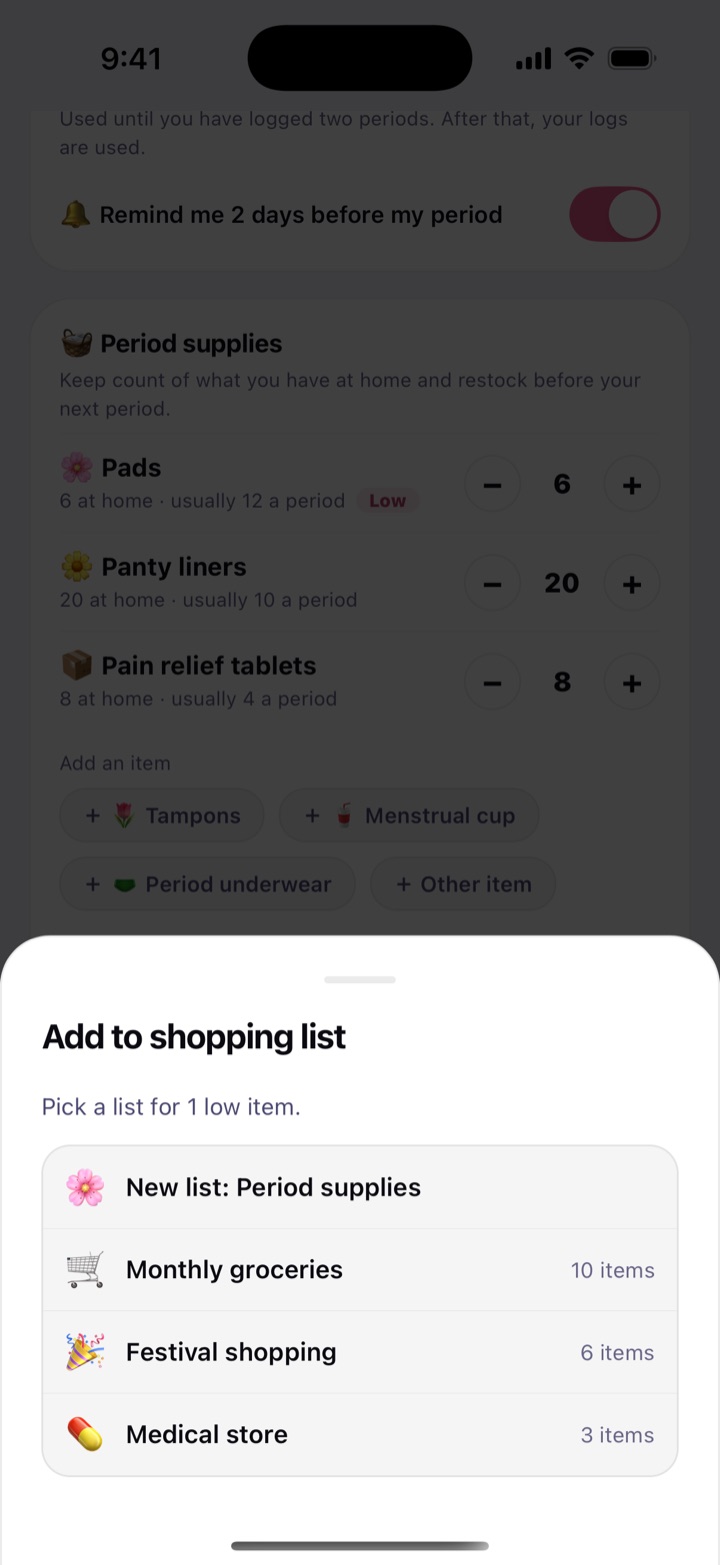
Add to shopping list sheet listing the shopping lists to pick from, with the number of low period-supplies items to add.
Low items go onto a shopping list

Wellness tools

Simple tools for the rest of your day. Water, sleep, fitness and goals sit behind the + button and in the More menu; alarms and reminders are in Settings.

In this part: Water · Sleep · Fitness · Goals · Alarms and reminders

Where to find everything

The bottom bar starts with Home, Habits, Mood and Money, and you choose what sits on it in My features. Everything else is in the More menu, which groups the tools, and behind the round + button.

How to use

  1. On Home, find Explore more and tap See all → to open More. At the top are Receive, for lists a family member shares with you, and Customise.
  2. Tap the round + in the middle of the bottom bar for Fitness, Sleep, Water, Diary and Goals. Diary is here, not in More.
  3. To change the bottom bar, or hide what you do not use, tap ⚙️ › My features.
  4. Cycle (women’s health) joins the menu once you switch it on in My features.

What is in More

  • Money & home: Bills, Lend, Split, Shopping, Savings, Subscriptions, Loans, Daily help, Vehicle, Documents and Report. See Money.
  • Plan your day: Calendar, Tasks, Focus, Study, Birthdays, Review, Challenges and Goals. See Plan your day.
  • Home & family: Home care, Pets and Kids. See Home & family.
  • Wellbeing: Gym and Cycle, among others. See Gym.
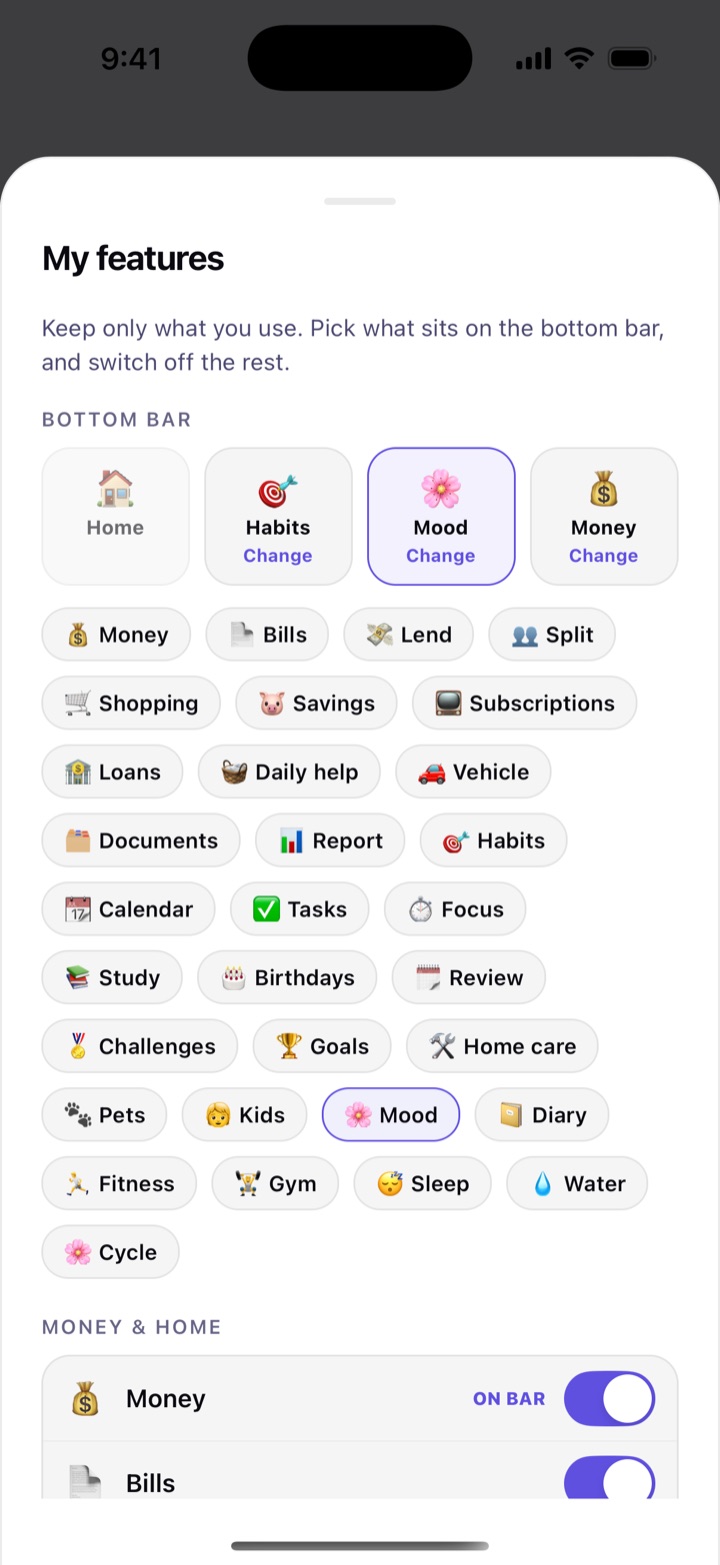
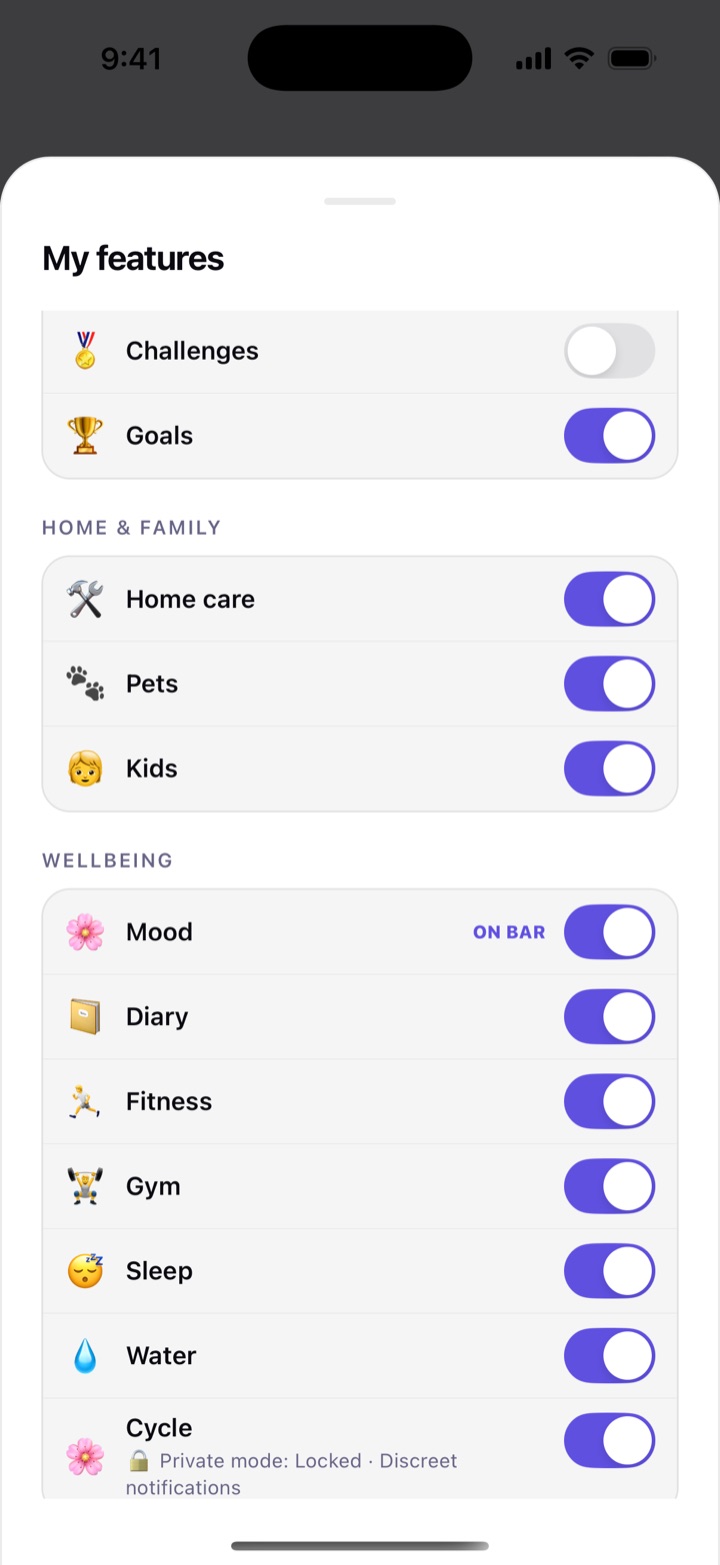
The My features sheet: the Bottom bar with Home fixed and three slots (Habits, Mood and Money), each with a Change link, and a chip for every feature.
The bottom bar is yours to choose
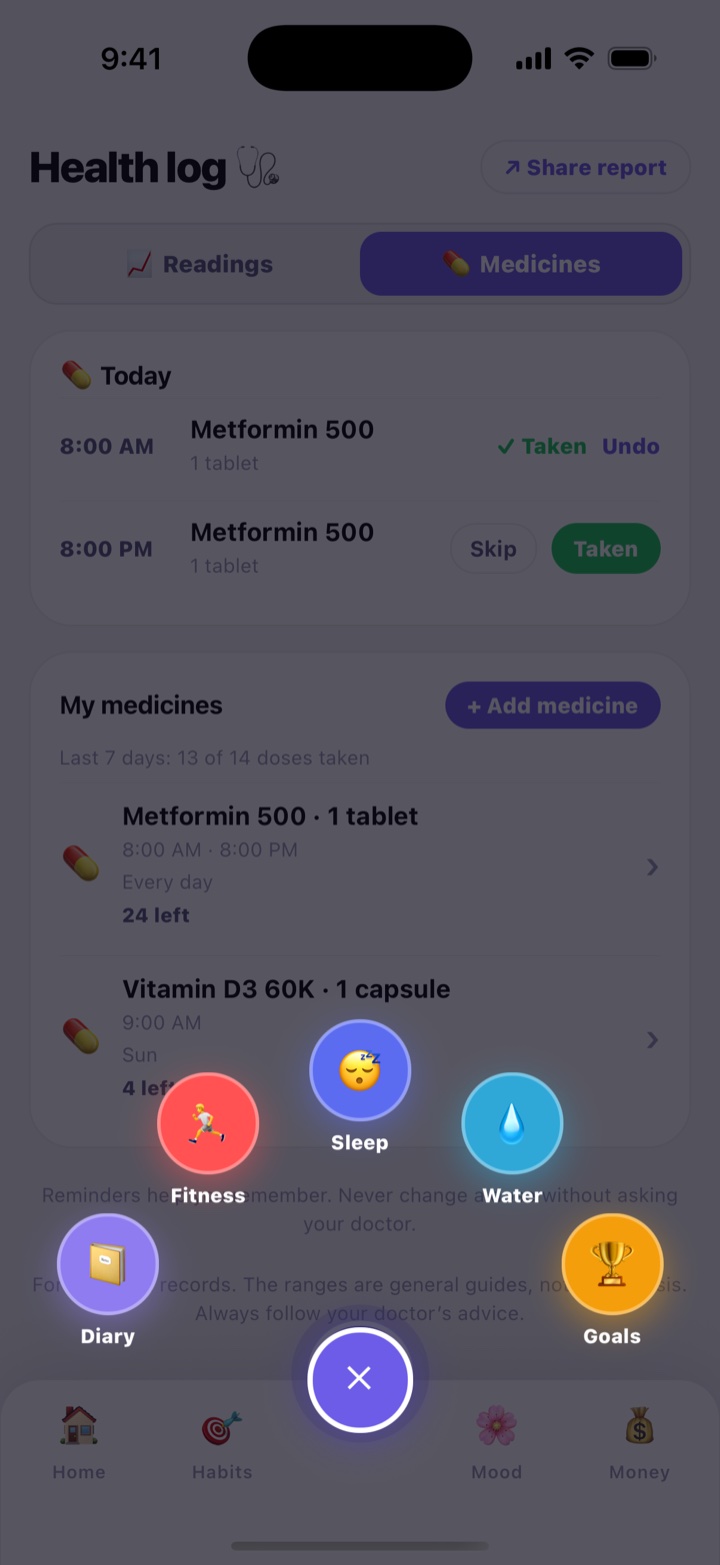
The round plus button opened into a fan of shortcuts: Diary, Fitness, Sleep, Water and Goals.
The + button’s shortcuts
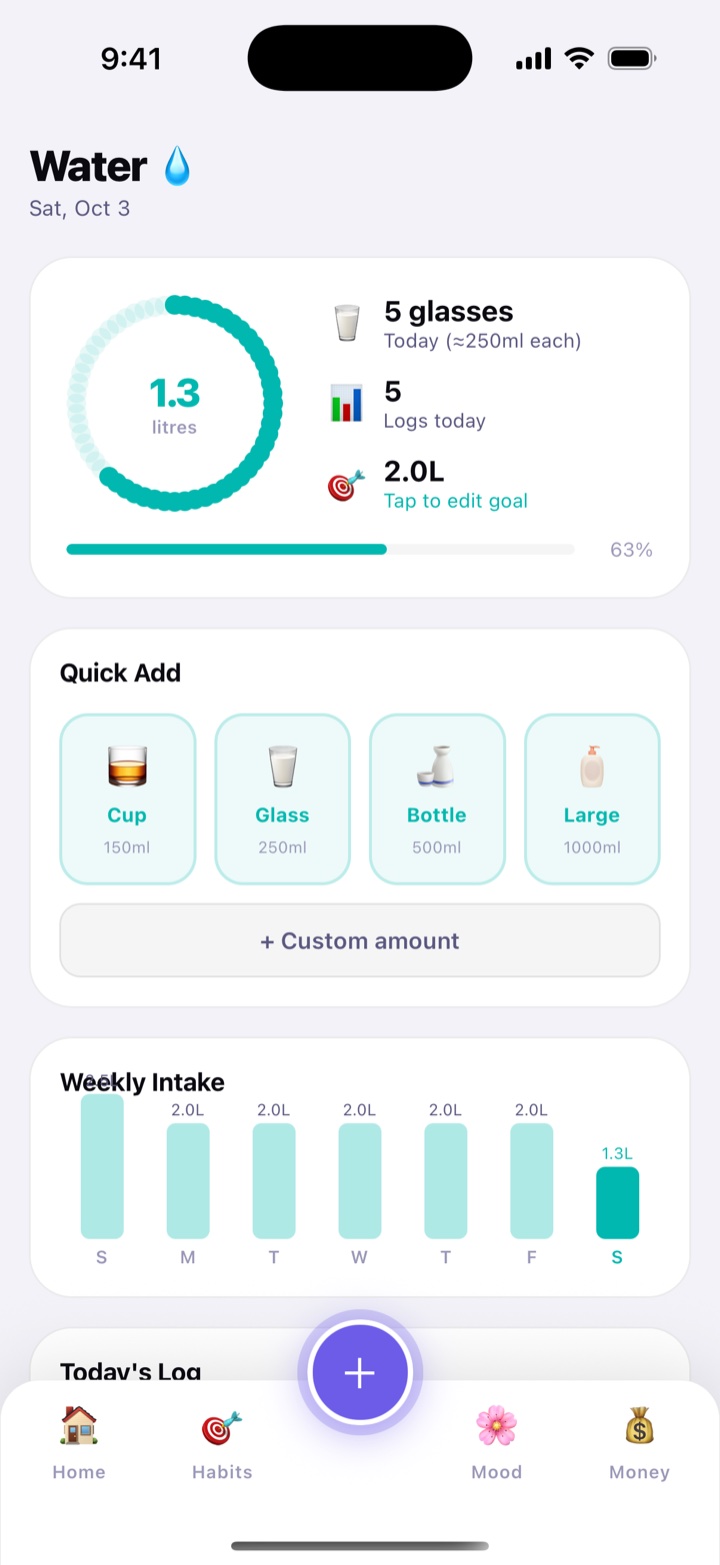
Water screen: a progress ring toward the daily goal and quick-add buttons for cup, glass, bottle and large.

Water

Set a daily goal (2 litres to start) and tap Cup, Glass, Bottle or Large each time you drink, or type an exact amount. Reminders can come every 1 to 4 hours between the hours you pick.

How to use

  1. Open Water and tap Glass (250 ml) after each glass.
  2. Tap the goal to change it.
  3. For reminders: ⚙️ › Daily Reminders › Hydration.

In daily life

An office worker in an air-conditioned building gets a nudge every 2 hours and finally drinks 2 litres a day.

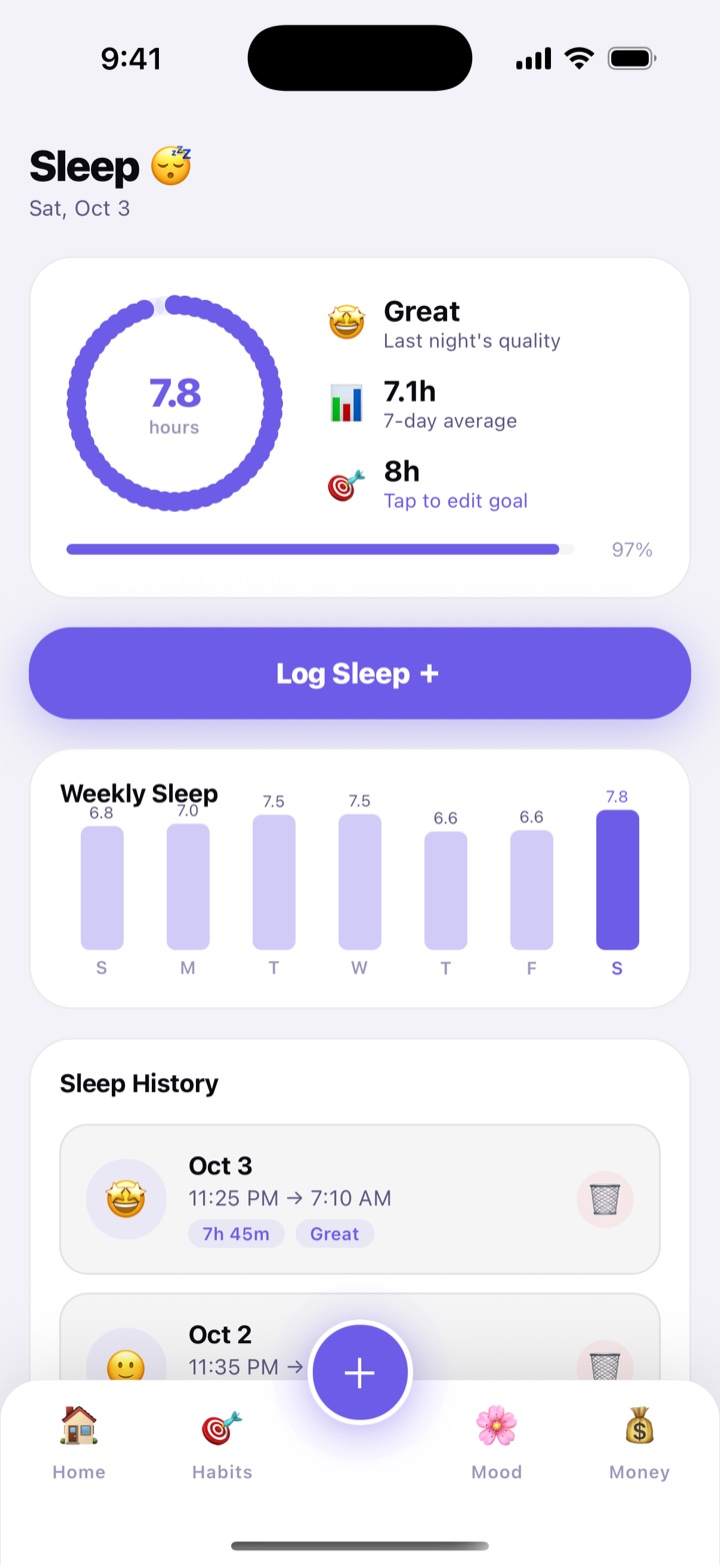
Sleep screen: last night's sleep against the goal, the Log Sleep button and the weekly chart.

Sleep

Log when you went to bed and when you woke up, and how the sleep felt, from Poor to Great. The week’s chart shows your nights against your goal (8 hours to start).

How to use

  1. Tap Log Sleep +.
  2. Set your bedtime and wake time, and pick a face.
  3. Tap Save Sleep.

In daily life

In exam season, Arjun sees his nights drop to 5 hours and moves his bedtime back to 11.

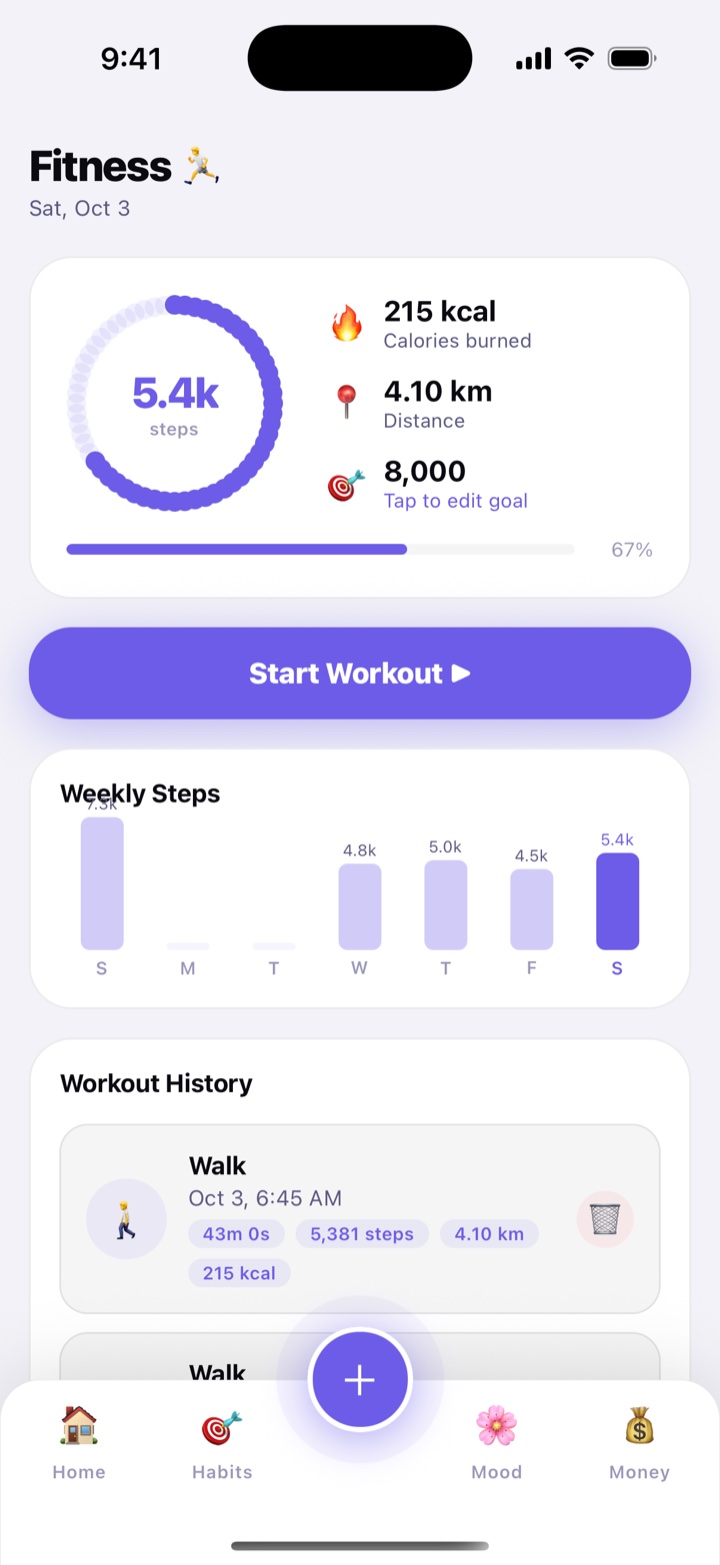
Fitness screen: today's steps toward the goal, calories and distance, and the Start Workout button.

Fitness

Start a walk or a run and Habitly uses GPS to measure time and distance, then estimates steps and calories. It asks for location permission only when you start a workout.

How to use

  1. Open Fitness and tap Start Workout ▶.
  2. Choose Walk or Run, and tap Stop Workout ⏹ when you finish.
  3. Tap the goal to set your daily steps (8,000 to start).

In daily life

After moving to a desk job, Farhan walks after dinner and watches his Weekly Steps chart climb.

Goals screen: goals with progress bars toward their targets.

Goals

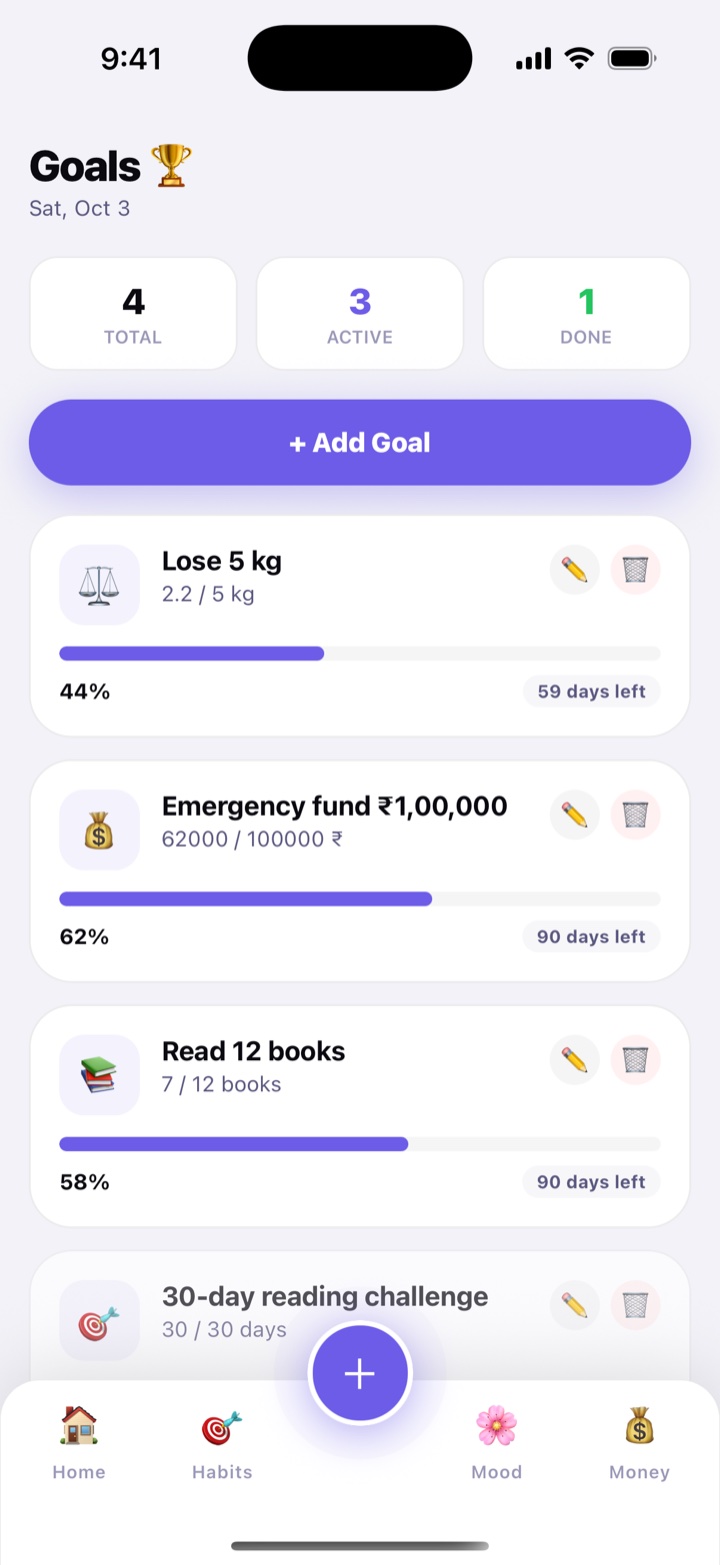
Any target with a number: ₹50,000 for a family trip, 5 kg, 12 books this year. Add a unit and a deadline, then update your progress as you go.

How to use

  1. Tap + Add Goal.
  2. Fill in Title, Target, Unit and Deadline, and tap Save Goal.
  3. Tap a goal to update your progress.

In daily life

A couple saving for a Goa trip adds ₹50,000 by December and updates it every payday.

Alarms and reminders

Alarms ring full screen with a label, once or on the days you choose. Daily Reminders cover water, gym days, a daily nudge to log your habits, and reminders you write yourself.

How to use

  1. On Home, tap ⚙️ › Alarms › + Add Alarm. Give it a label like “Wake up”, pick the days and tap Save Alarm.
  2. For reminders, tap ⚙️ › Daily Reminders. Switch on Hydration, Gym or Daily Habits and set the times.
  3. Tap + Add Custom Reminder for anything else, like watering the tulsi at 7 AM.

In daily life

A mother sets a 6 AM alarm for school days and a daily 8 PM reminder to pack the next day’s school bag.

Habitly7:00 AM

Habitly — Gym Time 🏋️

🏋️ Time to hit the gym! You've got this.

Habitly7:00 AM

🌿 Water the tulsi

Before the sun gets hot

Habitly9:00 PM

Habitly — Check Your Habits 🎯

Don't forget to log today's habits. Stay consistent!

Gym

For anyone who lifts, runs on the treadmill or just shows up. Log your sets, see your records, keep track of your membership and what each visit really costs, and note your body numbers, all on your phone.

In this part: Workouts and routines · Records and progress · Membership and attendance · Body, protein and water

Workouts and routines

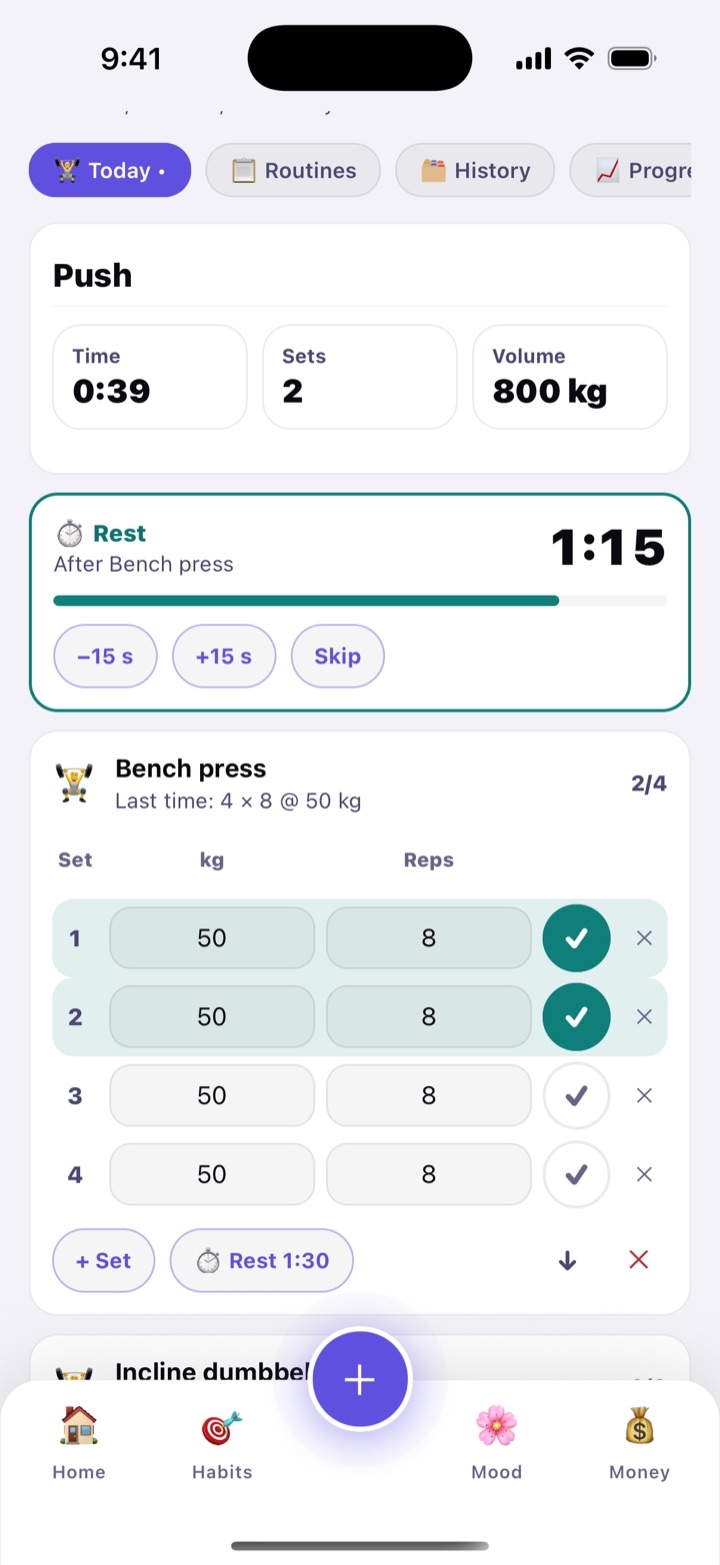
Start a workout, add exercises from a list of more than 100 (bench press, squat, lat pulldown, treadmill, plank and many more), and tick each set as you finish it. Habitly shows what you did last time, so you know what to beat today.

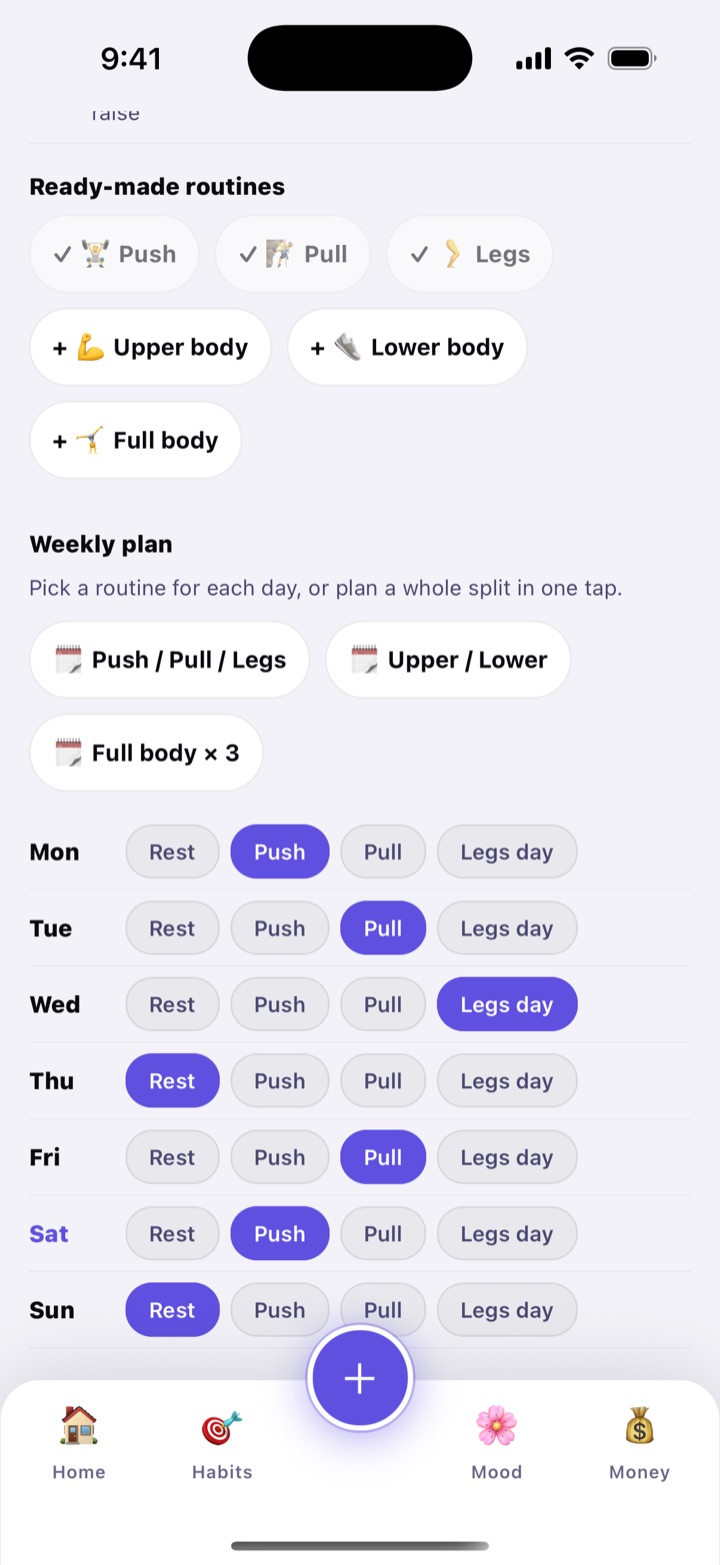
Make a routine once, like “Legs day”, and start it in one tap. Or add a ready-made Push, Pull, Legs, Upper body, Lower body or Full body routine. Then give each weekday a routine in the Weekly plan, or plan a whole split (Push / Pull / Legs, Upper / Lower or Full body × 3) in one tap. On a planned day, Home shows “Today: Legs day” with a Start workout button.

After each set, a rest timer counts down and buzzes when it is time for the next one, even with the phone locked. The usual rest is 1:30, and you can change it for every exercise.

How to use

  1. Open Gym from More (under Wellbeing) and tap Routines › + New. Name it, add exercises and pick the sets and reps. Or tap a ready-made one, like + Upper body, to add it.
  2. Under Weekly plan, choose a routine for each day, or tap a split such as Push / Pull / Legs to fill the week in one tap.
  3. On Today, tap Start workout. For each set, type the kg and reps and tap ✓.
  4. Need another set or exercise? Tap + Set or + Add exercise. When you are done, tap Finish workout.

The rest timer can be switched off or set to another length under Today › Rest timer. A finished workout can be shared as a card, and it appears in History, where you can fix a number or delete it.

In daily life

Rohit has a Push, Pull, Legs split. On Tuesday his phone says “Today: Pull”. He starts it, ticks his sets between chats with a friend, and the timer buzzes when his 90 seconds are up.

Gym workout in progress: the time, sets and volume so far, an exercise with weight and reps for each set and ticks on the finished ones, and a rest timer counting down above the exercise.
A workout under way, with the rest timer
Gym Routines tab: the ready-made routines (Push, Pull and Legs already added, Upper body, Lower body and Full body to add) and the Weekly plan with split buttons and a routine chosen for each day of the week.
Routines and the weekly plan

Records and progress

Habitly remembers your best for every exercise: the heaviest set, the best estimated one-rep max, the most volume in a workout, and the most reps. When you beat one, a 🏆 banner tells you straight away.

The Progress tab shows how many workouts you did this week, your total volume, a chart of workouts per week, and a chart for any exercise you pick. Cardio and timed exercises (a plank, the treadmill) track the longest distance or time instead.

How to use

  1. Finish a few workouts. A summary appears when you tap Finish workout, with any new records.
  2. Open the Progress tab and pick an exercise under Records to see its bests and chart.
  3. Open History to look back at, edit or share any past workout.

An estimated one-rep max is a calculation from your weight and reps. It is a way to compare your own workouts, not a promise of what you can lift.

In daily life

After six weeks, Meera sees her squat chart climbing and a 🏆 for her heaviest set. She shares the workout card with her cousin, who joins the same gym.

Gym Progress tab: workouts and volume this week, a bar chart of workouts per week and the records list with the heaviest set and best estimated one-rep max for an exercise.
This week, workouts per week and your records

Membership and attendance

Add your gym membership once (the gym, the plan, the fee and the dates) and Habitly reminds you before it ends. When you renew, tap Renewed and the new dates follow on from the old ones. If you like, the fee is added to Money as a Health expense.

Habitly also works out what each visit costs: this month’s fee share divided by the days you went, and the same for the whole membership. Go often and the number drops, which is the best reason to go.

Bought personal-trainer sessions? Add the package (trainer, sessions, price, last day to use them) and tap Session done at each visit. It shows sessions left and what each one cost you, and reminds you before the package ends.

How to use

  1. Open Gym › Membership, tap + New under Memberships, and fill in the gym, plan, start date and fee.
  2. Switch on Remind me before it ends and pick the days.
  3. Went to the gym without logging a workout? Tap I went today in Attendance. You can do the same from Today and from the Gym card on Home (I’m at the gym).
  4. Set your Weekly goal (the days a week you aim for). The streak counts weeks, Monday to Sunday, in which you met it.

A day counts as a gym day when you log a workout or check in. The calendar in Attendance shows the days you went, and gym visits and membership end dates also appear in the Calendar.

In daily life

Sandeep pays ₹6,000 for three months and goes 30 times, so each visit costs ₹200. A week before it ends he gets a reminder and renews, with his trainer package of 12 sessions ticking down beside it.

Gym Membership tab, top: the Attendance card with a check-in button, this week's visits against the weekly goal, a week streak and a month calendar of the days you went.
Attendance and your weekly goal
Gym Membership tab, lower part: a membership with its end date, Renewed button and cost per visit this month and for the whole membership, and a trainer package with sessions used and left.
Renewals, cost per visit and a trainer package
Home screen Gym card: today's planned routine with a Start workout button, this week's gym days against the goal and an I'm at the gym button.
On Home: today’s routine and a one-tap check-in

Body, protein and water

Note your weight, waist, chest, hips, arms and thighs now and then and see how each one changes since the first time and since last time. They are only your own numbers; Habitly doesn’t judge them or tell you what they should be.

Protein and Water sit together on one tab. Set a daily protein target (and a different one for gym days, if you like), then tap 5, 10, 20 or 30 grams, or save your own foods, such as a boiled egg, a bowl of dal or a scoop of whey, to add with one tap. Your Water goal gets 500 ml extra on gym days, and you can change that amount.

How to use

  1. Open Gym › Body and tap + Add measurements. Fill in only what you measured and tap Save.
  2. Open Protein & water and tap Edit on the Protein card to set your numbers.
  3. Add protein with the quick buttons or Your foods. Log water right there, against the gym-day goal.

A gym day is a day with a workout logged or planned, or a check-in. The extra water counts in the Water screen too.

In daily life

Imran sets 90 grams of protein for gym days. After lunch he taps his saved “Dal bowl” and sees 62 of 90 grams, then keeps going with a glass of milk in the evening.

Gym Body tab: weight and arms with the latest value and the change since the first entry and since last time, and a list of past measurement entries.
Measurements and how they change
Gym Protein and water tab: a gym day with 62 of 90 grams of protein eaten, the +5, +10, +20 and +30 g buttons, a grams box and the saved foods.
Protein on a gym day
The water part of the Protein and water tab: 1.3 L of a 2.5 L goal (2 L plus 500 ml for a gym day), the extra-on-gym-days setting and a Log 250 ml button.
Water, with the gym-day extra

Make it yours

See every date in one place, keep only the features you use, and reach the things you do most from your home screen, your app icon or Siri. Share a list with family without any internet.

In this part: Calendar · My features · Home-screen widgets · Quick-add shortcuts · Share with family

Calendar

One calendar for everything that has a date: tasks, bills, birthdays and special days, money you lent or borrowed, reminders, goals, habits, mood, diary entries, spending, gym visits, and the dates from Vehicle, Home care, Pets and Kids. Coloured dots under each day show what it holds, and tapping a day lists it all.

Tap an item to open it where it lives. Switch between a month and a single week, swipe to move on, and use the coloured chips to show or hide a kind of event. The + adds a task, a reminder or a special day on the day you are looking at.

How to use

  1. On Home, find Explore more and tap Calendar. It is also in More under Plan your day.
  2. Tap a day to see its list below. Tap Week for a closer look and Today to jump back.
  3. Under Show on the calendar, tap a chip to hide or show that kind of event.
  4. Tap + to add a Task, Reminder or Special day on that date.

Features you switch off in My features disappear from the calendar too.

In daily life

Before the weekend, Pooja looks at Saturday: a cousin’s birthday, the electricity bill due, a task to book train tickets and a gym visit. She adds a reminder to buy a gift and her day is planned.

Calendar for October 2026 in month view: coloured dots under busy days, a Month and Week switch, a Today button and the Show on the calendar chips (Tasks, Bills, Special days, Lend & borrow, Reminders and more) to show or hide each kind.
A month of dots, and the chips to filter them
The list for Saturday, 10 October, seven items: tasks, how many habits are done, the day's mood, spending and a finished task, with a plus button to add something on that day.
Tap a day to see everything on it
The Add on this day sheet over the calendar, offering Task, Reminder and Special day.
Add a task, reminder or special day

My features

Habitly does a lot, and you may only want some of it. In My features you switch each feature on or off, and choose the three that sit on the bottom bar next to Home.

A feature you switch off disappears from Home, the menus and the calendar, and its reminders stop. Your data is kept, so switching it back on brings everything back. New users see this screen once, when they first open Habitly, so they can start with just what they need.

How to use

  1. On Home, tap ⚙️ › My features. You can also tap ⚙️ Customise in the More menu.
  2. Under Bottom bar, tap Change under a slot, then tap the feature you want there. Home always stays first.
  3. Use the switches to turn features off or on. Women’s health is the switch called Cycle, under Wellbeing.

Features that aren’t on the bottom bar are in the More menu and behind the + button, so nothing is far away.

In daily life

Suresh only wants habits, bills and the calendar. He switches off the rest, puts Bills and Calendar on his bottom bar, and Habitly feels like a small, simple app.

My features sheet: the Bottom bar with Home fixed and three slots (Habits, Mood and Money), each with a Change link, then a chip for every feature.
Choose what sits on the bottom bar
My features sheet scrolled down: the Home & family and Wellbeing groups, each feature with an on or off switch, Challenges switched off, and Cycle showing a line about its private mode.
Switch features on or off

Home-screen widgets

Put what matters on your home screen and see it without opening the app. Habitly has five widgets, and on iPhone each one comes in a small and a medium size.

What each one shows

  • Habitly Today shows today’s habits, water and spending at a glance.
  • Today’s tasks lists your overdue and today’s tasks, the overdue ones in red, with “+2 more” if there are more.
  • Water shows a ring and today’s litres against your goal.
  • Next bill shows the bill that is due next, its amount and when it is due.
  • Exam countdown shows the days left to your next exam and how many of its topics you have finished.

How to use

  1. iPhone: touch and hold an empty spot on the home screen, tap +, search for Habitly, pick a widget and tap Add Widget.
  2. Android: touch and hold an empty spot, tap Widgets, find Habitly and drag one onto the screen.
  3. Tap a widget to open that part of the app: Tasks, Water, Bills or Study.

A widget keeps showing what the app last told it, and moves on to the next day by itself at midnight. If it says “Open Habitly to update”, open the app once. If you switch a feature off in My features, its widget says so instead of showing data.

In daily life

Karthik puts the Exam countdown and Today’s tasks next to each other. Every time he unlocks his phone he sees “12 days left” and the three things to do today.

The widget gallery on an iPhone showing Habitly's Today's tasks widget in its small size, with a few tasks, one marked Overdue, and “+2 more”. The dots below are the other pages: five widgets, each in small and medium.
Find them under Habitly in the widget list

Quick-add shortcuts

Do the small things without hunting through the app. Touch and hold the Habitly icon for Add expense, Log water, Start focus and Add task. On an iPhone you can also ask Siri, or use the Shortcuts app.

What each one does

  • Add expense opens the new-expense screen. Through Siri or Shortcuts you can give an amount and a category, and Habitly saves it for you.
  • Log water adds one glass, using the amount you usually log (250 ml to start).
  • Start focus starts a focus session with your usual settings.
  • Add task opens a new task, or adds one for today if you gave it a title.

How to use

  1. Touch and hold the Habitly icon on your home screen and tap an action. A line at the top tells you what was saved, with Undo.
  2. iPhone: say “Hey Siri, log water in Habitly”, or open the Shortcuts app and find Habitly to build your own, like an expense shortcut with a fixed amount.
  3. Links work too. habitly://quick/expense?amount=120&category=Food opens a new expense with those filled in, ready for you to check and save. Also habitly://quick/water, /focus and /task.

Links never save anything by themselves, because any app or website could open one. They only open the right screen for you to confirm. Actions that are switched off in My features do nothing but open the app.

In daily life

Standing at a chai stall, Divya touches and holds the icon, taps Add expense, types ₹20 and is back in her conversation in ten seconds. In the evening she says “log water” to Siri while cooking.

The Habitly app icon touched and held on the iPhone home screen, with a menu: Add expense, Log water, Start focus and Add task.
Touch and hold the app icon
The Shortcuts app's Habitly folder with four actions: Add an expense in Habitly, Log water in Habitly, Start focus in Habitly and Add a task in Habitly.
The same actions in the Shortcuts app

Share with family

Copy a shopping list, a split group or a house-help log to another family member’s phone without any internet. Show a QR code on one phone and scan it with the other, or send a small file on WhatsApp, Bluetooth, Nearby Share or AirDrop.

It sends a copy of how things are right now. Nothing stays linked, so share again to send later changes. When it arrives, the other person can add it as new, or update the copy they already have.

How to use

  1. On the sender’s phone, open a shopping list, a split group or a house-help item and tap Share with family.
  2. On the other phone, tap See all → next to Explore more on Home, then Receive. (There is also a Receive from family link at the foot of the Shopping screen.)
  3. Tap Scan a QR code and point the camera at the code. Or, for a file, save it and tap Open a file.
  4. Check what arrived and tap Add. For a split group, tap which person is you.

Good to know

  • The camera is asked for only when you scan, and it looks for QR codes only. It keeps no photos.
  • Big lists that don’t fit in one code are sent as a file instead.
  • A house-help copy arrives with reminders switched off. Switch them on from Edit if you want them.

In daily life

Before a trip to the market, Latha makes the shopping list and shows the QR code to her husband across the table. His phone now has the same list, and each of them ticks things off on their own copy.

Share with family sheet showing a QR code for a shopping list, with the instruction to open More then Receive on the other phone and a button to send it as a file.
A QR code for the other phone to scan
Receive from family sheet with the options Scan a QR code and Open a file.
Receive: scan a code or open a file

Made for India

In your language, in rupees, for Indian banks and bills. Private by default, free, and it works without internet.

In this part: Four languages · Private by design · Backup and new phones · Small Indian details

Four languages

Use Habitly in English, Tamil, Hindi or Telugu. Every screen and reminder changes, including the one-tap buttons in your notifications. Switch any time from Settings.

The one-tap buttons in each language
ReminderEnglishதமிழ்हिन्दीతెలుగు
HabitDoneமுடிந்ததுहो गयाపూర్తయింది
BillPaidசெலுத்தினேன்भर दियाచెల్లించాను
MedicineTakenஎடுத்தேன்ले लीతీసుకున్నాను

How to use

  1. On Home, tap ⚙️.
  2. Tap Language and pick English, தமிழ், हिन्दी or తెలుగు.

In daily life

A son sets up Habitly in Telugu for his father, so the medicine reminder says తీసుకున్నాను instead of Taken.

Habitly Home screen in Tamil.
Home in Tamil

Private by design

There is no account and no sign-up. Habitly asks only for your name and keeps it, along with everything else, on your phone. Your habits, money, diary and documents are never uploaded or shared.

Lock the app with your fingerprint, face or phone PIN. On Android, bill, medicine and women’s health reminders also hide their text while the phone is locked. Everything works without internet: on a train, in a village with weak signal, or in airplane mode.

How to use

  1. On Home, tap ⚙️ › App lock.
  2. Confirm with your fingerprint, face or PIN. From now on, only you can open Habitly.

Everything stays on your phone. Scanning QR codes, receipts and documents happens on the phone itself, using Google’s ML Kit. Your photos and the text read from them are never sent anywhere. ML Kit does send Google anonymous usage and error diagnostics, which can’t be switched off.

In daily life

On a phone the whole family borrows, a teenager’s diary and a mother’s cycle log stay private.

Settings sheet with Language, Theme, App lock, Women's health, Daily Reminders, Alarms, Backup Data and Restore Data.
Settings: language, app lock and backup

Backup and new phones

Backup Data saves everything into one encrypted file that only Habitly can open. Keep it in Google Drive or Downloads, and Restore Data brings it all back, on this phone or a new one.

habitly-backup-2026-10-03.hbkEncrypted. Only Habitly can open it.

On Android, Habitly also backs up to your own Google account automatically on phones with a screen lock, so your data comes back when you reinstall or switch phones. For a spreadsheet of your habits, moods, expenses and budgets, use Export CSV & Share.

Document details from the vault are in your backup. Photos and PDFs of documents are not, so keep the originals.

How to use

  1. Tap ⚙️ › Backup Data and choose where to save the file.
  2. On the new phone, tap ⚙️ › Restore Data › Choose backup file, check what’s inside, and tap Restore.

In daily life

Before trading in his old phone, Kumar saves a backup to Google Drive. On the new phone his habits, bills, medicines and diary are all back.

Small Indian details

  • Bills people here actually pay. EMIs, prepaid recharges every 28 days, DTH, school fees every quarter and insurance once a year, all in rupees.
  • Indian bank statements. SBI, HDFC, ICICI, Axis, Kotak, PNB, Bank of Baroda, Canara and more, with Swiggy, Zomato, Ola, Uber, IRCTC, Amazon and Flipkart sorted into the right category.
  • Challenges for Indian routines. Exam prep before boards, Money saver, and Eat better with one home-cooked meal a day.
  • Papers and plans people here have. Aadhaar, PAN, passport, driving licence, vehicle RC and PUC, Jio, Airtel and Vi recharge cycles, and home, car and gold loans, all in rupees.
  • Familiar comparisons. Your baby’s size next to a lentil, a mango, a brinjal, a bottle gourd, a coconut and a jackfruit.
  • Free and offline. Free to download and use. Tracking, reminders and reports all work without internet.

Get started in three steps

No account and no forms. Habitly only asks for your name.

  1. Install

    Download Habitly free from Google Play on your Android phone.

  2. Set up

    Go through the welcome screens and type your name. It stays on your phone. Then choose whether to lock the app with your fingerprint.

  3. Start small

    Add one habit, one bill and, if you take any, one medicine, with reminders on. For a quick walkthrough any time, tap ⚙️ › Guided Tour. Anything you do not need can be switched off in ⚙️ › My features.

Start small, stay consistent, and let the reminders do the remembering.